# Getting Started
To install module
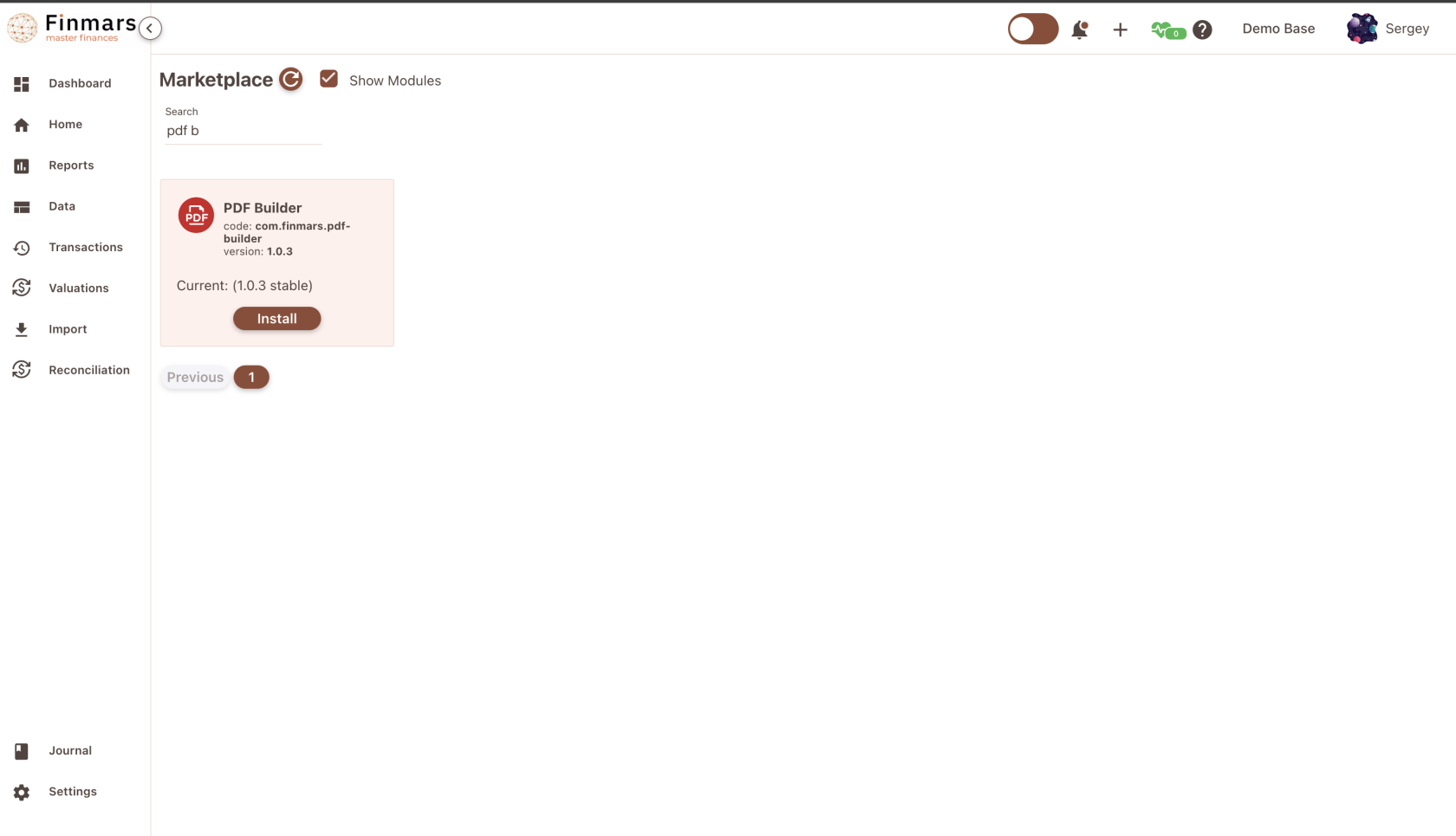
Go to Settings -> Marketplace
Type PDF Builder in search input
[](https://docs.finmars.com/uploads/images/gallery/2024-08/screenshot-2024-08-15-at-17-12-36.png)
Then press Install
Wait until installation is finished
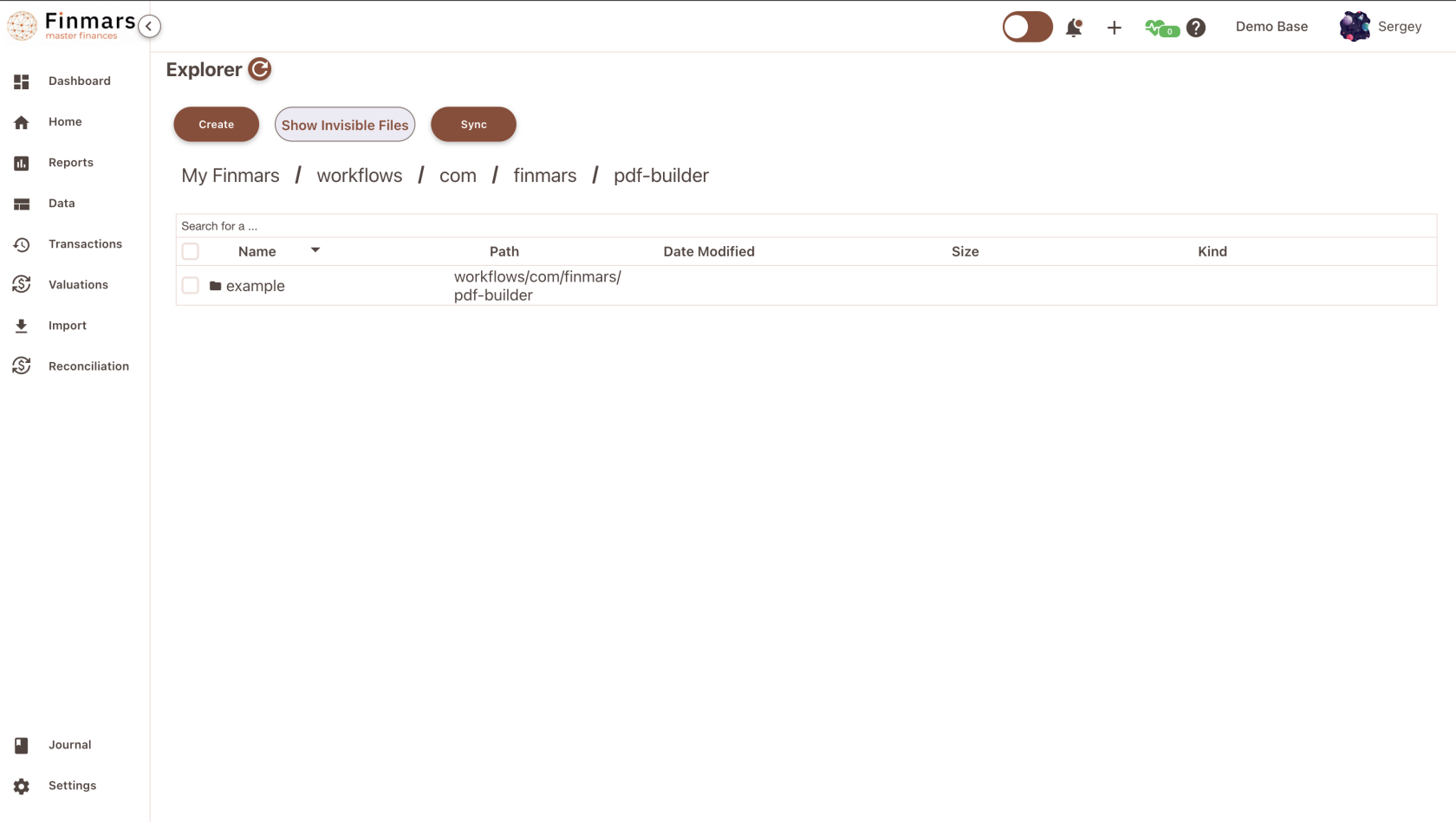
Then go to Explorer -> workflows -> com -> finmars -> pdf-builder
[](https://docs.finmars.com/uploads/images/gallery/2024-08/screenshot-2024-08-15-at-17-13-41.png)
Here you could see an Example folder, which contains all necessary files to prepare PDF Report
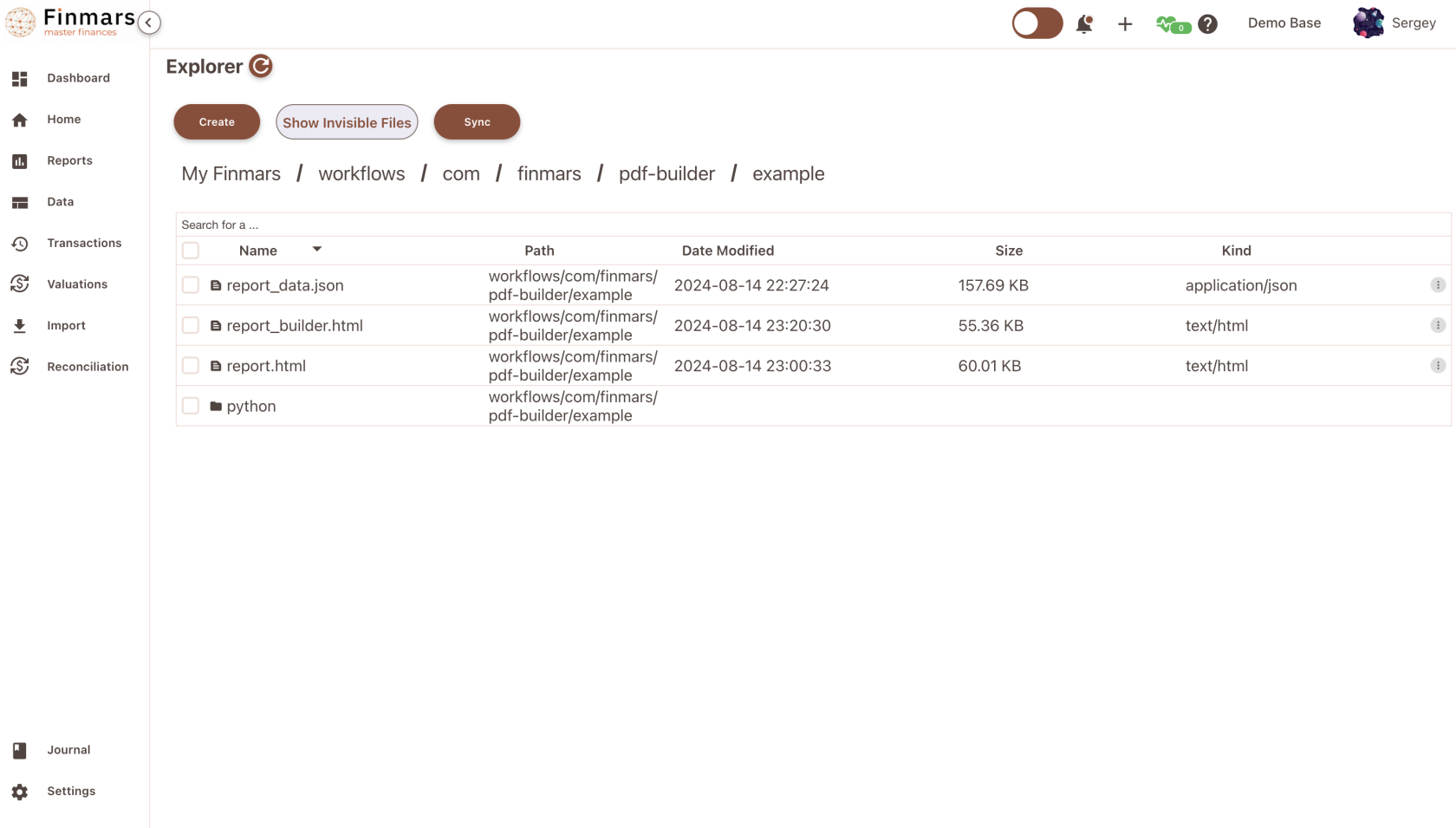
Basic Structure of module:
[](https://docs.finmars.com/uploads/images/gallery/2024-08/screenshot-2024-08-15-at-17-14-55.png)
So to create own PDF report is best to create own folder (as the way "example" folder ) and copy all files from it
So, pattern is following
**%page\_name%\_builder.html** - Actual PDF Engine when user can create own PDF Report using WYSWYG editor with Drag & Drop Functionality
**%page\_name%\_data.json** - its a meta file, you dont need to touch it, if you start from scratch, you probably even dont needed. Its result of pressing "Save" in %page\_name%\_builder.html. It contains your State - your components, html, styles and everything that needs to PDF Builder to work.
**%page\_name%.html** - Also optional page, its just result of PDF Builder, it can be outputed not only to PDF but to HTML as well
Actually to make it all clear, here is simple schema
PDF Builder -> HTML page -> PDF Services - PDF file
So pdf builder always outputs HTML page that later will be sent to PDF Printer Service (pupeteer tool) and in return user will receive PDF page as he printed it in Web Browser
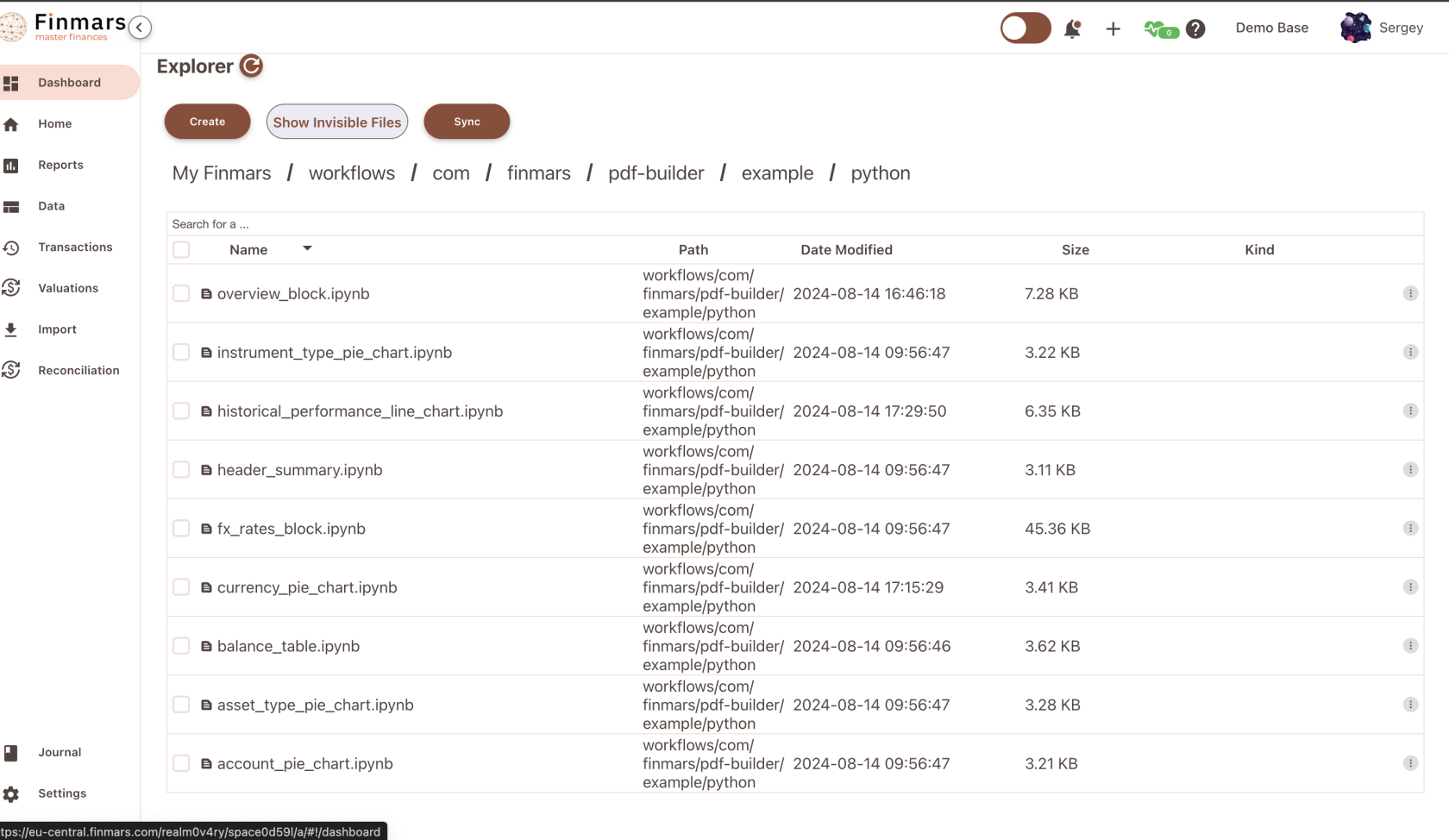
**/python** - that user content, it holds basically files of .ipynb python scripts, where **first cell** being executed and output returns to .html page
[](https://docs.finmars.com/uploads/images/gallery/2024-08/screenshot-2024-08-15-at-17-21-56.png)
So far we support two types of .ipynb scripts:
1\) Output Text Content (html, text, json, xml, etc)
2\) Output Img Content (basically for plotly charts)
Okay, lets sum it up, to create own report, here is list todo list:
1\) Create folder /workflows/com.finmars.pdf-builder/client-report (BTW you are not forced to use exact that path, you can create own modules, or if only for private use, pick any path you like)
2) Copy report\_builder.html to /workflows/com.finmars.pdf-builder/client-report/client\_report\_builder.html
3) Create folder /workflows/com.finmars.pdf-builder/client-report/python
4) Create Example python file where /workflows/com.finmars.pdf-builder/client-report/python/test.ipynb
5) Add in first cell something like print("<h1>Hello World</h1>")
Thats it, you ready to start! Now you could dive into creating own PDF Report Template
Go to [https://docs.finmars.com/books/pdf-builder/page/creating-simple-report](https://docs.finmars.com/books/pdf-builder/page/creating-simple-report)