# Creating Simple Report
You finished your installation and ready to create new PDF Report Template
So you need to open your report\_builder.html in New Tab
[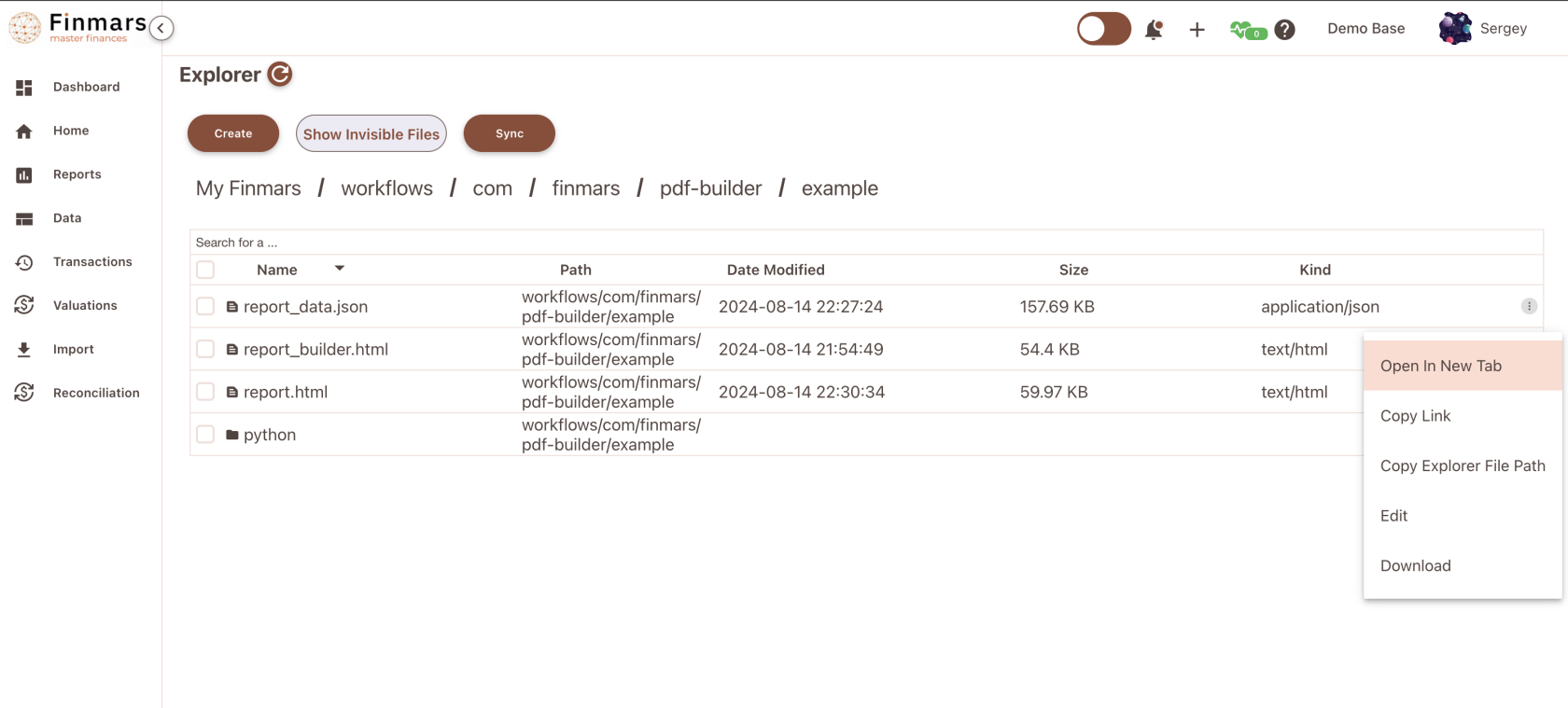](https://docs.finmars.com/uploads/images/gallery/2024-08/screenshot-2024-08-15-at-17-28-25.png)
Another thing to consider:
if you use com.finmars.pdf-builder/example\_builder.html you **must pass query parameters** to run it
Example: ?report\_date=2023-09-11&portfolio=Bonds%20Portfolio
So in this example, we must declare **Portfolio User Code** and **Report Date** to make it run
[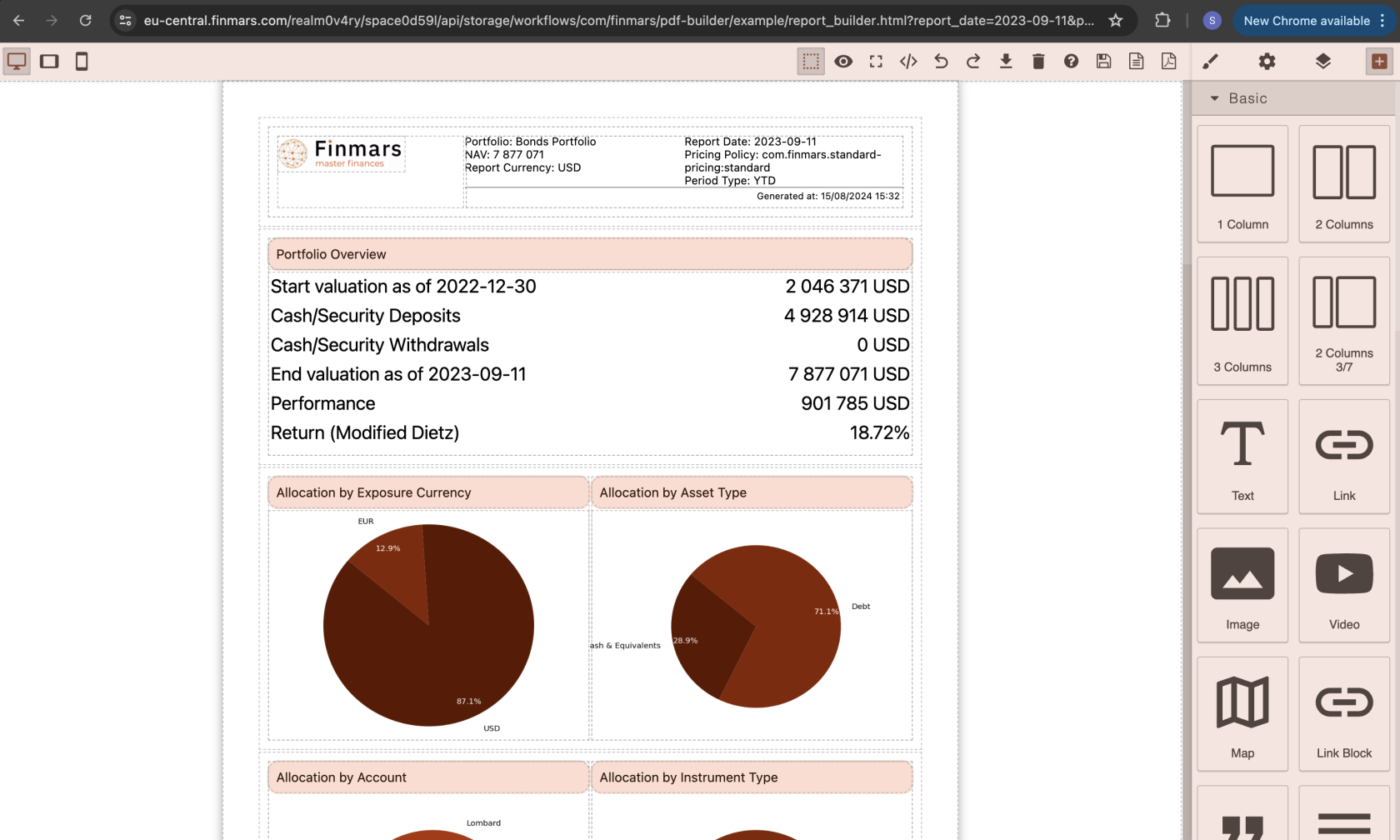](https://docs.finmars.com/uploads/images/gallery/2024-08/screenshot-2024-08-15-at-17-33-24.png)
But lets start from the begining
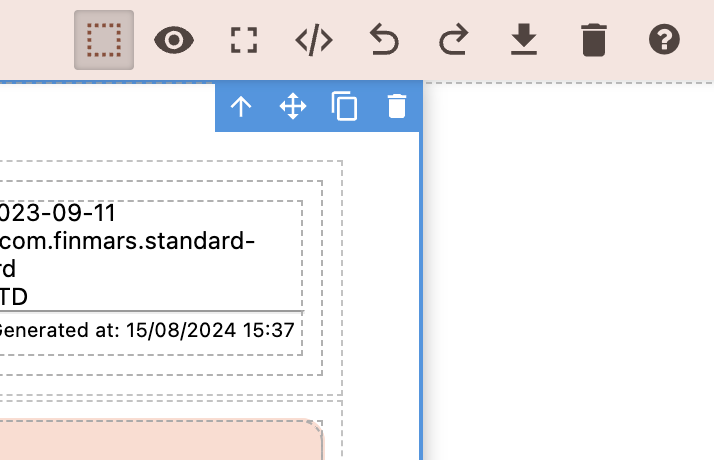
You can hover over elements and then you will see Delete Icon, if you press Element will be deleted
[](https://docs.finmars.com/uploads/images/gallery/2024-08/screenshot-2024-08-15-at-17-37-10.png)
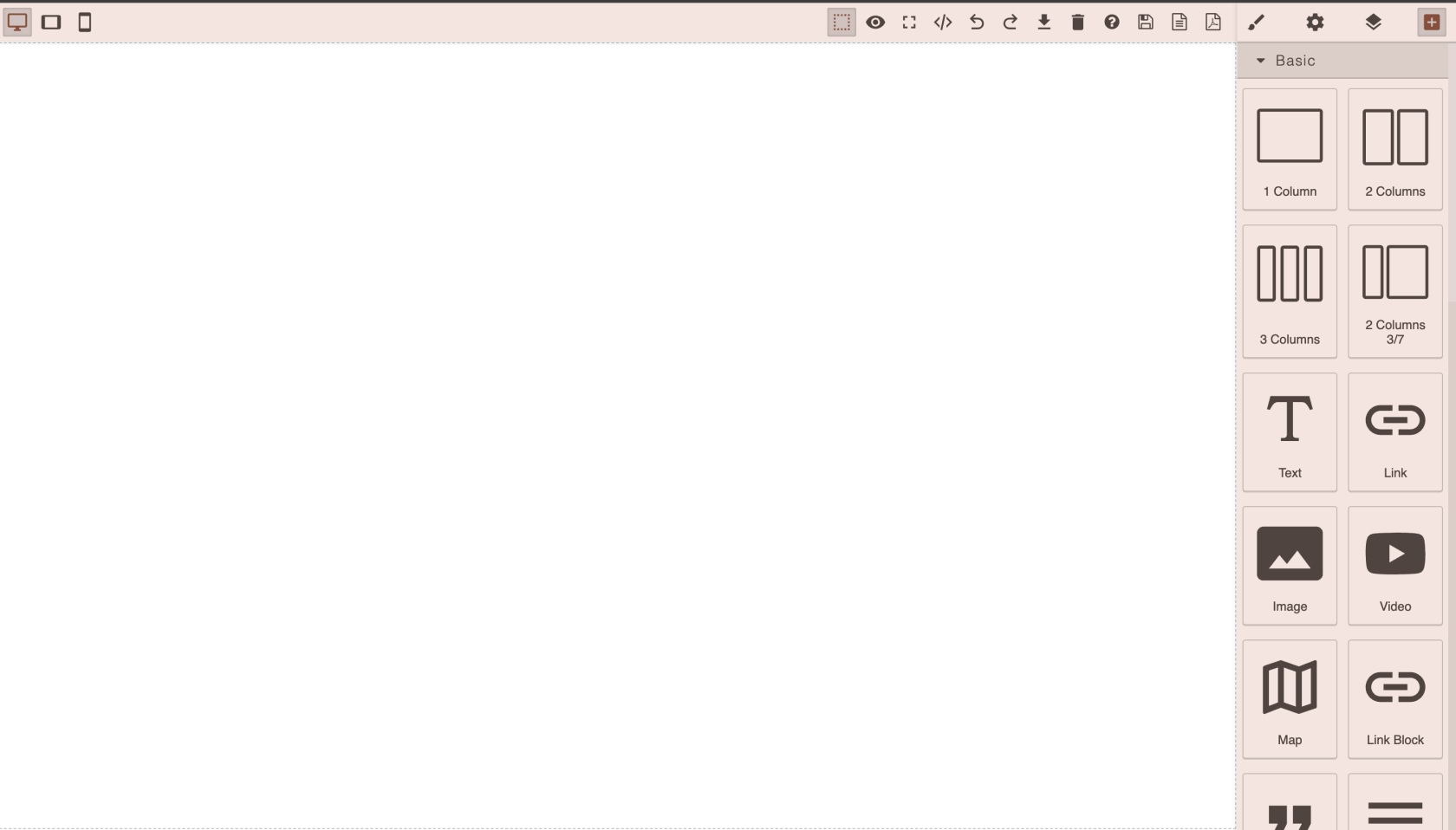
Okay, I cleared all the canvas
[](https://docs.finmars.com/uploads/images/gallery/2024-08/screenshot-2024-08-15-at-17-36-31.png)
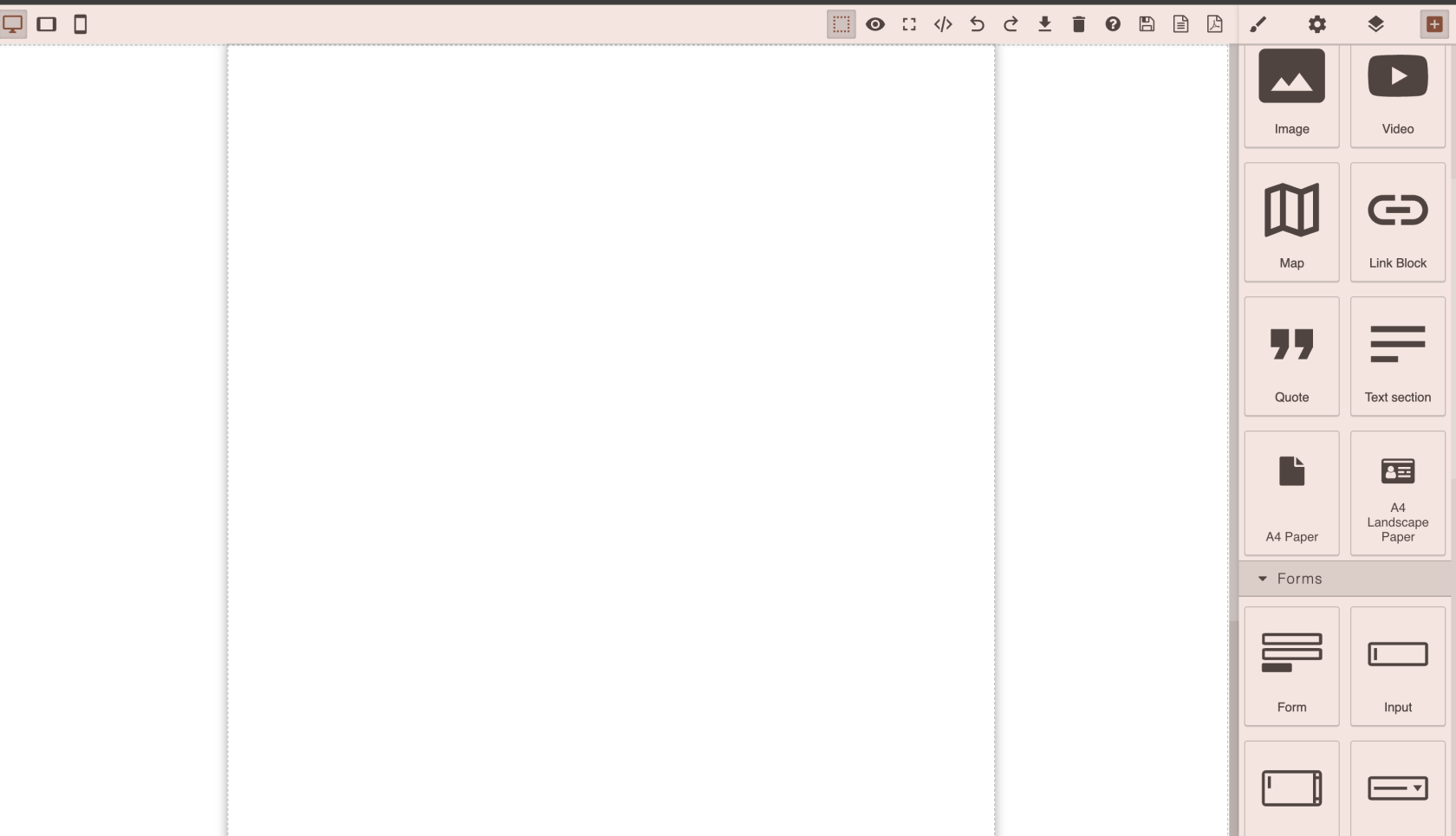
In Right Top corner you have square button with + sign, it will open menu of Blocks that can be places on canvas
Right now, I scrolled down and drag and dropped A4 Paper block on canvas. Simple as that!
[](https://docs.finmars.com/uploads/images/gallery/2024-08/screenshot-2024-08-15-at-17-38-36.png)
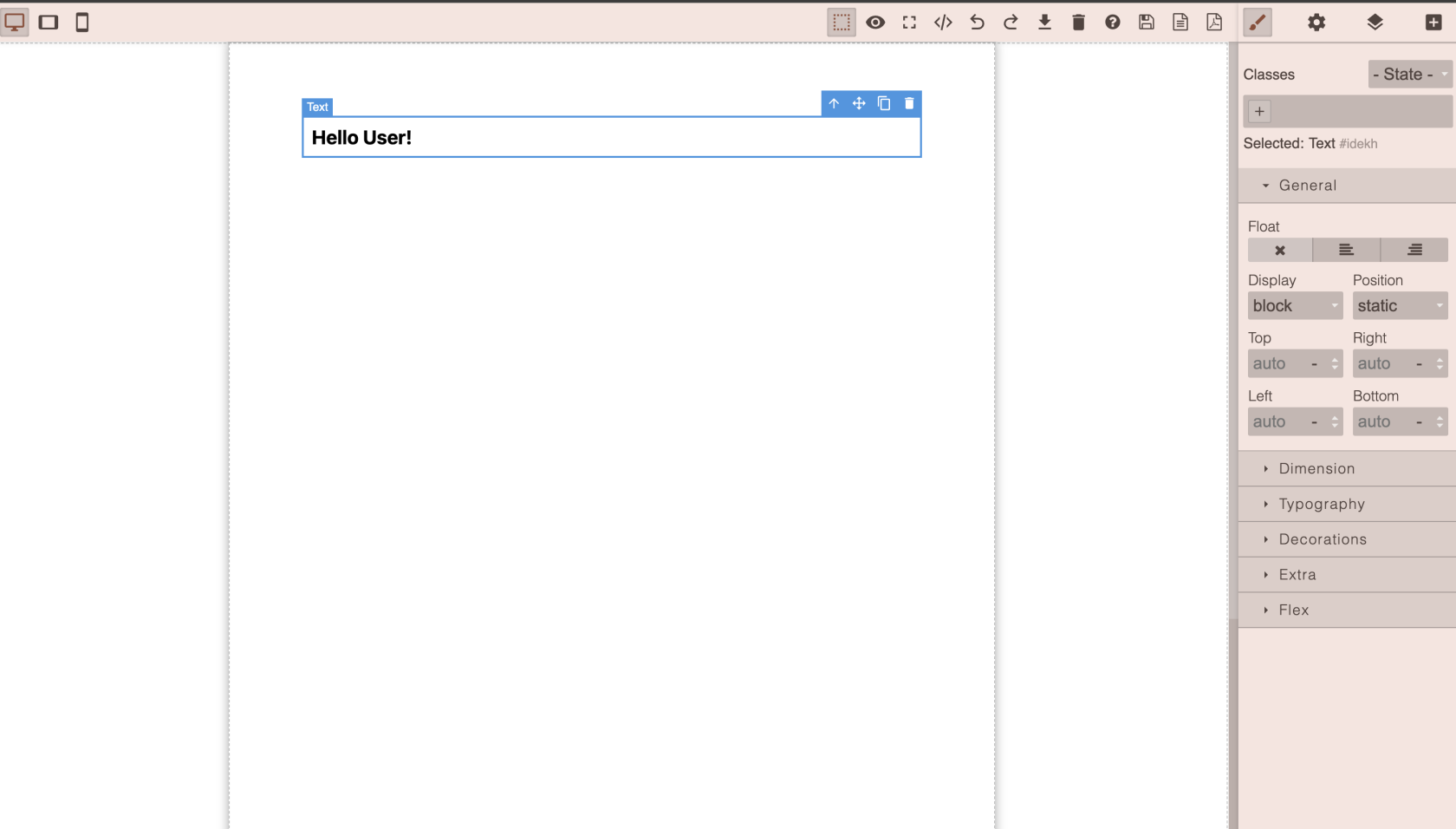
Now I can add some text!
[](https://docs.finmars.com/uploads/images/gallery/2024-08/screenshot-2024-08-15-at-17-39-44.png)
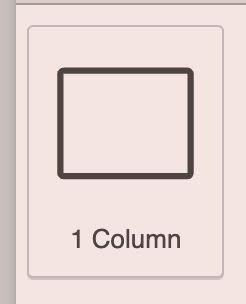
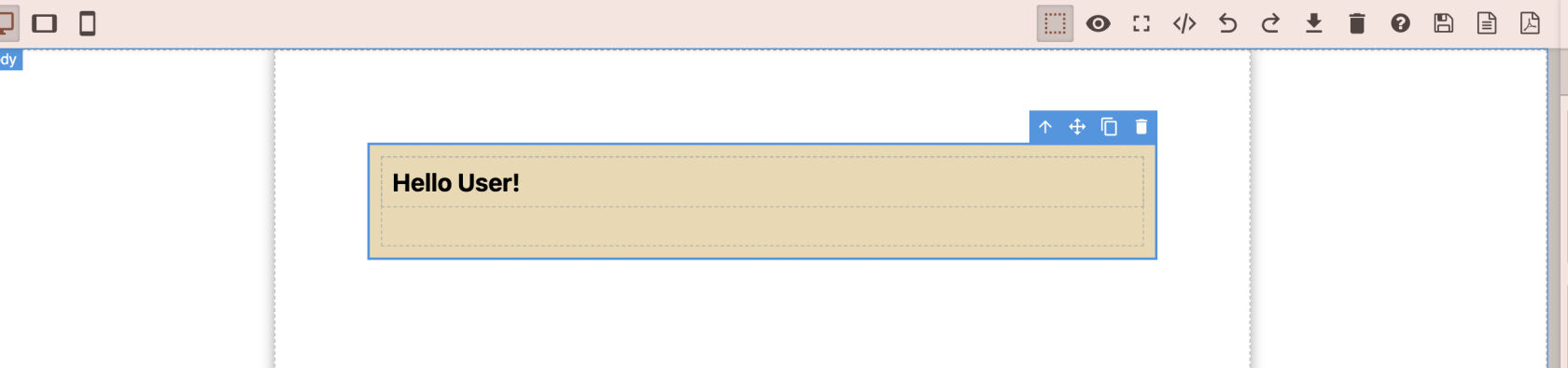
Lets Put this text into Card
So I wrapped my text with
[](https://docs.finmars.com/uploads/images/gallery/2024-08/screenshot-2024-08-15-at-18-00-48.png)
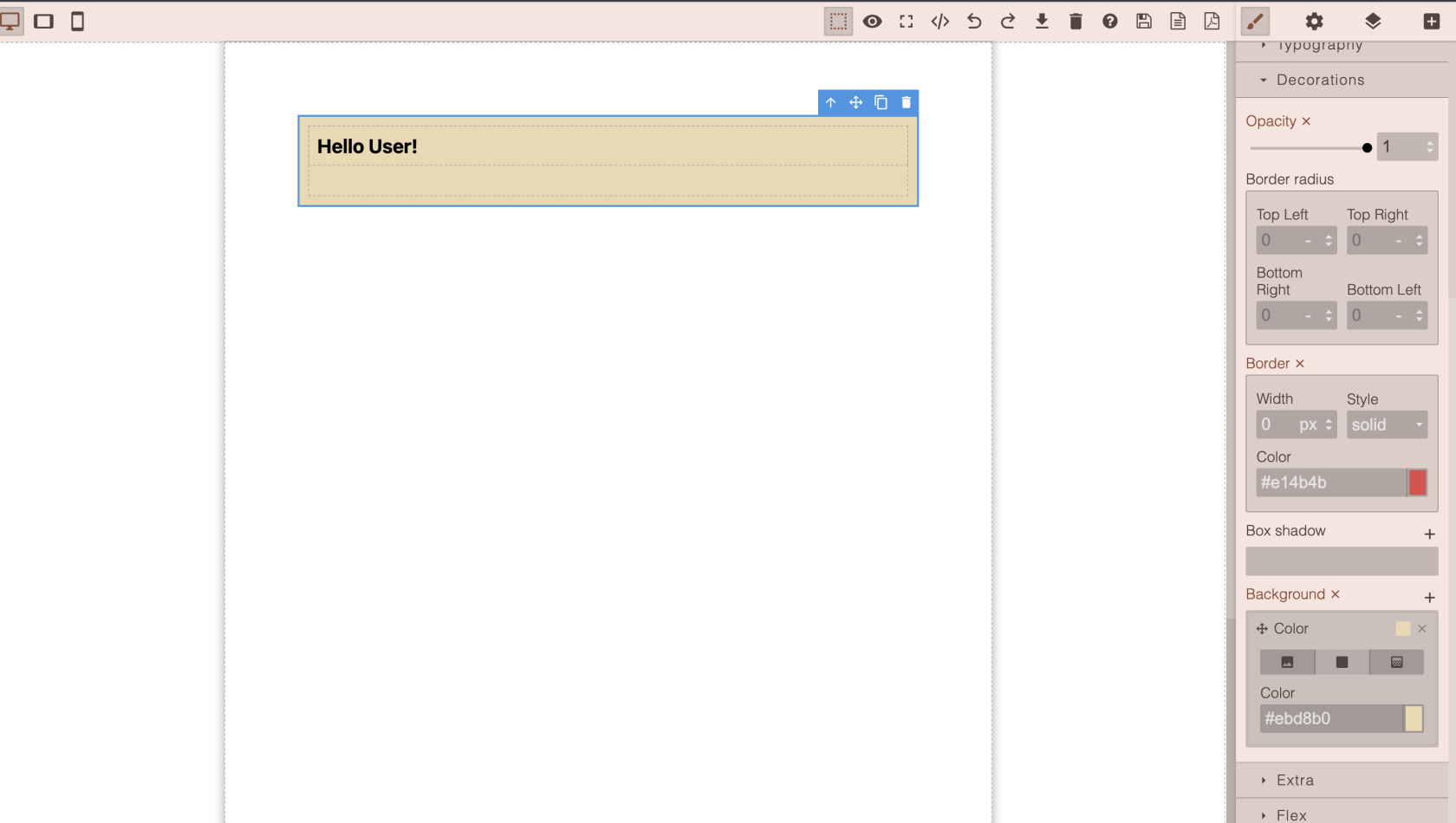
Then I click on that element and now my right sidebar has Brush Active Menu, scroll down to Decorations section, then add Background, any color you like
[](https://docs.finmars.com/uploads/images/gallery/2024-08/screenshot-2024-08-15-at-18-00-25.png)
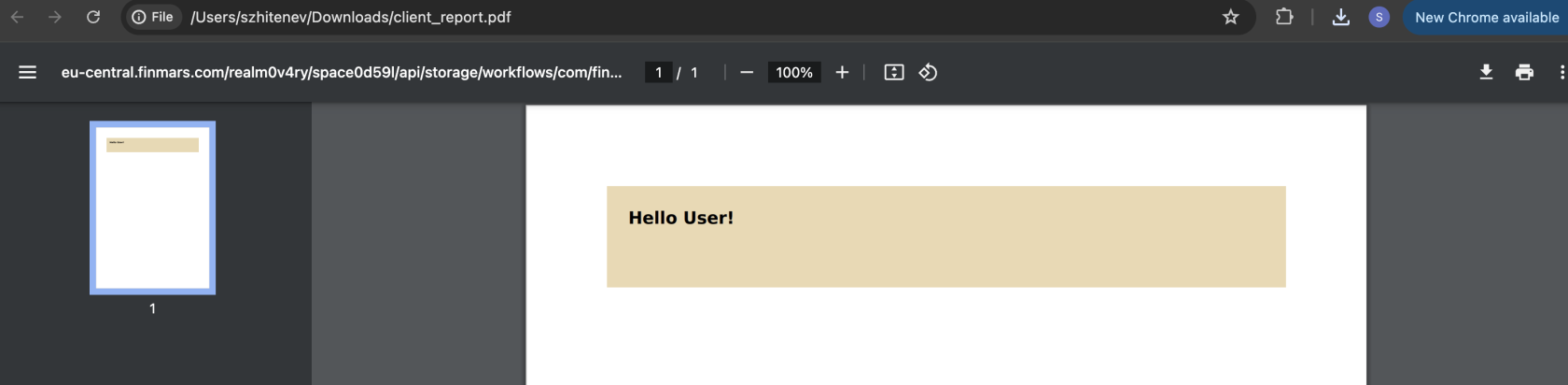
So, lets test it, press export to PDF (its far right button with pdf icon)
[](https://docs.finmars.com/uploads/images/gallery/2024-08/screenshot-2024-08-15-at-18-01-52.png)
Amazing, you created your first PDF report, well done!
[](https://docs.finmars.com/uploads/images/gallery/2024-08/screenshot-2024-08-15-at-18-02-26.png)
Keep going! Go to [https://docs.finmars.com/books/pdf-builder/page/add-dynamic-content-to-your-pdf-report](https://docs.finmars.com/books/pdf-builder/page/add-dynamic-content-to-your-pdf-report)