# Add Dynamic Content to your PDF Report
Okay, we discover how to add static content, what about dynamic content? Lets find out
As I previously mention you have python/\* folder with your .ipynb scripts, lets create a simple python script python/example.ipynb
And lets output some content
```python
nav = 1000000
report_currency = 'USD'
result = f"NAV: {nav} {report_currency}
"
print(result)
```
[](https://docs.finmars.com/uploads/images/gallery/2024-08/screenshot-2024-08-15-at-18-13-38.png)
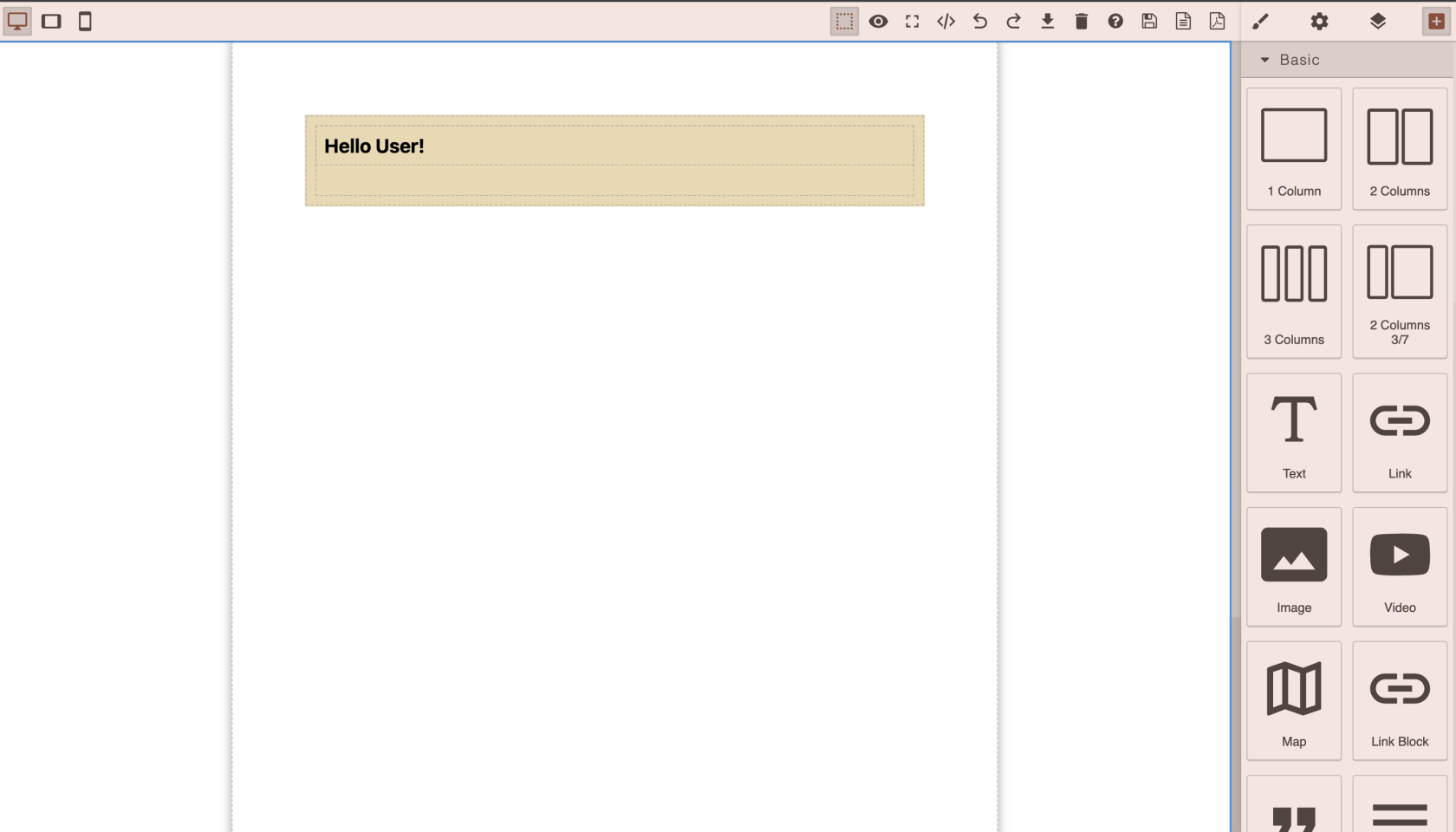
Well done, lets go back to our PDF Builder
[](https://docs.finmars.com/uploads/images/gallery/2024-08/screenshot-2024-08-15-at-18-08-07.png)
Scroll down and find Block - **Python HTML Block**, drop it on canvas
[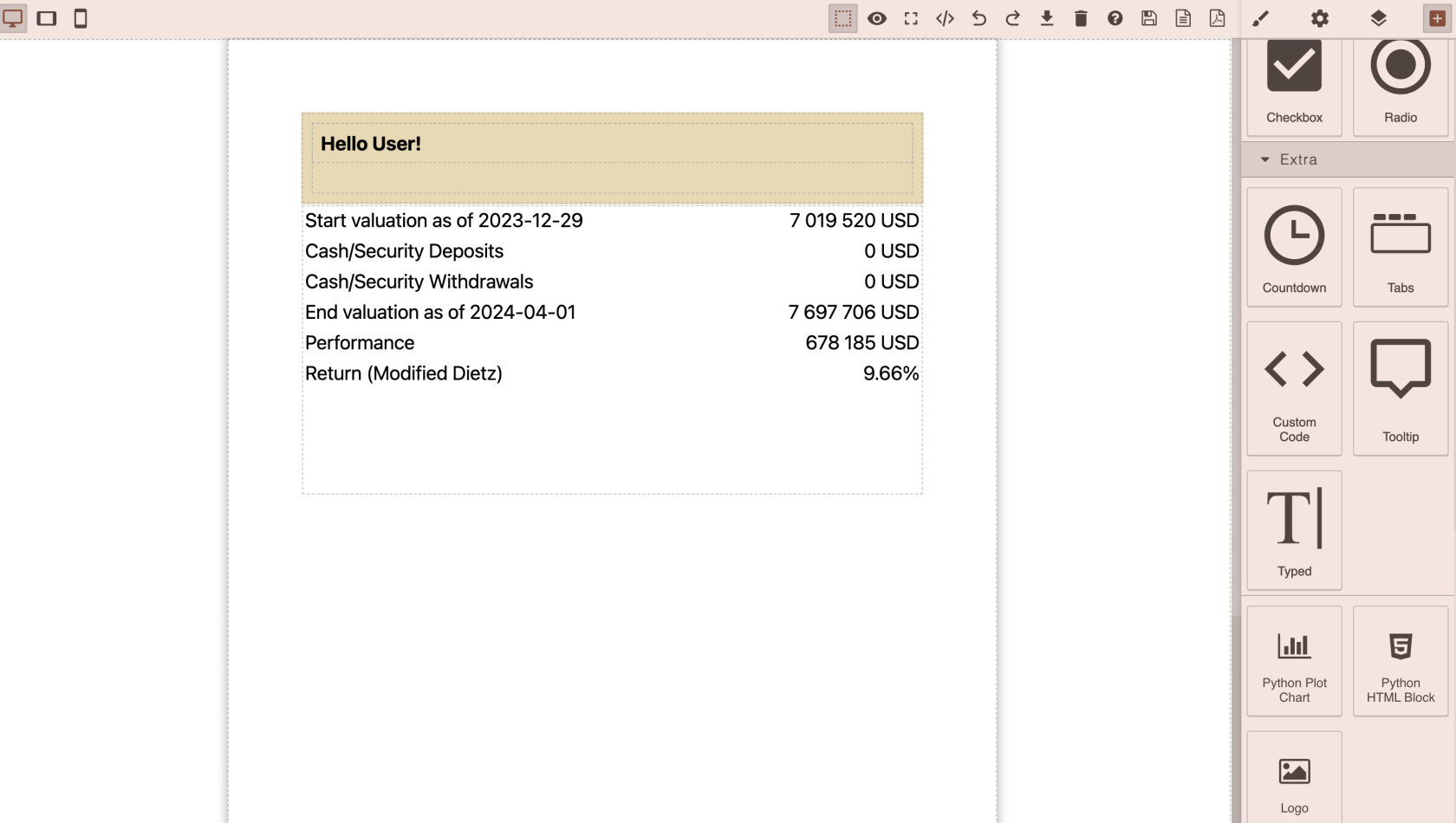](https://docs.finmars.com/uploads/images/gallery/2024-08/screenshot-2024-08-15-at-18-08-41.png)
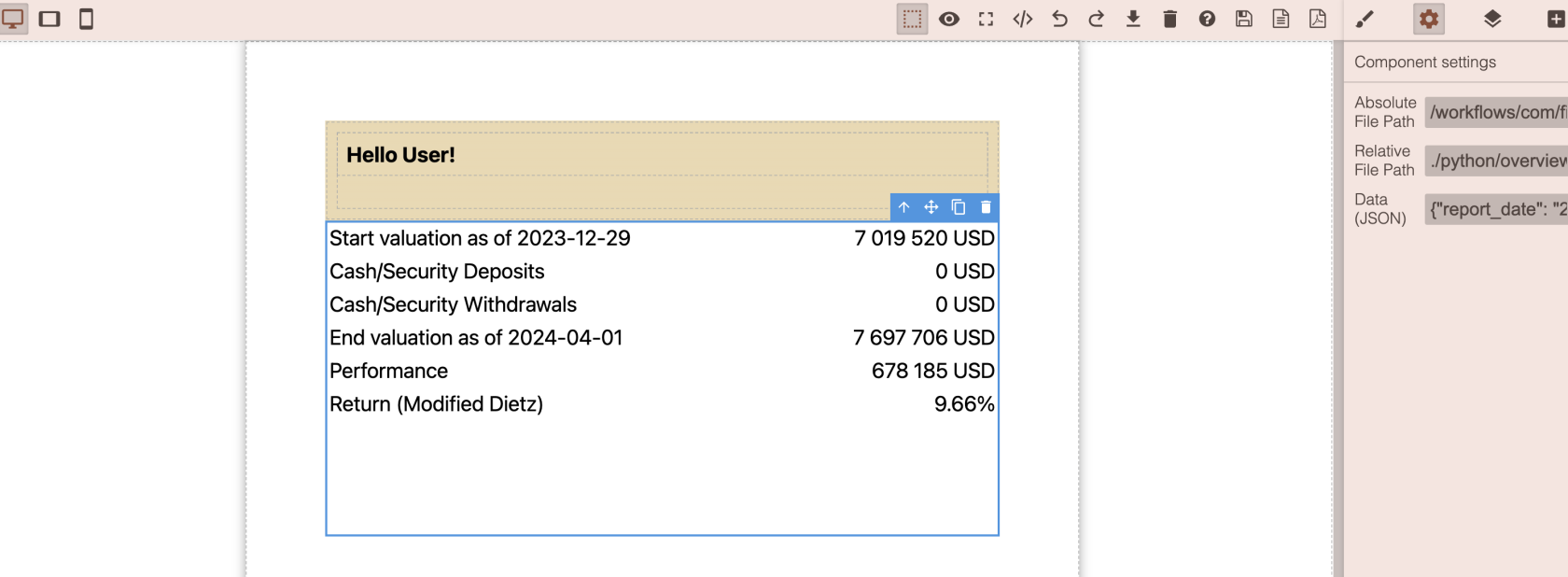
Then click on it, and let see the Block Settings (On right sidebar, cog button)
[](https://docs.finmars.com/uploads/images/gallery/2024-08/screenshot-2024-08-15-at-18-09-34.png)
So we have here 3 inputs
**Absolute File Path** - full path from root (/) of your Space Storage
**Relative File Path** - path from your builder location, so you can do like .python/example.ipynb
**Data (JSON)** - json field that could have some predefined settings for you .ipynb script
NOTA BENE: Relative File Path when set, it overrides Absolute File Path, so if you dont need relative path, just set it to null and use absolute path, otherwise, dont use Absolute File Path, when you type Relative File Path it will automatically calculated and passed to Absolute File Path
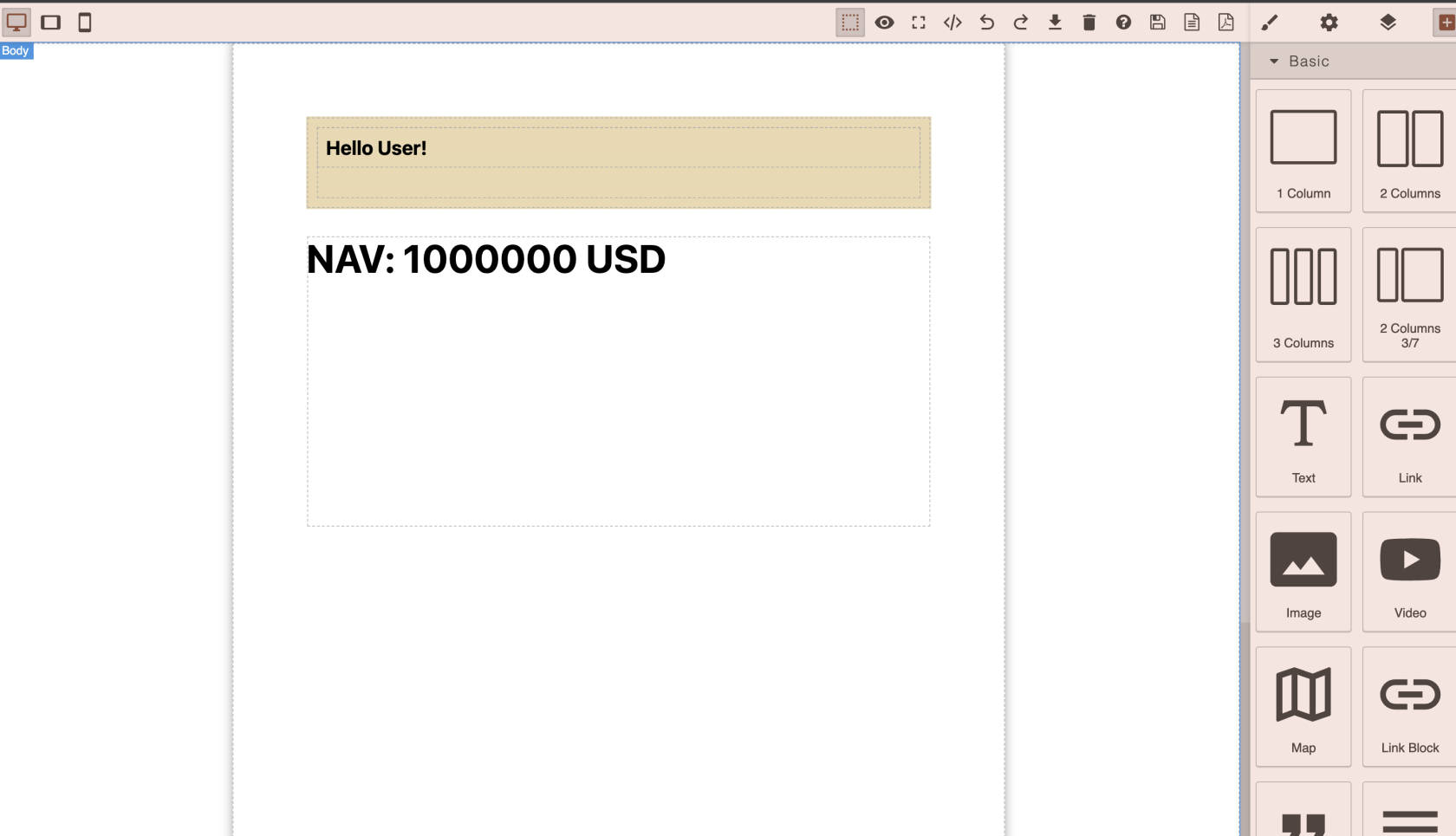
Lets put ./python/example.ipynb and see what will happen
[](https://docs.finmars.com/uploads/images/gallery/2024-08/screenshot-2024-08-15-at-18-14-00.png)
Great, now the result of your python/example.ipynb is executed and added to your PDF Template, well Done
But as you see, we just hardcoded NAV in .ipynb code, but we need to fetch it dynamically from Finmars REST API, lets do it!
So, we need to output some NAV, but what NAV?
Do make it all work, we need to now at least two things, Report Date and Portfolio
So, what to do? To achieve that, you can just pass it as Query Parameters, so
/example/client\_report\_builder.html?report\_date=2024-08-10&portfolio=Bonds%20Portfolio
Simple as that, all your Blocks that you put on canvas will listen to your Query Parameters, but how to access them?
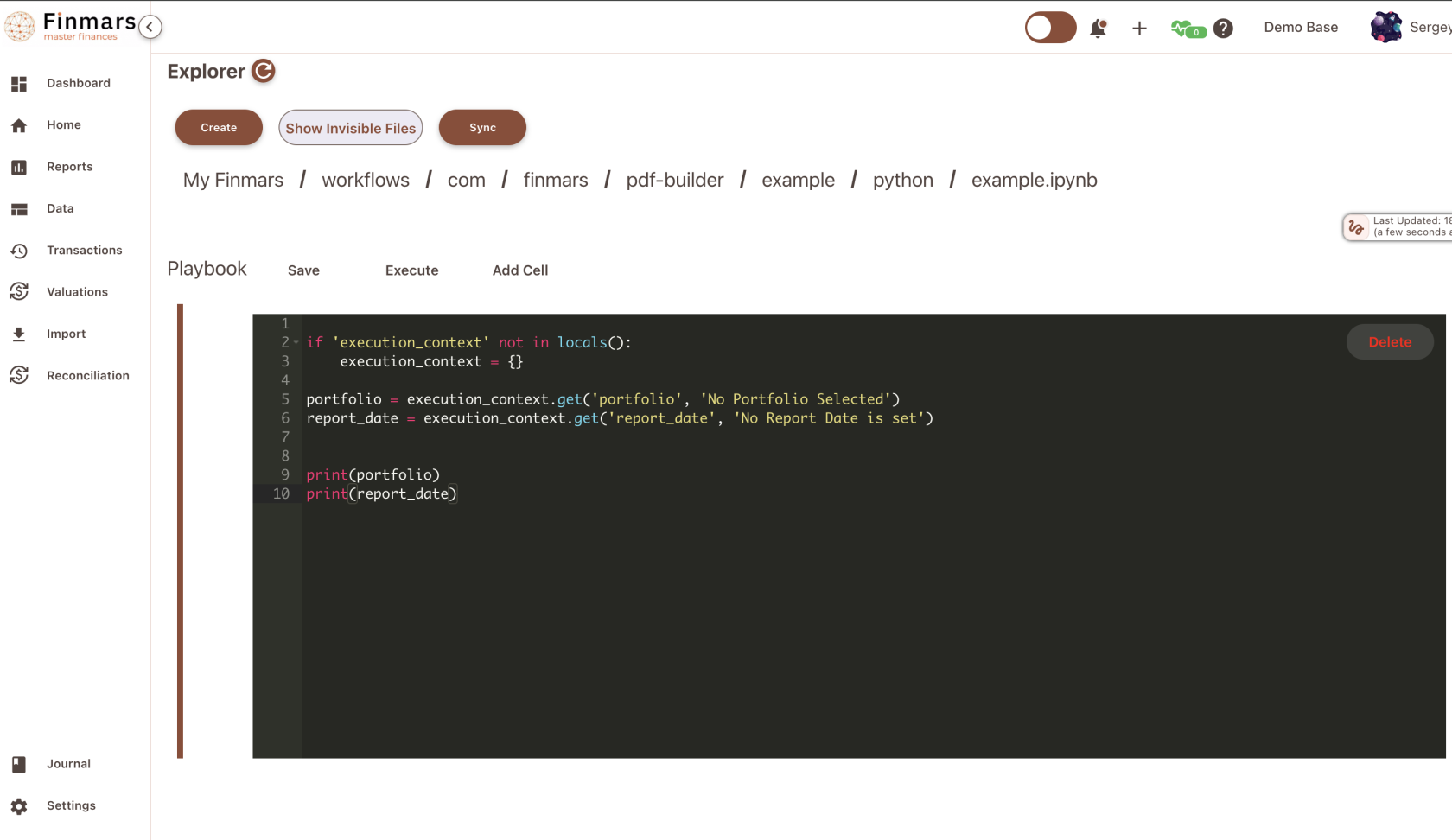
In your .ipynb script before it will be executed, Finmars fills out special variable **execution\_context**
So, try it!
```python
if 'execution_context' not in locals():
execution_context = {}
portfolio = execution_context.get('portfolio', 'No Portfolio Selected')
report_date = execution_context.get('report_date', 'No Report Date is set')
print(portfolio)
print(report_date)
```
[](https://docs.finmars.com/uploads/images/gallery/2024-08/screenshot-2024-08-15-at-18-23-50.png)
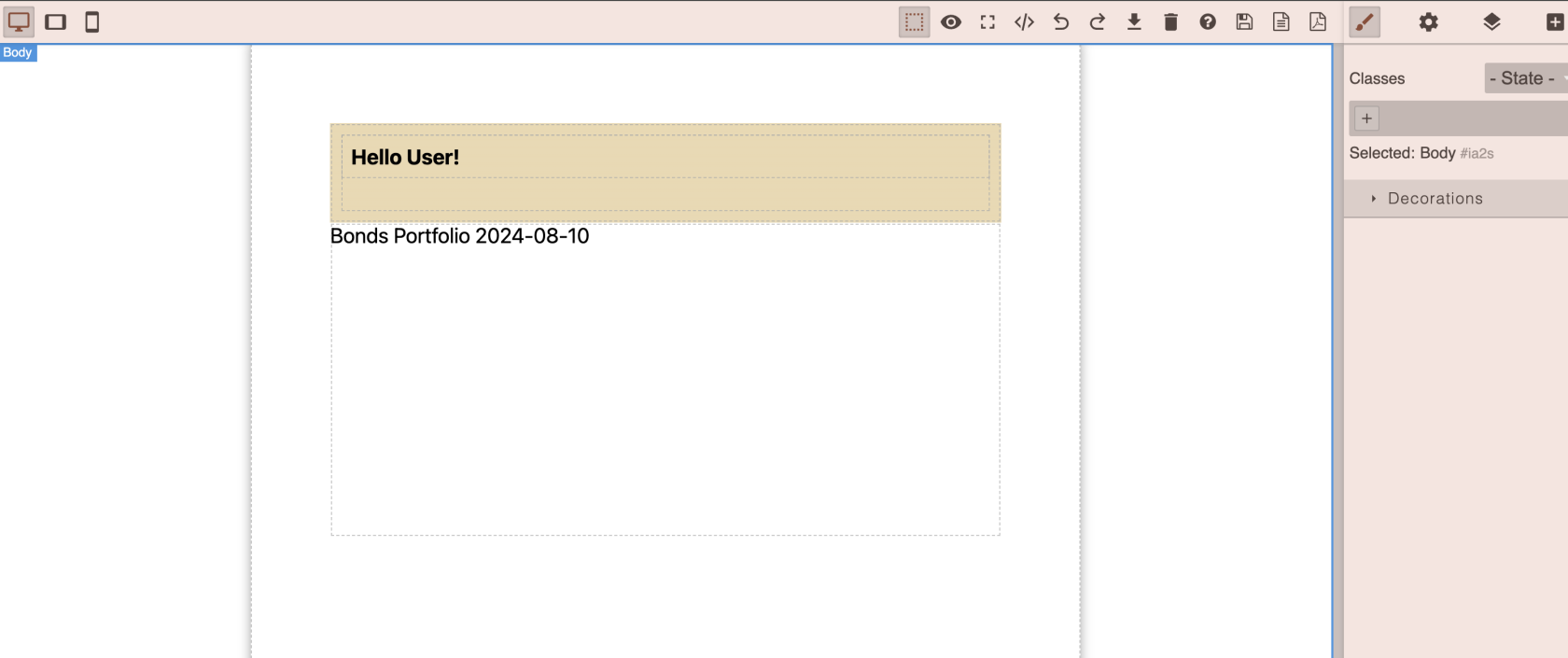
And the result!
[](https://docs.finmars.com/uploads/images/gallery/2024-08/screenshot-2024-08-15-at-18-24-17.png)
Great, now we can pass Parameters to our .ipynb script, to make it dynamic! Lets back to NAV
To achieve that, we must make a request to Finmars REST API, so it will calculate for us Balance Report, and we can took NAV from it.
To make it work, we need to import request\_api from workflow.finmars (Yes, everything executed in Workflow Service) to achieve security Finmars REST API is isolated from Workflow User Scripts
```python
import requests
from workflow.finmars import request_api
if 'execution_context' not in locals():
execution_context = {}
report_currency = execution_context.get('Valuation Currency', 'USD')
portfolio = execution_context.get('portfolio', 'No Portfolio Selected')
report_date = execution_context.get('report_date', 'No Report Date is set')
pricing_policy = execution_context.get('Pricing Policy', 'com.finmars.standard-pricing:standard')
def get_nav():
payload = {
"cost_method": 1,
"pricing_policy": pricing_policy,
"report_date": report_date,
"report_currency": report_currency,
"portfolios": [portfolio],
"frontend_request_options": {
"columns": [],
"filter_settings": [],
"groups_types": [],
"groups_values": []
}
}
response = request_api(f'/api/v1/reports/backend-balance-report/items/', method='POST', data=payload)
items = response["items"]
nav = 0
for item in items:
if item['market_value']:
nav = nav + item['market_value']
return f"{int(nav):,}".replace(',', ' ')
nav = get_nav()
print(f"NAV {nav} {report_currency}
")
```
Okay, we made a request, we have list of positions and we just sum up all the market\_values to get our NAV. And here is result!
[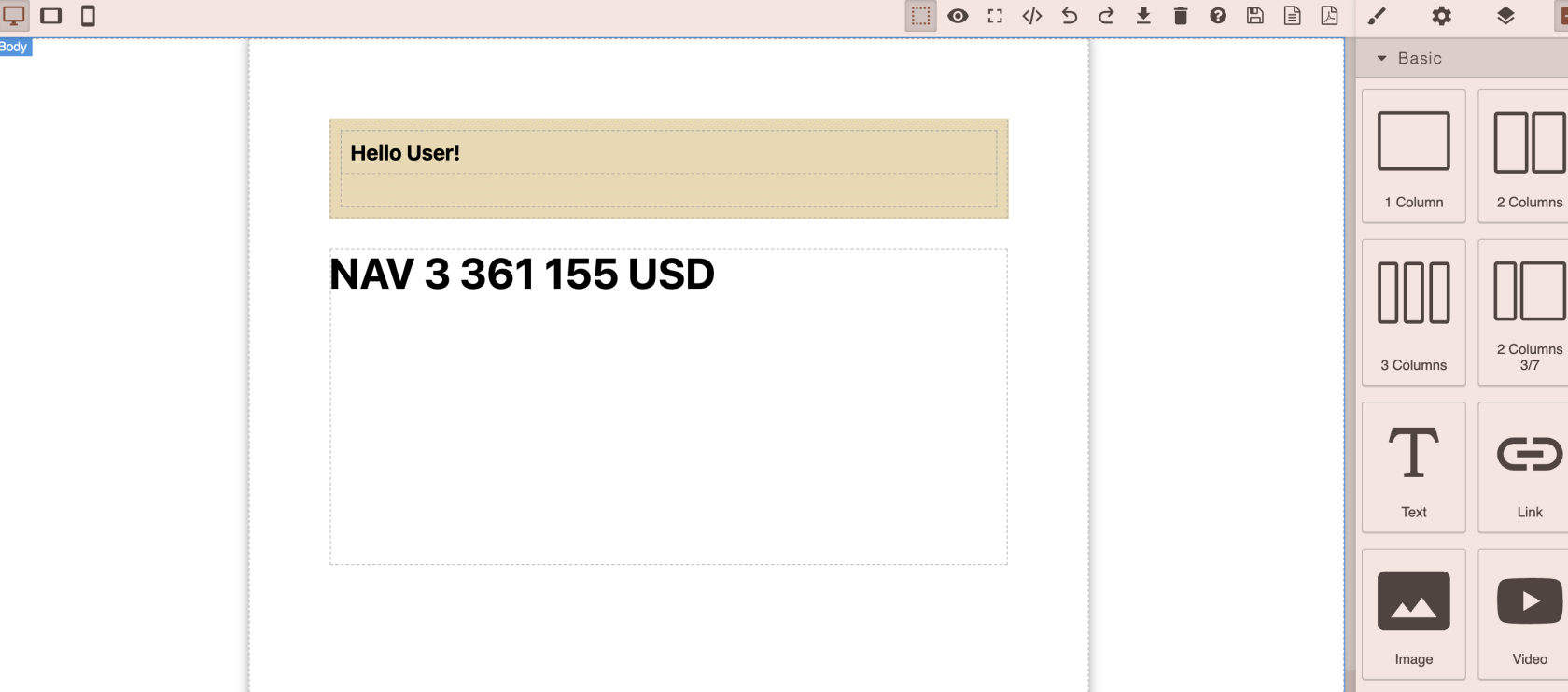](https://docs.finmars.com/uploads/images/gallery/2024-08/screenshot-2024-08-15-at-18-29-44.png)
And now we can change Portfolio, for example Equity Portfolio
[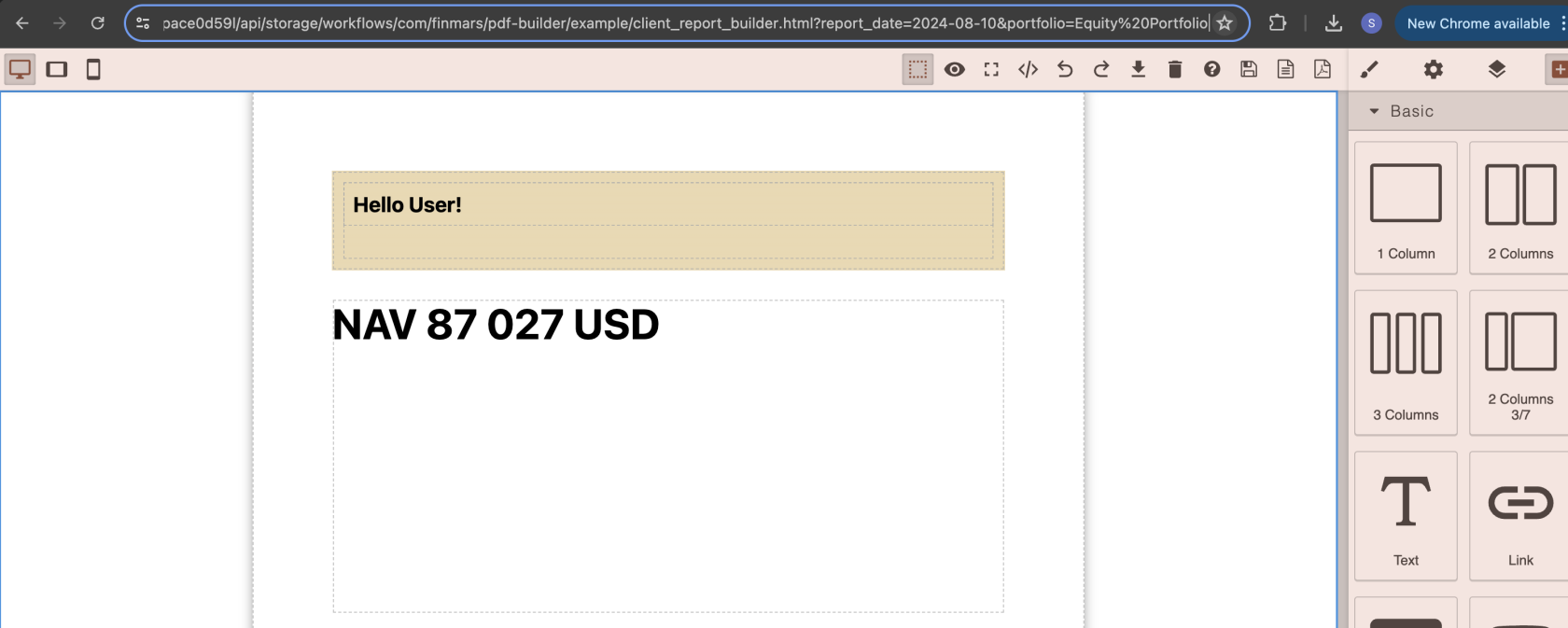](https://docs.finmars.com/uploads/images/gallery/2024-08/screenshot-2024-08-15-at-18-30-21.png)
We have a dynamic PDF Template and if we export it, it will all work!
Lets Add some more text and then print
[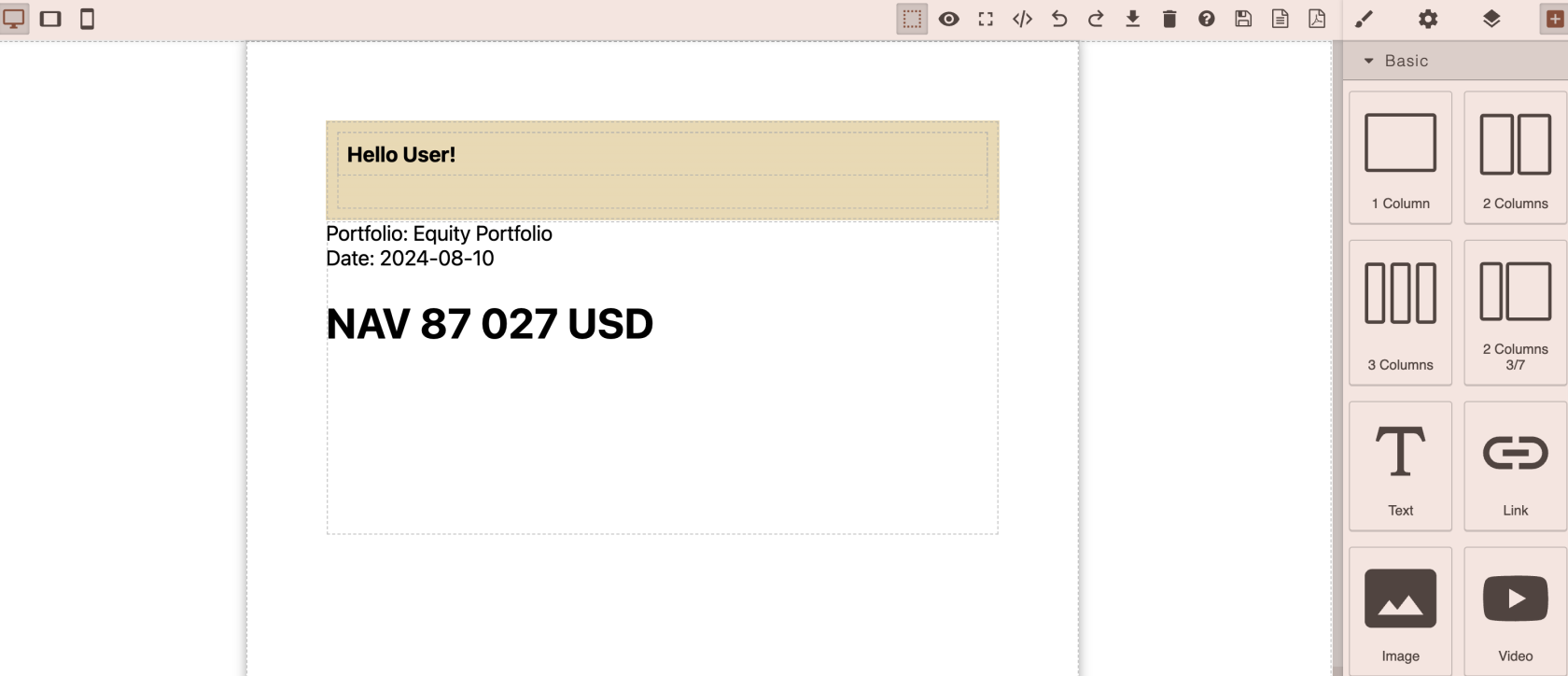](https://docs.finmars.com/uploads/images/gallery/2024-08/screenshot-2024-08-15-at-18-32-31.png)
And the result!
[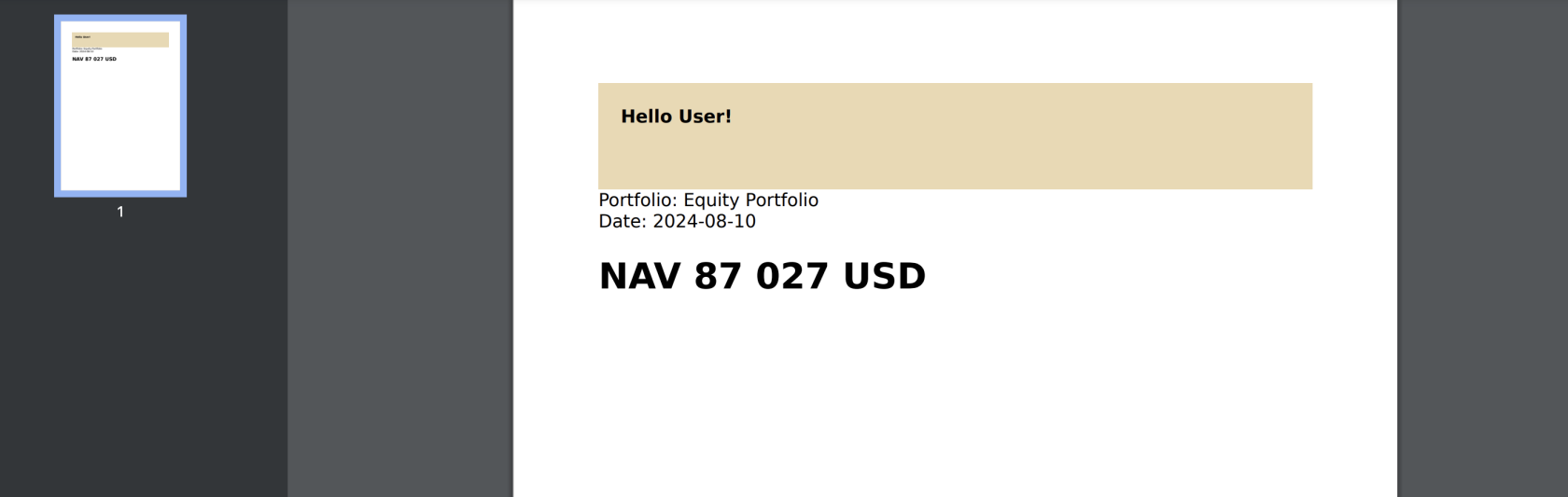](https://docs.finmars.com/uploads/images/gallery/2024-08/screenshot-2024-08-15-at-18-32-54.png)
Great work! Now lets move to next article, where we will add a Pie Chart. Go to [https://docs.finmars.com/books/pdf-builder/page/add-pie-chart-to-your-pdf-report](https://docs.finmars.com/books/pdf-builder/page/add-pie-chart-to-your-pdf-report)
P.S. But how it all work?
So each time when you work with PDF Builder, or its HTML Result, or send it to PDF Print Service each time your access\_token (Keycloak) or bearer\_token (Personal Access Token API) is in use. It means, generation will be done by your User and your IAM access Rights.
P.S.S In case of Workflow Schedules finmars\_bot will be used as User