# Installation Guide with Azure (Advanced)
Step by step journey using Azure Virtual Machines Ubuntu 24.04
For this guide you need basic knowledge with Linux, SSH, Bash
# Getting Started
Hello!
Welcome to Finmars, below you will find guidance of how to Install Everything
We also recommend you to obtain [Finmars ID](https://id-auth.finmars.io/realms/finmars/account)
---
Here is summary of what we will achieve during this tutorial
To complete this guide you will need ****Mac**** or ****Linux****, it will require to use ****Terminal****
- Register Azure account - [Link](https://docs.finmars.com/books/installation-guide-with-azure-advanced/page/register-azure-account)
- Create Virtual Machine (VM) - [Link](https://docs.finmars.com/books/installation-guide-with-azure-advanced/page/create-virtual-machine)
- Install Finmars Platform - [Link](https://docs.finmars.com/books/installation-guide-with-azure-advanced/page/install-finmars-platform)
- Get to know our [User Quick Start](https://docs.finmars.com/books/user-quick-start) guide for next steps
---
If you have some troubles during Installation - reach for any support channel:
- Create a [Github Issue](https://github.com/finmars-platform/finmars-core/issues/new)
- Join our [Discord](https://discord.gg/dJFxjwKQet) Server
- Contact us at
# Register Azure Account
Here is a simple, step-by-step guide to make an AWS account:
1. ****Open your web browser****
(for example: Chrome, Firefox, or Edge).
2. ****Go to the AWS website****
Type [https://azure.microsoft.com/en-us/](https://azure.microsoft.com/en-us/) in the address bar and press Enter.
3. ****Start the sign-up****
Click the ****“Get Started with Azure”**** button at the top right.
4. Go to ****Pay as you go**** and press ****Sign Up****
5. ****Create new Microsoft Account or link Existing one****
- Type your email address.
6. ****Choose a password****
- Make a password you can remember.
- Re-type it to confirm.
7. ****Fill in your contact details****
- Select ****“Professional”**** or ****“Personal”**** account.
- Type your full name, phone number, and address.
- Click ****“Continue”****.
8. ****Add payment information****
- AWS needs a credit or debit card to verify you.
- Type your card number, month/year, and name on card.
- Click ****“Verify and Add”****.
9. ****Confirm your phone number****
- Choose your country code and type your phone number.
- Click ****“Send SMS”****.
- You’ll get a text with a code. Type that code into the box.
10. ****Pick a support plan****
- You can choose the ****Free Tier**** plan (it has no monthly cost).
- Click ****“Continue”****.
11. ****Finish and sign in****
- After a few minutes, AWS will finish setting up.
- Click ****“Sign In to the Console”****.
- Enter your email and password again.
You now have an Azure account! 🎉
You can log into the Azure Portal and start using services.
Go to next step: [Register Domain Name](https://docs.finmars.com/books/installation-guide-with-aws-advanced/page/register-domain-name)
# Create Virtual Machine
Sure! Let’s make your Virtual Machine and name it ****finmars-platform-vm****. Follow these steps:
1. ****Sign in to Azure****
- Open your browser and go to [https://portal.azure.com/](https://portal.azure.com/).
- Enter your Azure email and password or Log in with your Microsoft Account.
2. ****Open Virtual Machines****
- At the top, click the search box and type ****Virtual machines****.
- Click ****Virtual machines**** under “Services.”
3. ****Launch a new instance****
- Click the ****Create**** button and pick ****Virtual Machine****.
4. ****Pick your Resource Group (or create New One)****
5. ****Pick Region (or leave default)****
6. ****Name your instance****
- In the ****Virtual machine name**** box, type ****finmars-platform-vm****.
7. ****Choose Image (Ubuntu 24.04)****
- Scroll or search for ****Ubuntu Server 24.04 LTS****.
- Pick 64-bit (x86) (should be default)
- Click ****Select****.
8. ****Select instance Size (2 vCPU, 8 GiB RAM)****
- Find and click ****B2ms**** (it has 2 vCPU and 8 GiB).
9. ****Create or select key pair****
- Choose ****Username - azureuser****.
- SSH public key source - Generate new key pair
- Key pair name - ****finmars-platform-vm-key**** - Do not Lose this file, if you lose it, you will not able to connect to your VM again
10. ****Select Inbound Ports****
- Turn on checkbox ****SSH****
- Turn on checkbox ****HTTPS****
- Turn on checkbox ****HTTP****
- Click ****Next: Disks****
11. ****Add storage (256 GiB)****
- Change the size from ****8**** to ****256**** in the root volume row. (OS disk size)
- Keep the volume type as ****Premium SSD****
- Click ****Next: Networking****
12. ****Networking****
- Public IP: New Public IP ****finmars-platform-vm-ip****
13. ****Review and Create****
- Check all your settings.
- Click ****Review + Create****.
14. ****Wait for your VM****
- Click ****View Instances****.
- Wait until its status is ****running**** and checks pass.
15. ****Connect to your VM****
- Select the instance named ****finmars-platform-vm****.
- Click ****Connect****.
- Follow the instructions, for example:
```
# Move your Download key file to secure folder (~/Downloads not recommended)
# if this first connect
chmod 400 "finmars-platform-vm.pem"
ssh -i ./finmars-platform-vm.pem ubuntu@
# if this first connect
# Are you sure you want to continue connecting (yes/no/[fingerprint])? yes
# yes
```
16. When your Virtual Machine is created, go to Virtual Machine Details Page in Azure Portal
- On Sidebar, go to ****Networking****.
- Open ****Network Settings****
- You should see ****Network Security Group****
- Press ****Create Port Rule**** button (Inbound Port Rule)
- Follow this configuration:
- Source: Any
- Source Port Ranges: \*
- Destination: Any
- Service: Custom
- Destination Port Ranges: ****8888**** This is important
- Protocol: TCP
- Action: Allow
- Priority: 420
- Name: Allow8888Inbound
- Then press ****Add**** button
Your Virtual Machine named ****finmars-platform-vm**** is ready! 🎉
---
Now you need to assign your Public IP of your freshly created VM to subdomain of your domain.
1. ****Go to your DNS Provider****
2. ****Create the first record****
- Click ****“Create record.”****
- In ****Record name****, type `finmars` (so full name is `finmars.example.com`). - It is Record for Actual Finmars Platform
- For ****Record type****, choose ****A – IPv4 address****.
- In ****Value****, type your VM public IP (for example, `203.0.113.25`). You can find it in VM details
- Leave ****TTL**** as default (300).
- Click ****“Create records.”****
3. ****Create the second record****
- Click ****“Create record”**** again.
- In ****Record name****, type `finmars-auth`(so full name is `finmars-auth.example.com`). - It is Record for Single-Sign-On (SSO) Finmars
- For ****Record type****, choose ****A – IPv4 address****.
- In ****Value****, type the same VM public IP.
- Click ****“Create records.”****
4. ****Wait a few minutes****
DNS needs a little time to spread out. After about 5 minutes, both
- `finmars.example.com`
- `finmars-auth.example.com`
will go to your VM’s public IP.
That’s it! Now both sub-domains point to your ****finmars-platform-vm**** server.
You can verify it by run following command in Terminal (On Mac or Linux)
`dig finmars.example.com`
`dig finmars-auth.example.com`
Output should be like:
```bash
; <<>> DiG 9.10.6 <<>> finmars.example.com
;; global options: +cmd
;; Got answer:
;; ->>HEADER<<- opcode: QUERY, status: NOERROR, id: 39082
;; flags: qr rd ra; QUERY: 1, ANSWER: 1, AUTHORITY: 0, ADDITIONAL: 1
;; OPT PSEUDOSECTION:
; EDNS: version: 0, flags:; udp: 4096
;; QUESTION SECTION:
;finmars-platform-vm.finmars.com. IN A
;; ANSWER SECTION:
finmars.example.com. 300 IN A 203.0.113.25
;; Query time: 12 msec
;; SERVER: 192.168.178.1#53(192.168.178.1)
;; WHEN: Wed Jun 11 20:10:02 CEST 2025
;; MSG SIZE rcvd: 76
```
---
Now go to next step: [Install Finmars Platform](https://docs.finmars.com/books/installation-guide-with-azure-advanced/page/install-finmars-platform)
# Install Finmars Platform
#### Here is a Full Guide to install Finmars on your Ubuntu VM:
Complete time of full installation is less than 30 minutes, by the end of it you will get a Finmars Platform Installed on your Linux Server
1. ****Connect to your VM****
Example:
```
# if this first connect
chmod 400 finmars-platform-vm.pem
ssh -i ./finmars-platform-vm.pem ubuntu@
# if this first connect
# Are you sure you want to continue connecting (yes/no/[fingerprint])? yes
# yes
```
2. ****Install Docker****
```bash
sudo apt update
sudo apt install -y ca-certificates curl gnupg lsb-release ntp
wget -qO- https://get.docker.com/ | sh
sudo usermod -aG docker $USER
newgrp docker
```
To check if Docker installed:
`docker version`
Should output:
```
Client: Docker Engine - Community
Version: 28.2.2
...
```
3. ****Install Make****
```bash
sudo apt install -y make git
```
4. ****Create the finmars folder****
```bash
sudo mkdir -p /opt/finmars
sudo chown $USER:$USER /opt/finmars
```
5. ****Clone the Finmars Platform Community Edition repository from Github****
See [https://github.com/finmars-platform/finmars-community-edition](https://github.com/finmars-platform/finmars-community-edition) repository
```bash
cd /opt/finmars
git clone https://github.com/finmars-platform/finmars-community-edition.git .
```
6. ****Create Storage folder****
```bash
mkdir ./storage
sudo chown -R 1000:1000 ./storage
```
7. ****Configure env****
```bash
make generate-env
```
8. ****(Optional) Check created env** `cat .env`**
```bash
REALM_CODE=realm00000
BASE_API_URL=space00000
SECRET_KEY=2e849ee2
JWT_SECRET_KEY=f0d51adba17320c742fb1f046122ce1a8e22ca679bf7c7df28aa873ed5ca3d7a
ENCRYPTION_KEY=a594c6607a48629884753fe0a6b5a907c6d8be8d63e4c274c67be040c276b1c4
DOMAIN_NAME=ap-finmars.finmars.com
CSRF_COOKIE_DOMAIN=ap-finmars.finmars.com
CSRF_TRUSTED_ORIGINS=https://ap-finmars.finmars.com
PROD_APP_HOST=https://ap-finmars.finmars.com
APP_HOST=https://ap-finmars.finmars.com
PROD_API_HOST=https://ap-finmars.finmars.com
API_HOST=https://ap-finmars.finmars.com
KEYCLOAK_REALM=finmars
KEYCLOAK_SERVER_URL=https://ap-finmars-auth.finmars.com
KEYCLOAK_URL=https://ap-finmars-auth.finmars.com
PROD_KEYCLOAK_URL=https://ap-finmars-auth.finmars.com
NUXT_APP_BASE_URL=/
DB_HOST=db
DB_PORT=5432
DB_NAME=finmars_dev
DB_USER=finmars_dev
DB_PASSWORD=e21717b7ba0d4287dcdc292edc3c2164
KC_DB_URL_HOST=db_keycloak
KC_DB_PORT=5432
KC_DB_USERNAME=keycloak
KC_DB_PASSWORD=5de8131f84d79b68ba47d25a922dae92
KC_DB_URL_DATABASE=keycloak
RABBITMQ_HOST=rabbitmq
REDIS_HOST=redis
USE_FILESYSTEM_STORAGE=True
SERVER_TYPE=local
DEBUG=False
USE_DEBUGGER=False
DJANGO_LOG_LEVEL=INFO
PROFILER=False
ENABLE_DEV_DOCUMENTATION=False
EDITION_TYPE=community
ADMIN_USERNAME=test
ADMIN_PASSWORD=test
REDIRECT_PATH="/realm00000/space00000/a/#!/dashboard"
MAIN_DOMAIN_NAME=ap-finmars.finmars.com
AUTH_DOMAIN_NAME=ap-finmars-auth.finmars.com
```
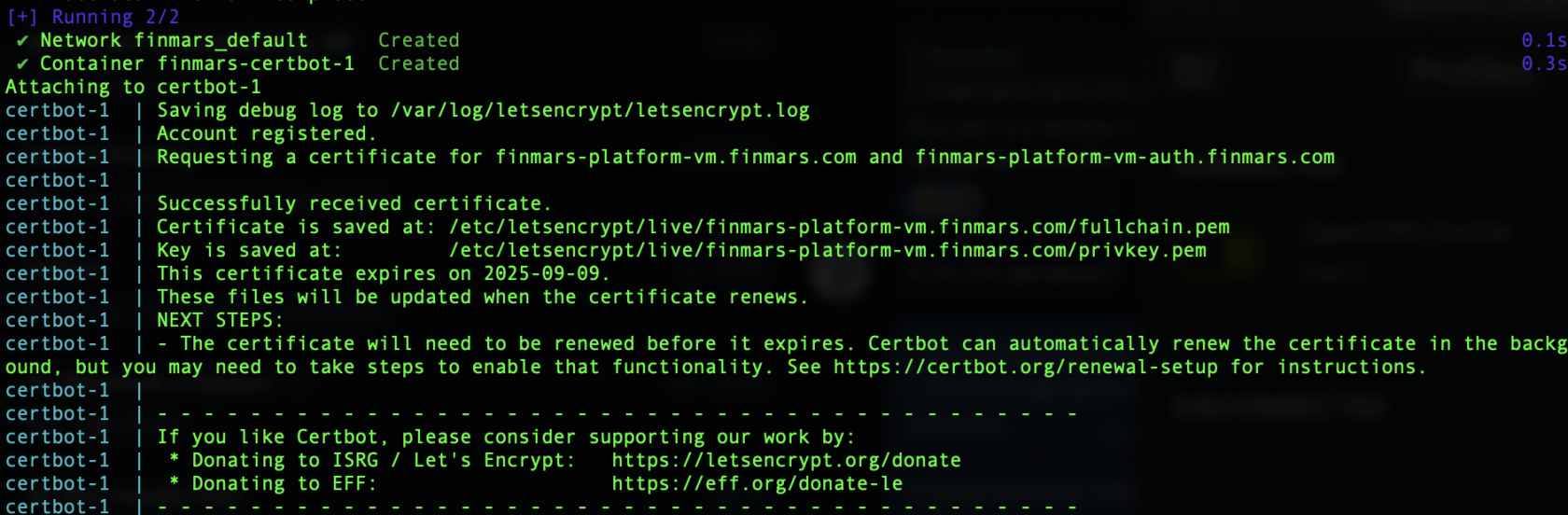
9. ****Release certs****
```bash
make init-cert
```
You should see something like this as successful result:
[](https://docs.finmars.com/uploads/images/gallery/2025-06/screenshot-2025-06-11-at-20-37-55.png)
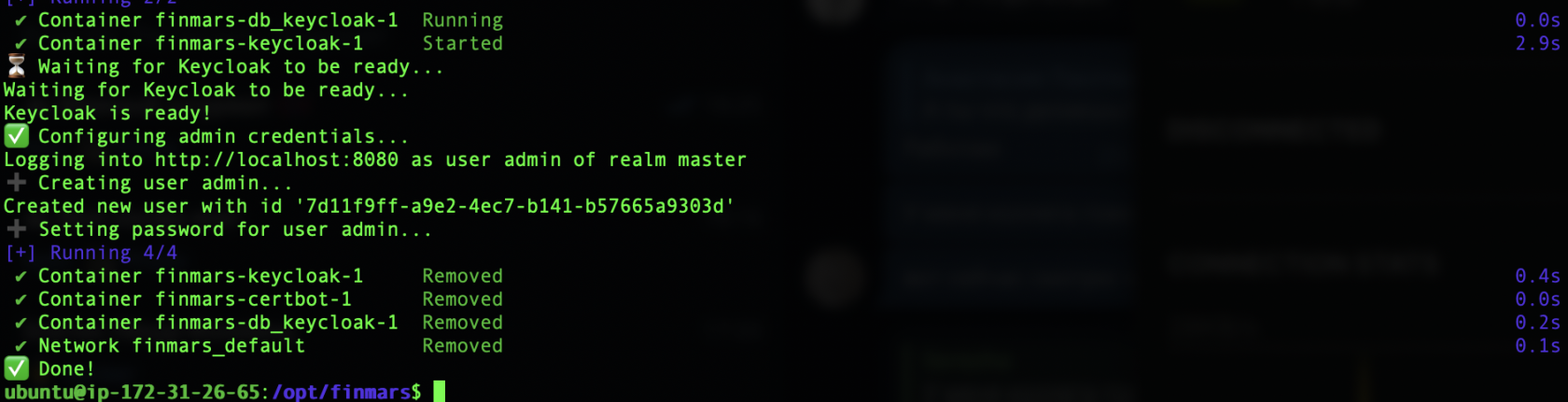
10. ****Init keycloak****
```bash
make init-keycloak
```
You should see something like this as successful result:
[](https://docs.finmars.com/uploads/images/gallery/2025-06/screenshot-2025-06-11-at-20-39-07.png)
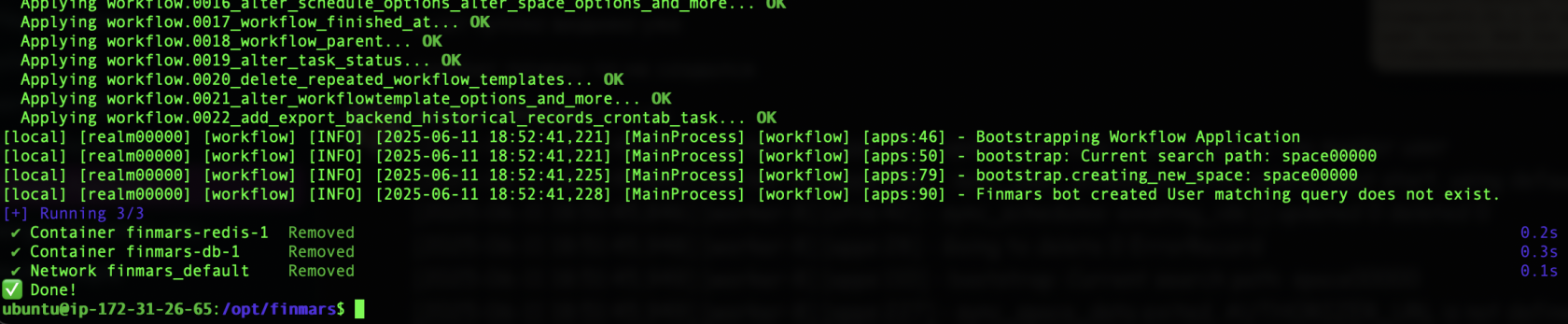
11. ****Run database migrations****
```bash
make migrate
```
You should see something like this as successful result:
[](https://docs.finmars.com/uploads/images/gallery/2025-06/screenshot-2025-06-11-at-20-54-27.png)
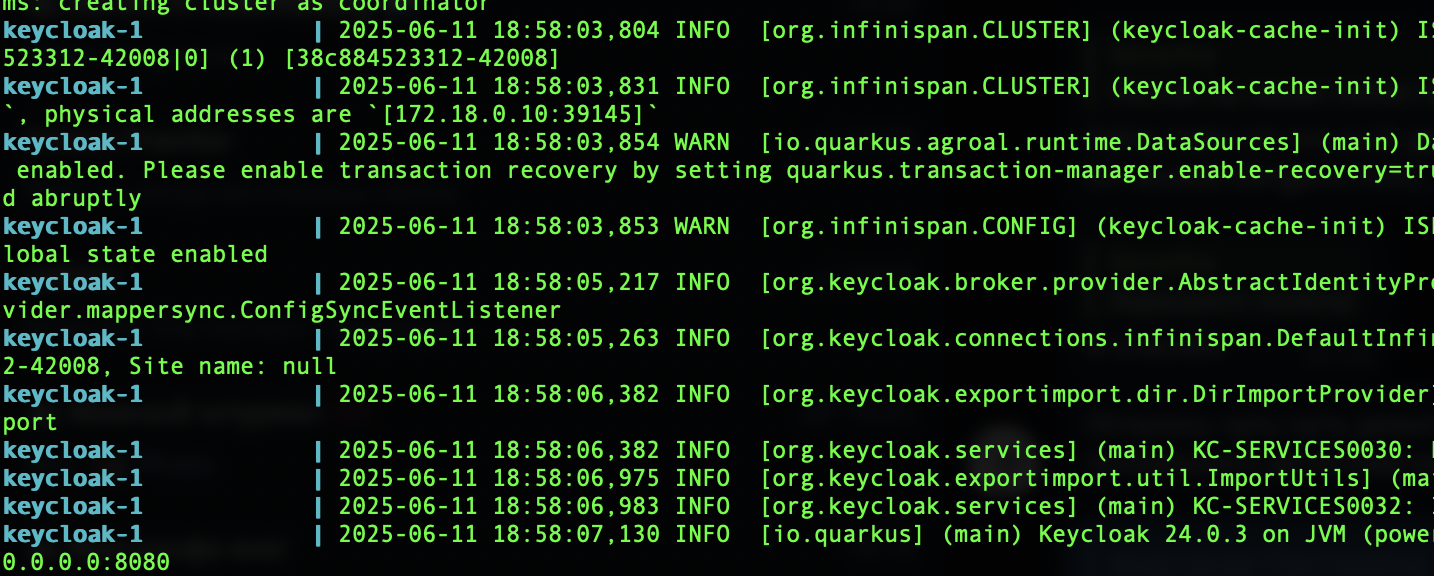
12. ****Start all services****
```bash
make up
```
You should see something like this and other logs as successful result:
[](https://docs.finmars.com/uploads/images/gallery/2025-06/screenshot-2025-06-11-at-21-03-52.png)
To Verify that is everything running
`docker ps`
And you should see something like:
[](https://docs.finmars.com/uploads/images/gallery/2025-06/scaled-1680-/screenshot-2025-06-11-at-21-08-45.png)
It means all the Docker Containers are running.
---
When all is done, you can Open Web Browser at ****finmars.example.com**** and you should see ****Finmars Welcome Page****
[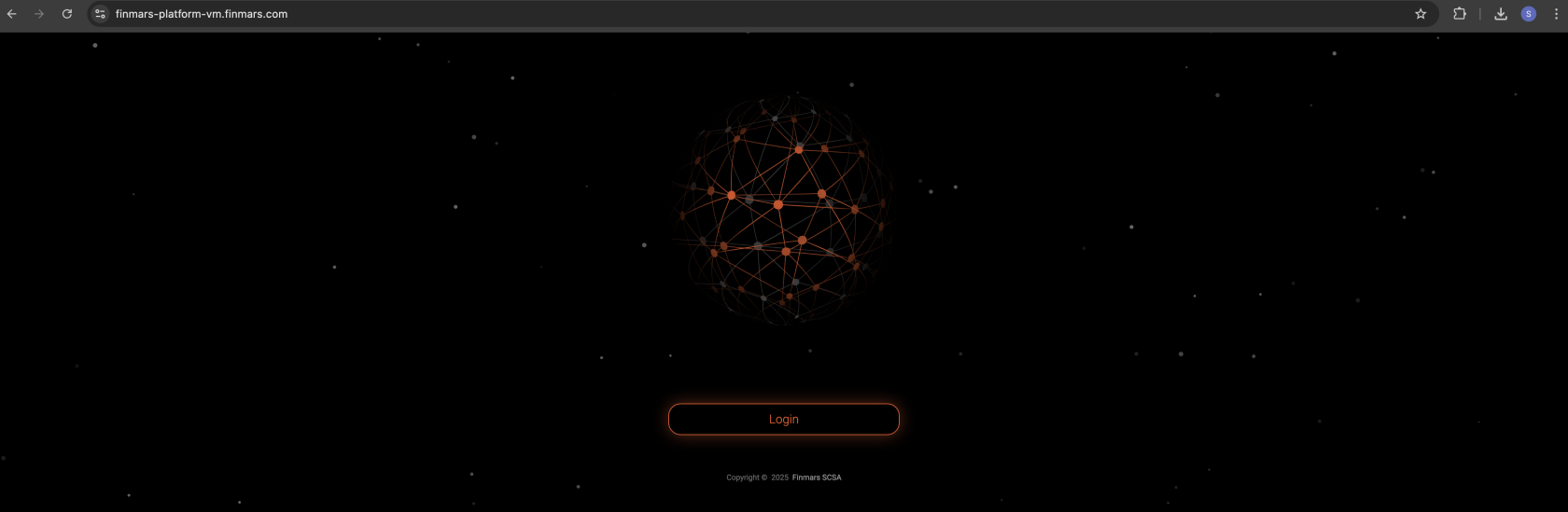](https://docs.finmars.com/uploads/images/gallery/2025-06/screenshot-2025-06-11-at-21-11-43.png)
After you press ****Login**** you will be redirected to ****Finmars Single-Sign-On**** (SSO) to ****finmars-auth.example.com****
[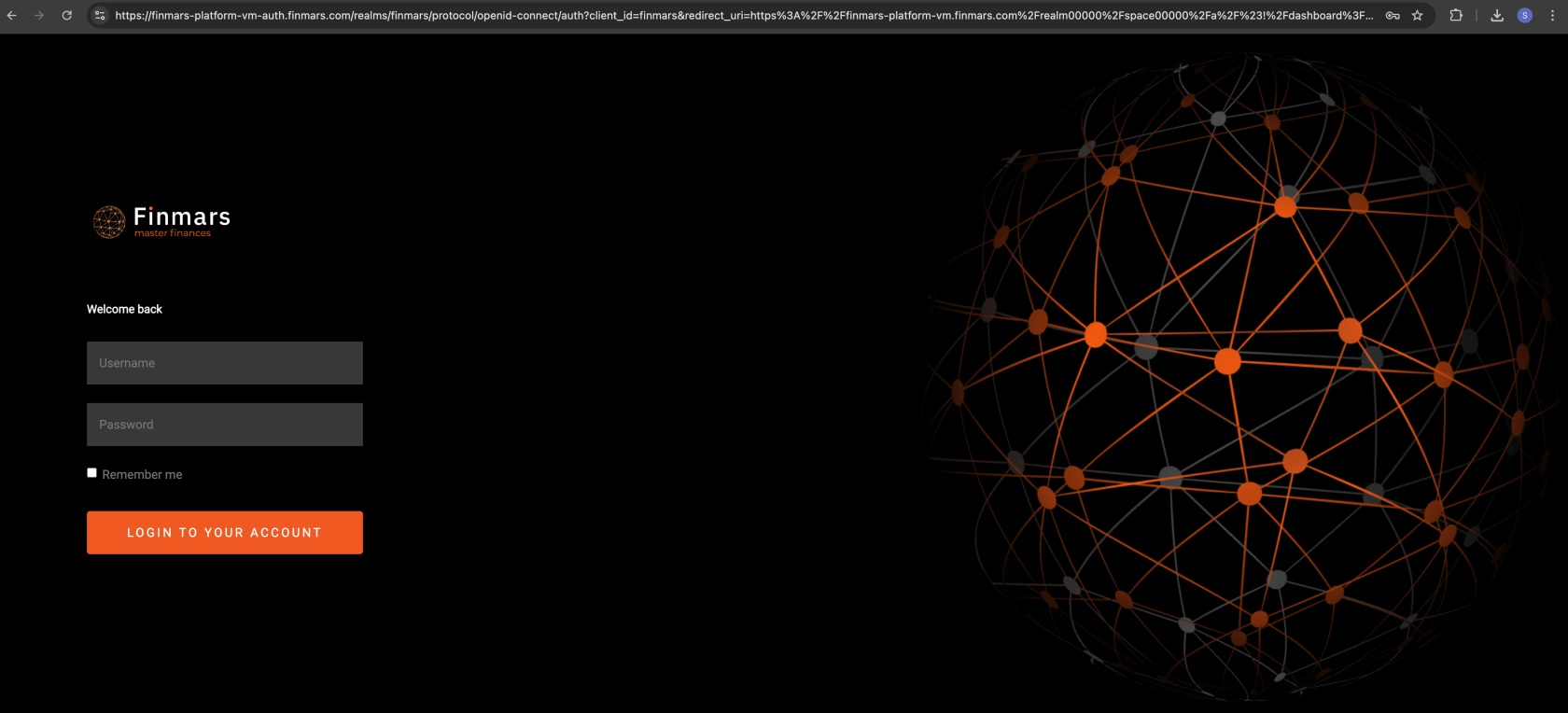](https://docs.finmars.com/uploads/images/gallery/2025-06/scaled-1680-/screenshot-2025-06-11-at-21-18-15.png)
Login with your Credentials that you provided in 6) ****Configure env**** step. It should be yours `ADMIN_USERNAME` and `ADMIN_PASSWORD`
After Login you will be redirected to ****Dashboard page**** in ****Finmars Platform****
[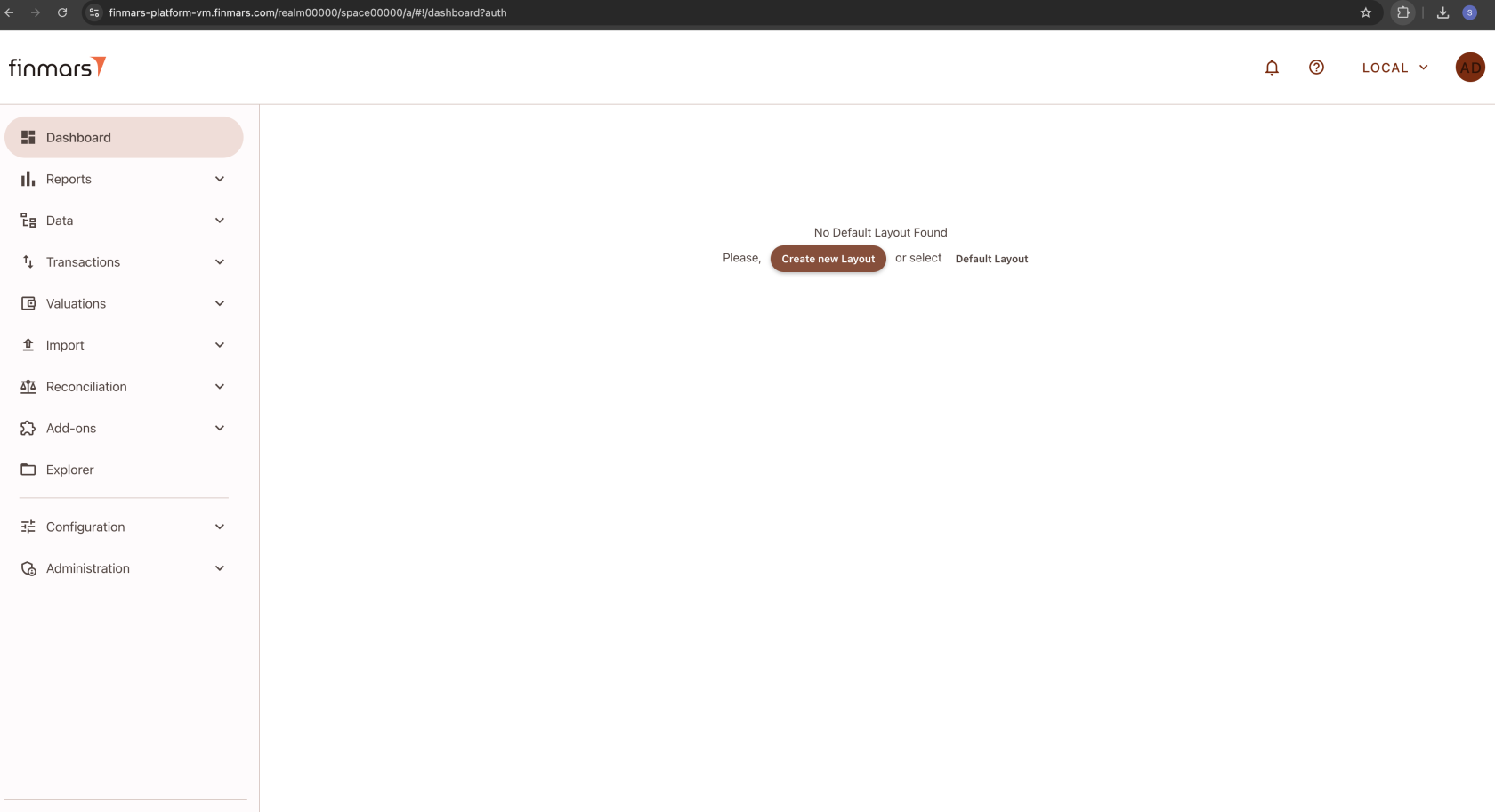](https://docs.finmars.com/uploads/images/gallery/2025-06/screenshot-2025-06-11-at-21-52-33.png)
Congratulations you finished your ****Finmars Platform**** Installation ****Successfully****! Well Done!
Get to know our [User Quick Start](https://docs.finmars.com/books/user-quick-start) guide for next steps
If you have some troubles during Installation - reach for any support channel:
- Create a [Github Issue](https://github.com/finmars-platform/finmars-core/issues/new)
- Join our [Discord](https://discord.gg/dJFxjwKQet) Server
- Contact us at