# Getting Started
Prerequisites:
Installed Finmars Community Edition (e.g. finmars.client.com and finmars-auth.client.com)
Mobile Phone (Android phone or Iphone)
1) Go to [App Store](https://apps.apple.com/gb/app/finmars/id6459471675) or [Google play](https://play.google.com/store/apps/details?id=com.finmars.mobile) and download the app
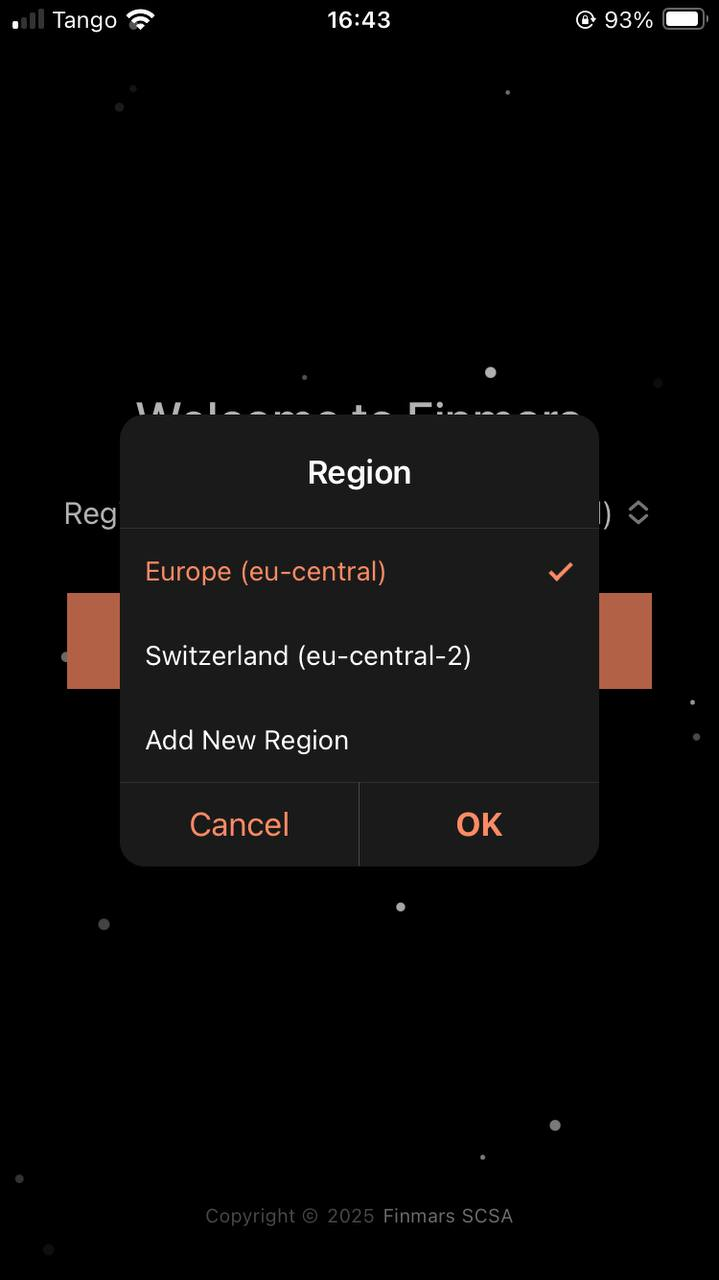
2\) Click on "Region" and click on "Add New Region"
[](https://docs.finmars.com/uploads/images/gallery/2025-09/image.png)
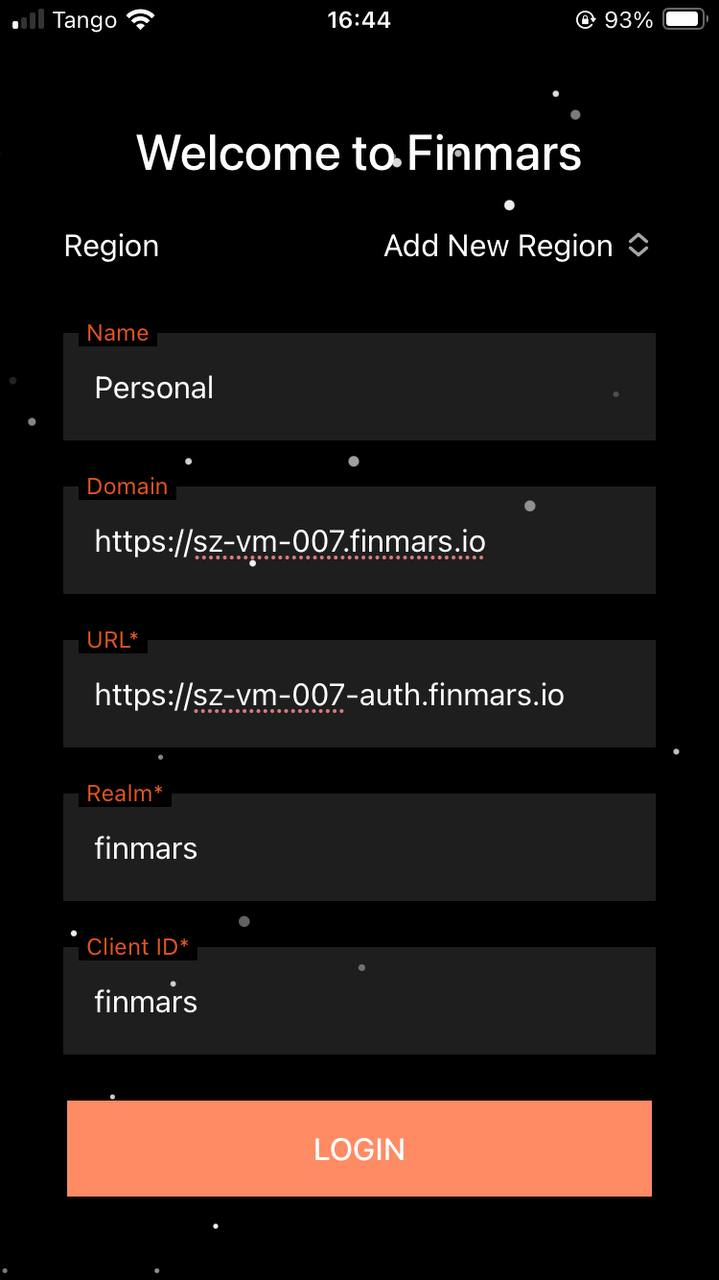
3\) Fill out Settings with your settings (URL for your Finmars and Finmars Auth, which you use and provided during installation of Community Edition). These settings tells your Mobile app which API to connect to.
```json
{
"name": "Personal",
"domain": "https://finmars.client.com",
"url": "https://finmars-auth.client.com",
"realm": "finmars",
"clientId": "finmars"
}
```
[](https://docs.finmars.com/uploads/images/gallery/2025-09/JV9image.png)
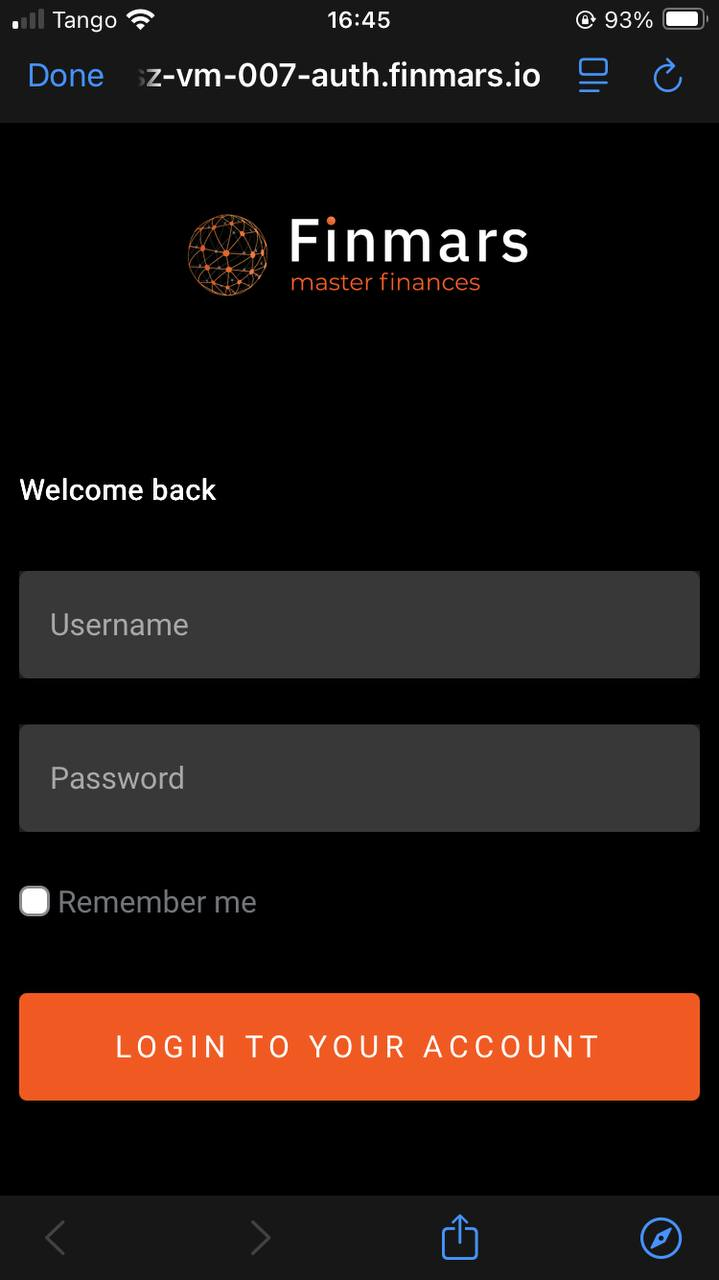
4\) Login into your Finmars
[](https://docs.finmars.com/uploads/images/gallery/2025-09/44eimage.png)
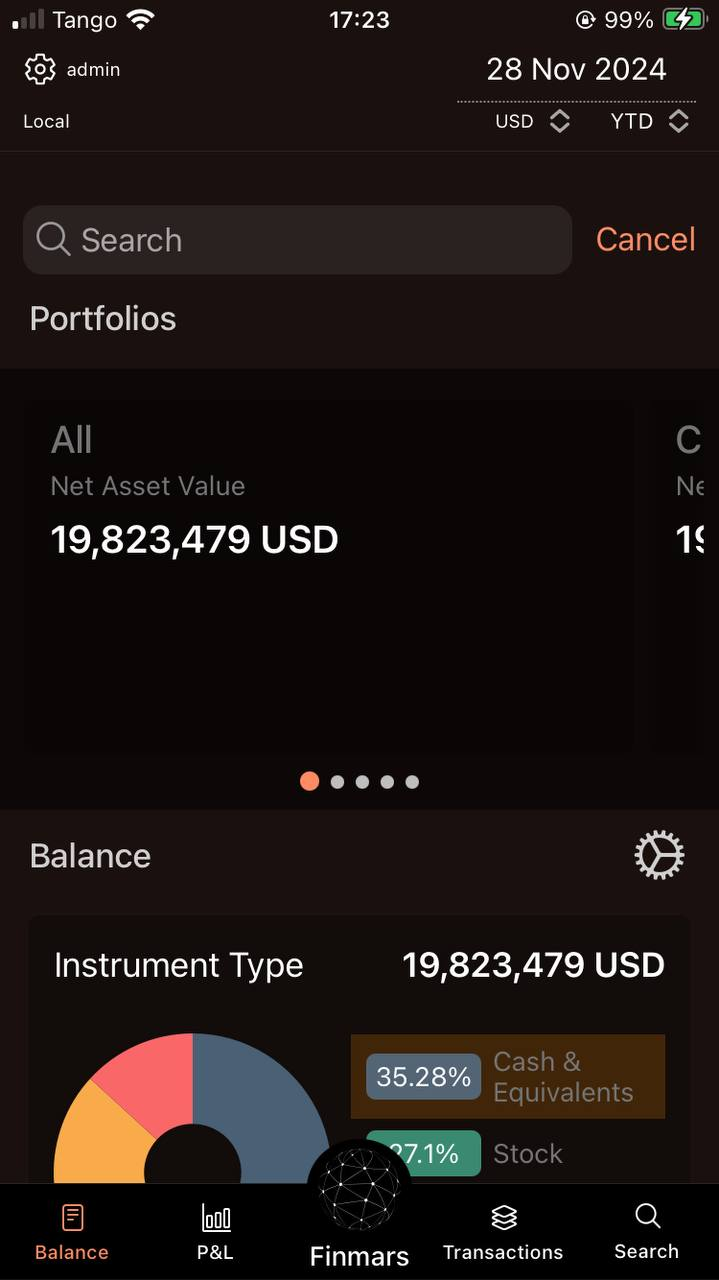
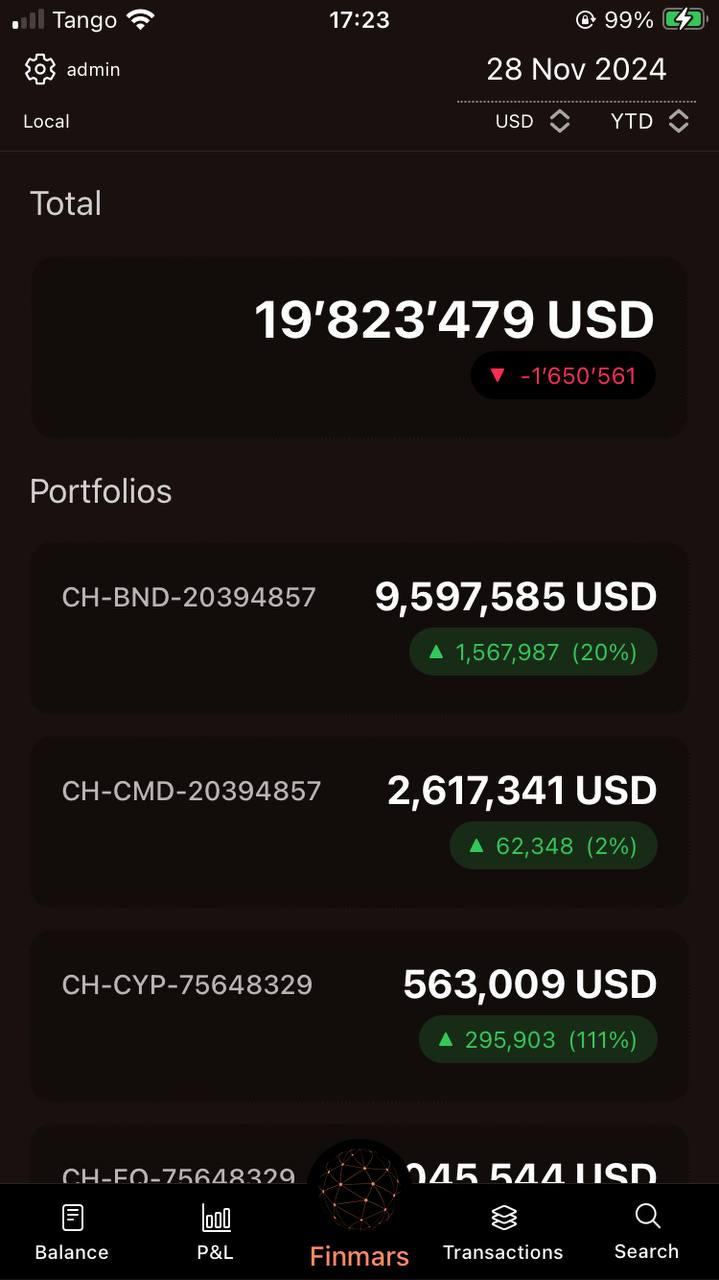
5\) Well done! Choose available Date and desired Portfolios. You are ready to use your Finmars from Mobile Ap
[](https://docs.finmars.com/uploads/images/gallery/2025-09/aXWimage.png)