# How to Create an Instrument entity
## Prerequisites
We assume you have all prerequisites you may need, including:
1. If needed: the VPN is configured to access the Finmars resources
2. If needed: access to the Virtual Machine to work with the sensitive information
3. Must have: registered in Finmars in the needed region environment (self-registered or registered by Finmars)
4. Must have: having permissions set to allow continue with the Action in the Guide
## Creation of Register Entity
1. Open the ****“Data”**** section in the left-hand side menu. Select the ****“Instruments”**** entity from the list under ****Data****.
[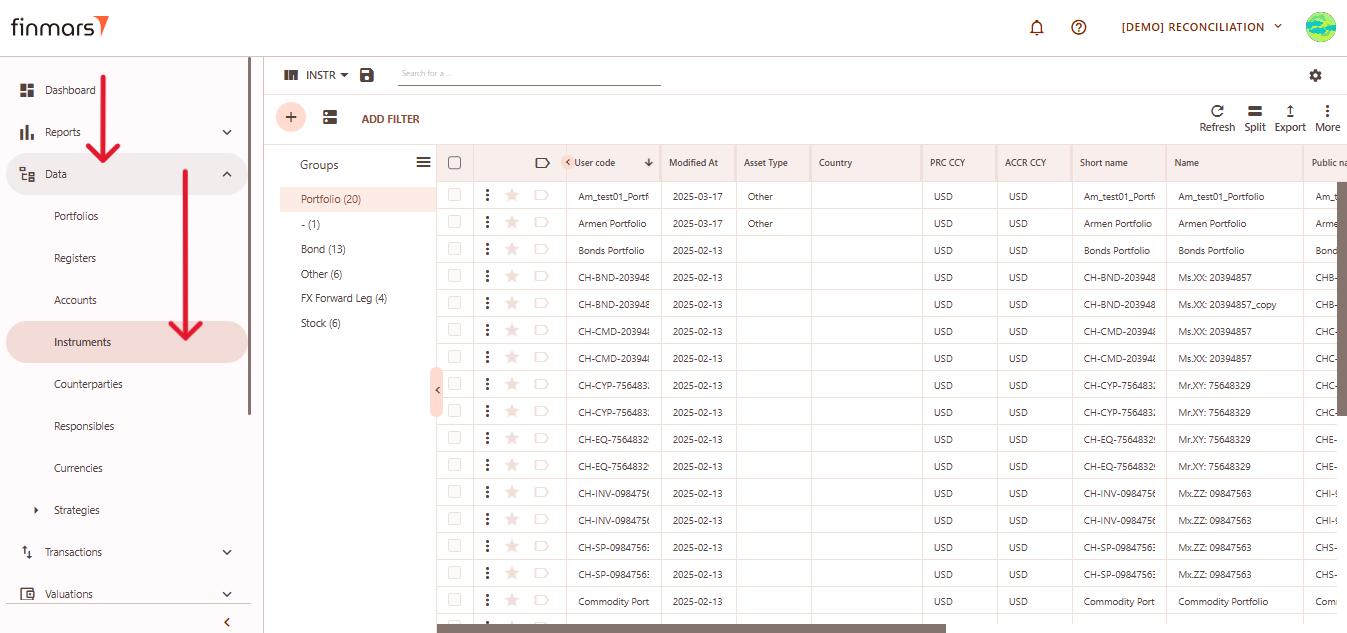](https://docs.finmars.com/uploads/images/gallery/2025-05/scaled-1680-/snimok-ekrana-2025-05-07-051134.png)
2. ****Click the “+ Add” button**** located in the top-left corner of the portfolio list view. A dropdown menu will appear offering four methods to add a new instrument:
1. ****Add Blank**** – manual entry with a fully blank template.
2. ****Add Typical**** – pre-filled template with commonly used default values.
3. ****Import from File**** – bulk import instruments using a file.
4. ****Get from Provider**** – retrieve instrument data from a market data provider.
[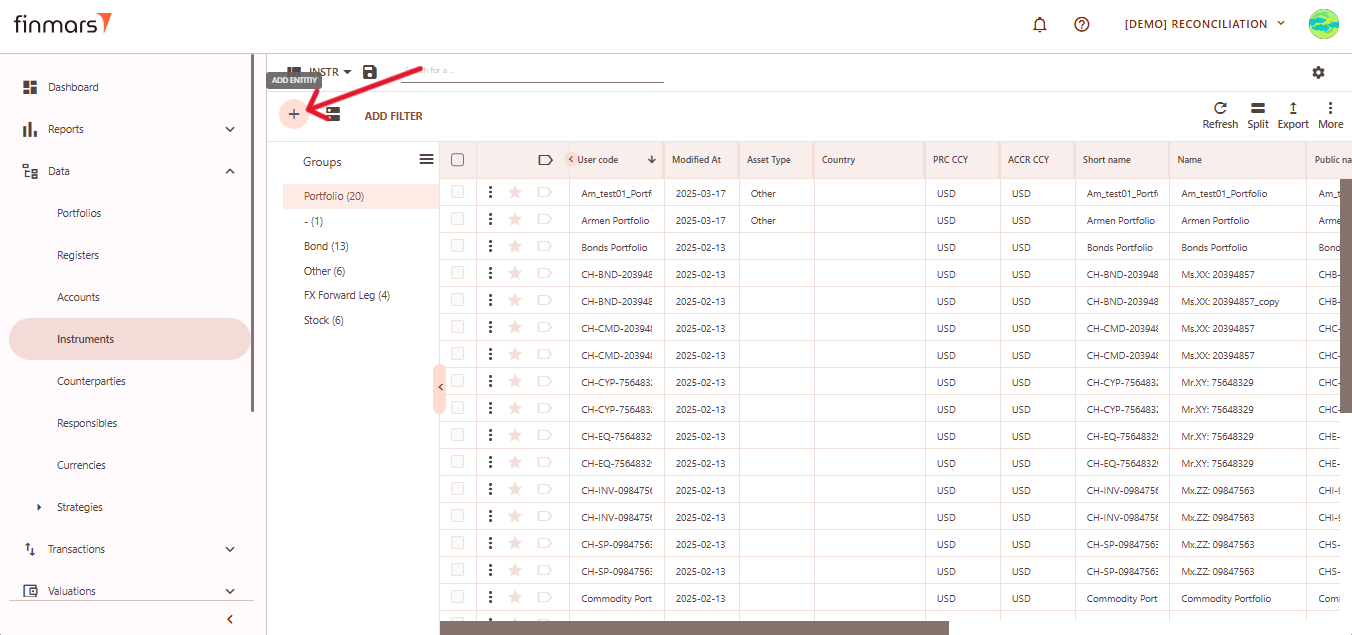](https://docs.finmars.com/uploads/images/gallery/2025-05/scaled-1680-/snimok-ekrana-2025-05-07-051324.png)
##### Option 1: Add Blank
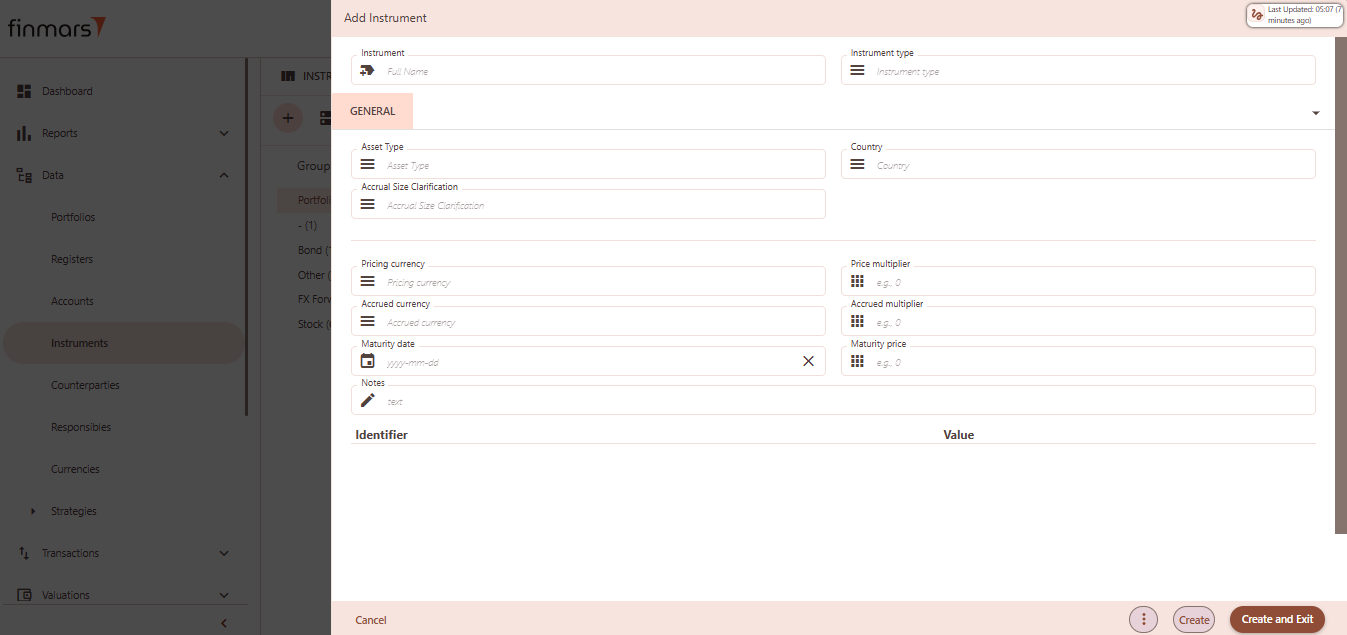
This opens a completely blank form where you can manually input all instrument details.
[](https://docs.finmars.com/uploads/images/gallery/2025-05/yC7image.png)
Fill out the following fields as needed:
1. ****Instrument**** – full name or unique identifier (required).
2. ****Instrument type**** – defines the kind of instrument (e.g., Bond, Stock, FX Forward, etc.).
3. ****Asset Type**** – specifies the financial asset classification (e.g., Equity, Fixed Income).
4. ****Country**** – country of issuance of the instrument.
5. ****Accrual Size Clarification**** – optional explanation or note for accrual calculation basis.
6. ****Pricing currency**** – the currency in which the instrument's market price is quoted.
7. ****Accrued currency**** – the currency in which interest or other accruals are calculated and reported.
8. ****Price multiplier**** – multiplier applied to the quoted price to calculate notional or total value (e.g., 100 if price is per 100 units).
9. ****Accrued multiplier**** – multiplier used to adjust the accrual value, typically to scale interest or dividend values appropriately.
10. ****Maturity date**** – the date when the instrument is due to mature and be settled (e.g., for bonds or term deposits).
11. ****Maturity price**** – the expected price or value at maturity, often used in valuation or final settlement (if applicable).
12. ****Notes**** – any relevant internal comments or additional metadata for this instrument.
13. ****Identifiers**** – optional key-value fields such as ISIN, CUSIP, internal codes, etc., used to uniquely identify the instrument.
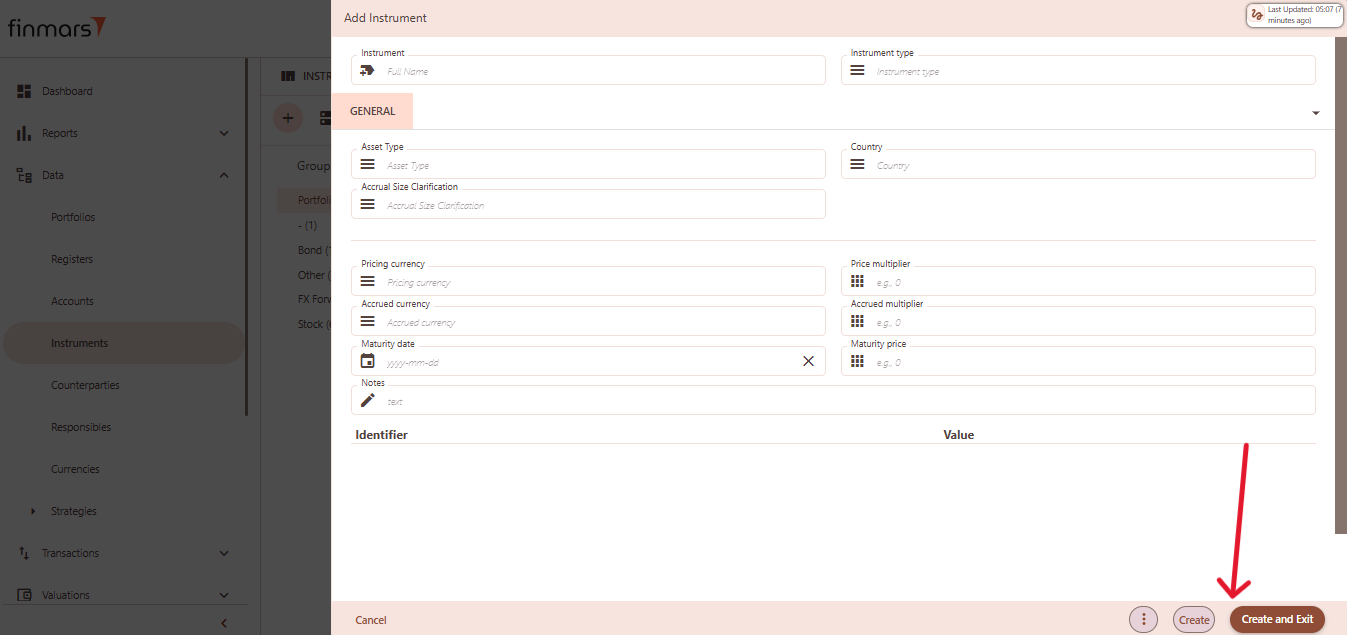
Click ****“Create and Exit”**** to save and return to the list, or ****“Create”**** to save and continue editing.
[](https://docs.finmars.com/uploads/images/gallery/2025-05/scaled-1680-/snimok-ekrana-2025-05-07-051440.png)
## Option 2: Add Typical
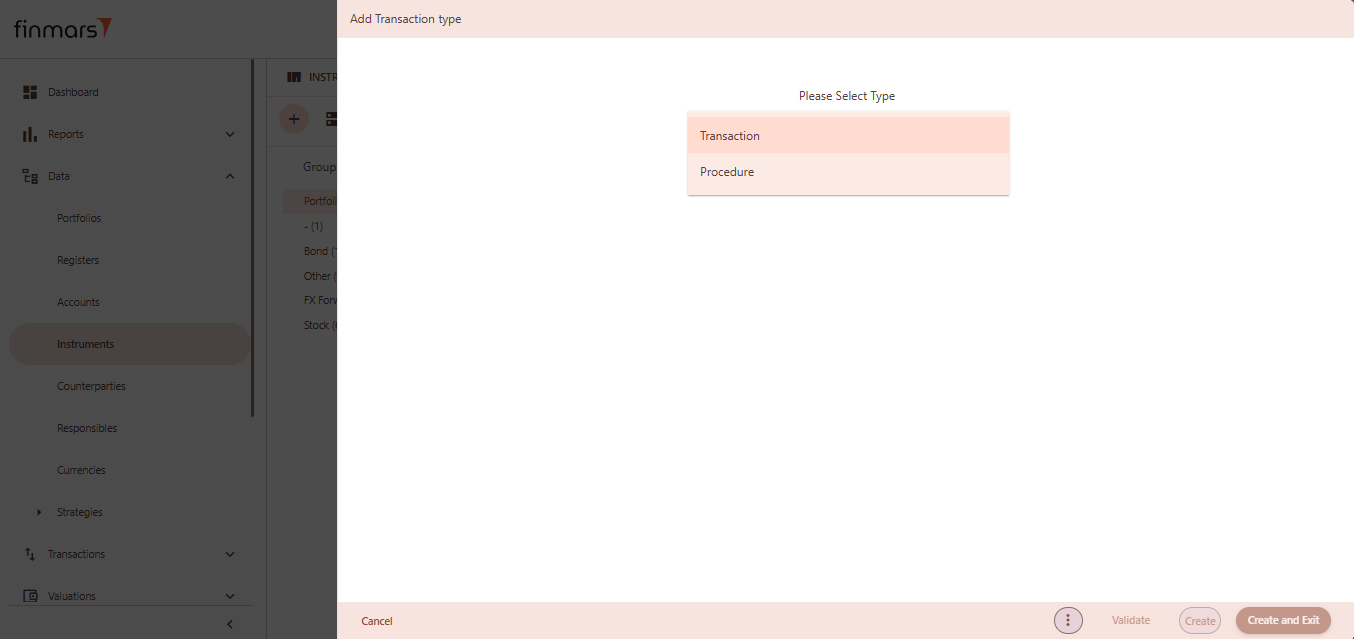
This will load a pre-filled template with default values for typical instruments, which can be modified as needed. Use this option to speed up creation when working with commonly used instruments.
[](https://docs.finmars.com/uploads/images/gallery/2025-05/oTGimage.png)
Click ****“Create and Exit”**** to save and return to the list, or ****“Create”**** to save and continue editing.
## Option 3: Import from File
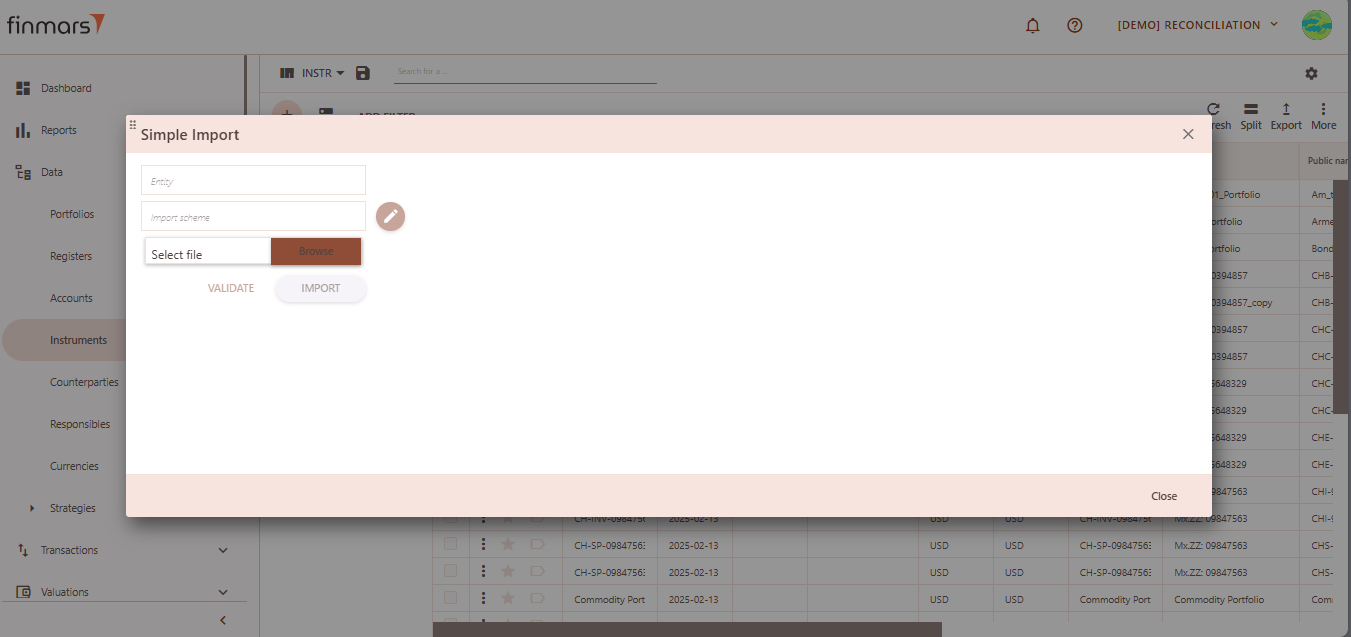
Use this option to import multiple instruments into the system from a prepared file (e.g., Excel or CSV).
1. ****Name**** – provide a name for the import process).
2. ****Import Scheme**** – select the appropriate scheme that matches the structure of your file. This determines how the system interprets and maps the data.
3. ****Browse**** – click this button to choose a file from your computer. Supported formats depend on the selected import scheme (e.g., .xlsx, .csv).
[](https://docs.finmars.com/uploads/images/gallery/2025-05/Yrnimage.png)
After selecting the file, click ****“Validate”**** to check the file for errors and confirm it matches the selected scheme. If the validation is successful, click ****“Import”**** to load the instruments into the database.
## Option 4: Get from Provider
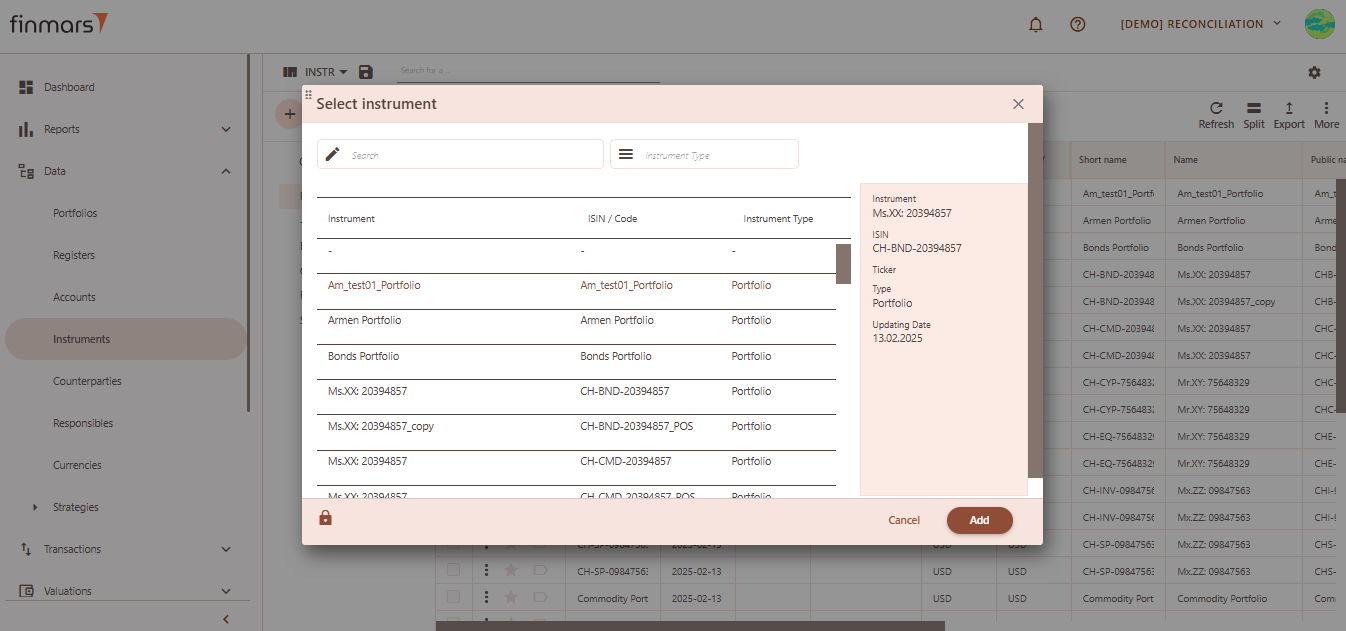
Automatically pull instrument data from a connected market data provider.
[](https://docs.finmars.com/uploads/images/gallery/2025-05/7gTimage.png)
After selecting the desired instrument, click the ****“Add”**** button to load it into the system.