# How to Create a Pricing Policy entity
## Prerequisites
We assume you have all prerequisites you may need, including:
[](https://docs.finmars.com/books/entities/page/how-to-create-a-currency-entity/edit?content-id=bkmrk-vpn-configured-%28prov&content-text=If%20needed%3A%20the%20VPN%20is%20configured%20to%20access%20the%20Fin "Jump to section in editor")
1. If needed: the VPN is configured to access the Finmars resources
2. If needed: access to the Virtual Machine to work with the sensitive information
3. Must have: registered in Finmars in the needed region environment (self-registered or registered by Finmars)
4. Must have: having permissions set to allow continue with the Action in the Guide
## Creation of Pricing Policy Entity
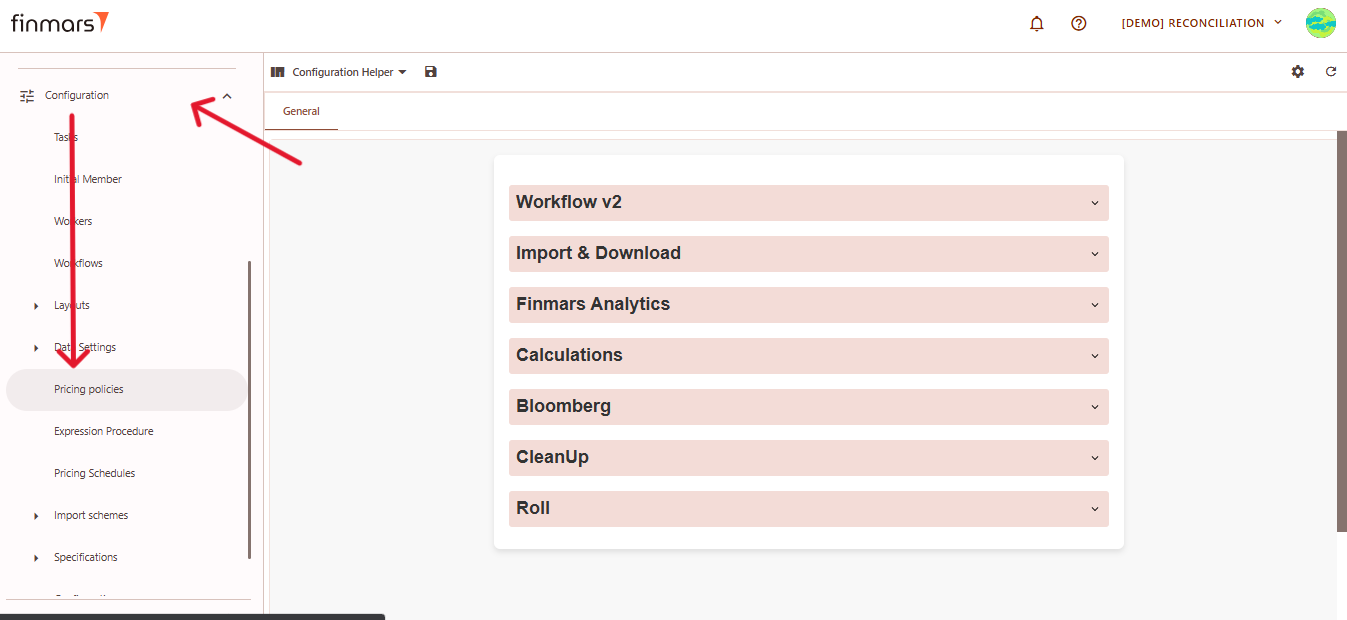
1. Open the ****“Configuration”**** section in the left-hand side menu. Select the ****“Pricing Policies”**** entity.
[](https://docs.finmars.com/uploads/images/gallery/2025-05/scaled-1680-/snimok-ekrana-2025-05-08-050733.png)
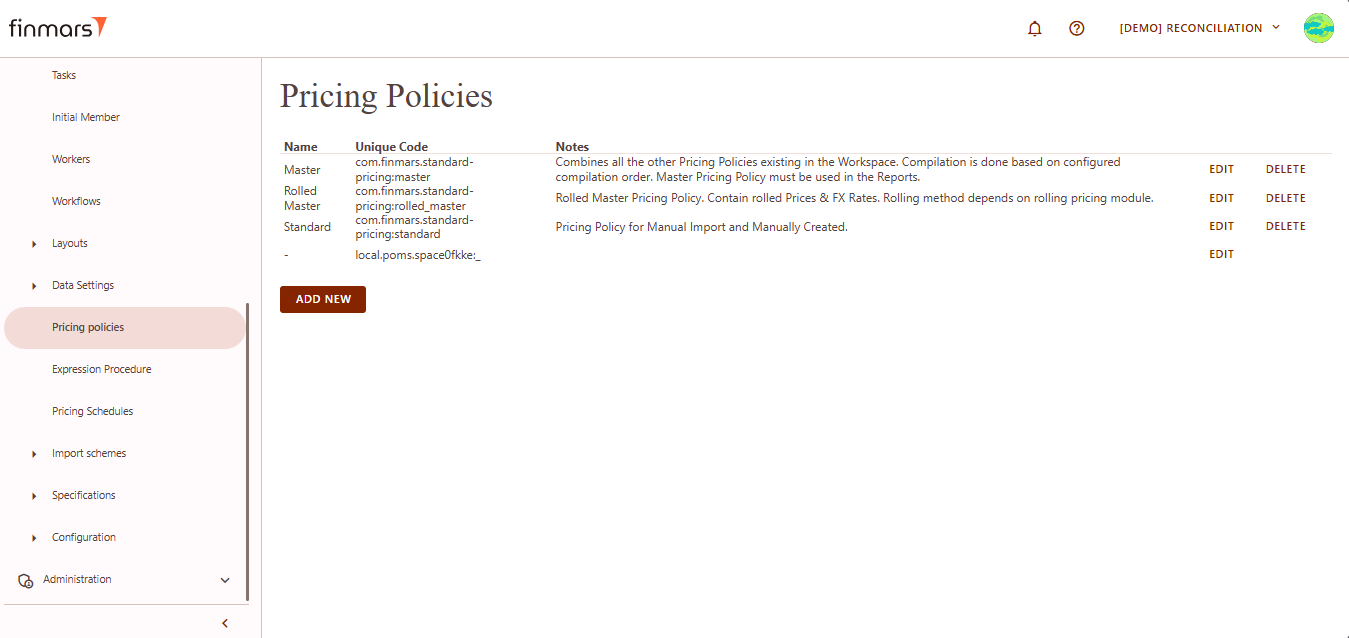
2. You will be directed to a page displaying a list of existing pricing policies.
[](https://docs.finmars.com/uploads/images/gallery/2025-05/scaled-1680-/snimok-ekrana-2025-05-08-050752.png)
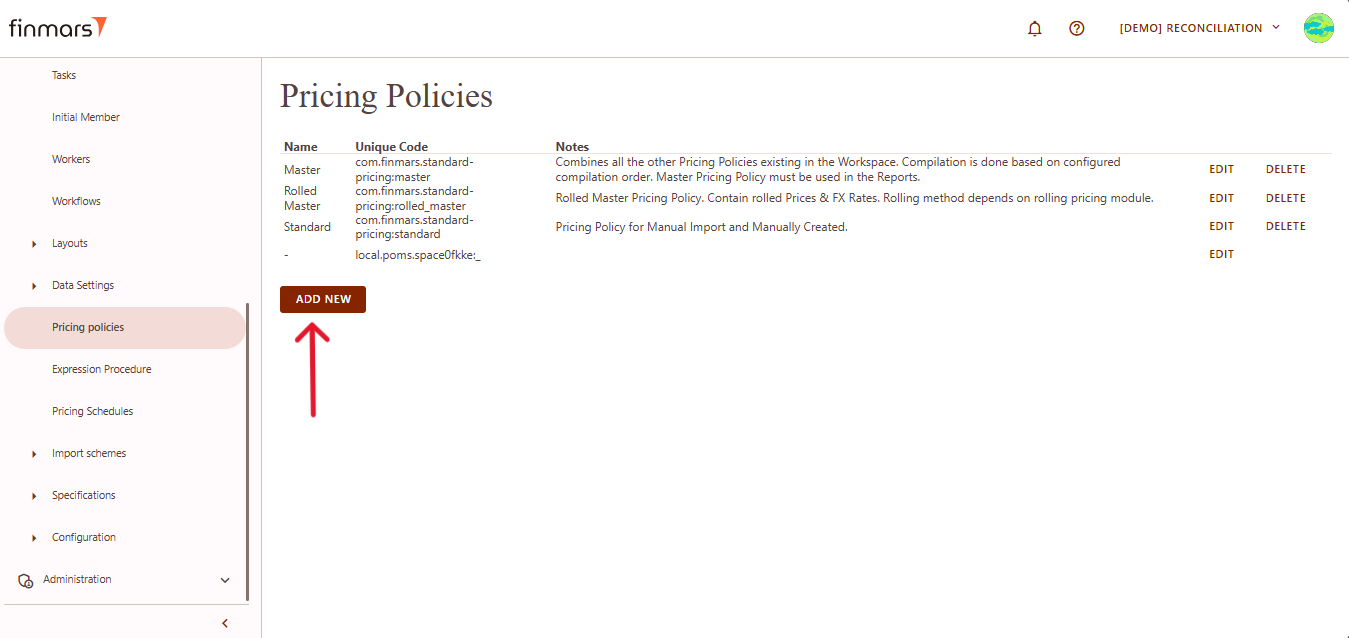
3. Scroll down to the bottom of the list and click the ****Add new**** button.
[](https://docs.finmars.com/uploads/images/gallery/2025-05/scaled-1680-/copy-5.png)
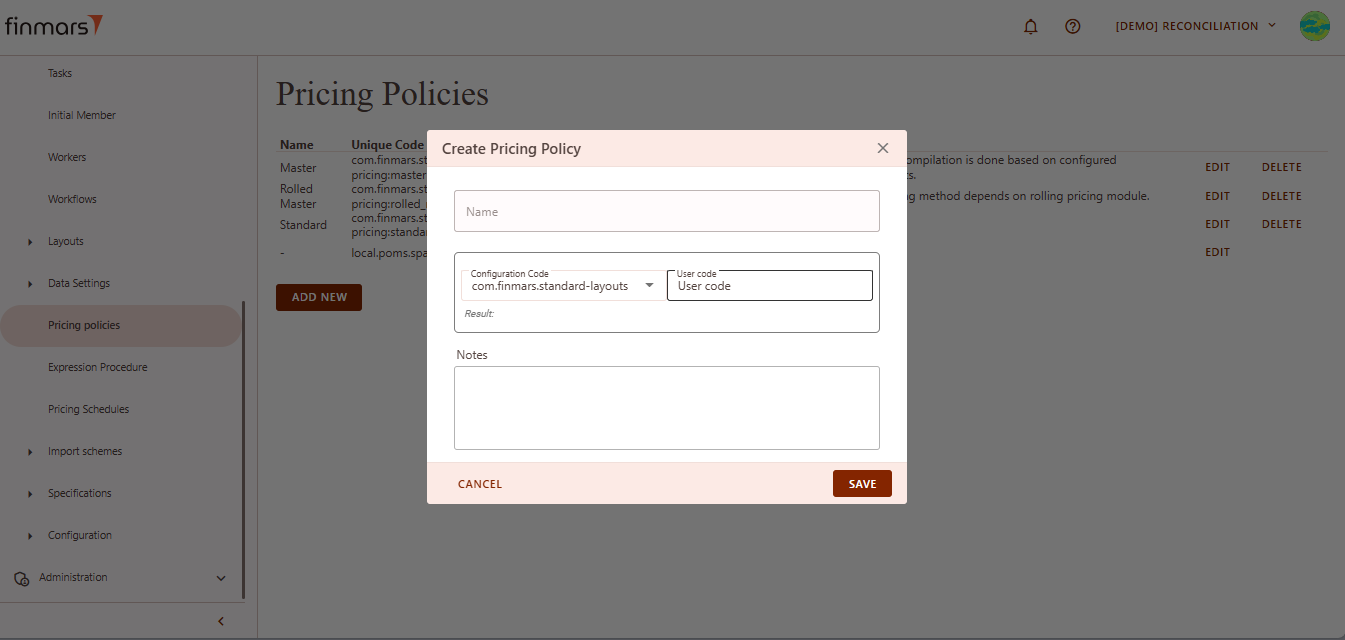
4. This action opens the ****Create Pricing Policy**** form.
[](https://docs.finmars.com/uploads/images/gallery/2025-05/scaled-1680-/snimok-ekrana-2025-05-08-050816.png)
5. ****Fill in the following fields:****
1. ****Name**** – the name of the pricing policy.
2. ****Configuration Code**** – select from the dropdown menu.
3. ****User Code**** – enter a user code using only lowercase letters (`a–z`), numbers (`0–9`), and special characters: underscore (`_`) or dash (`-`).
4. ****Notes**** – any additional comments or context.
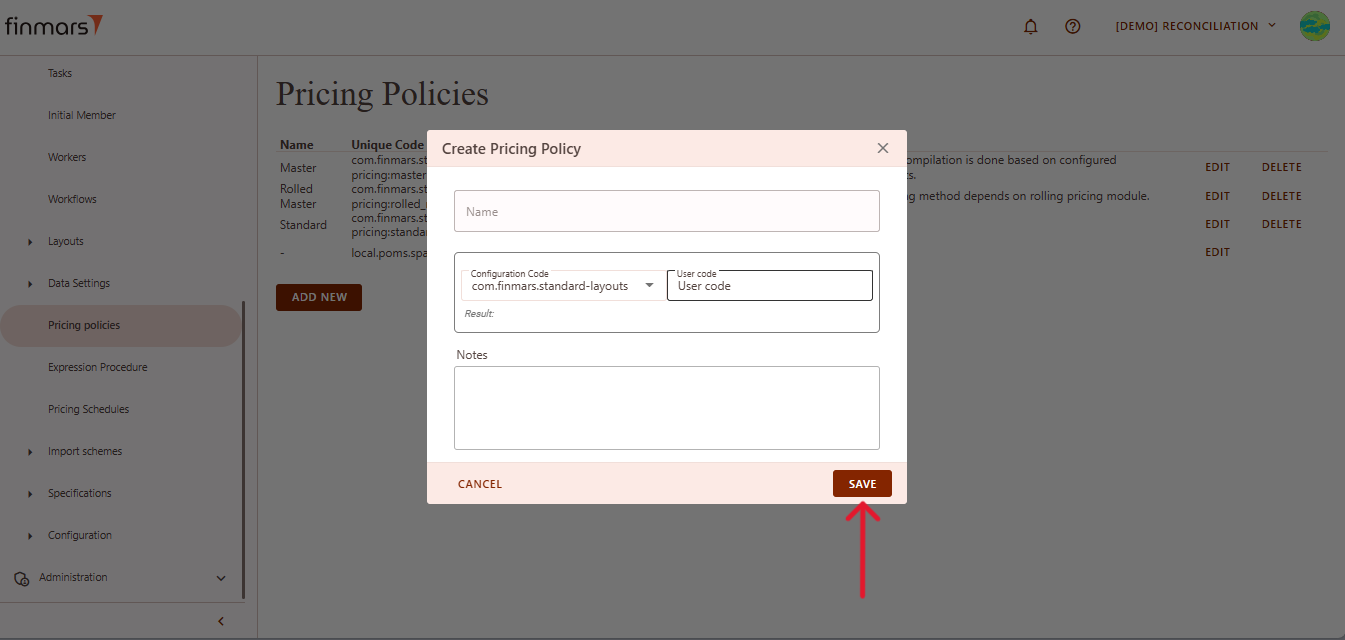
6. Once all required data is filled out, click ****Save**** to create the new pricing policy.
[](https://docs.finmars.com/uploads/images/gallery/2025-05/scaled-1680-/copy-6.png)