# How to Create a Portfolio Entity
## Prerequisites
We assume you have all prerequisites you may need, including:
1. If needed: the VPN is configured to access the Finmars resources
2. If needed: access to the Virtual Machine to work with the sensitive information
3. Must have: registered in Finmars in the needed region environment (self-registered or registered by Finmars)
4. Must have: having permissions set to allow continue with the Action in the Guide
## Creation of Portfolio Entity
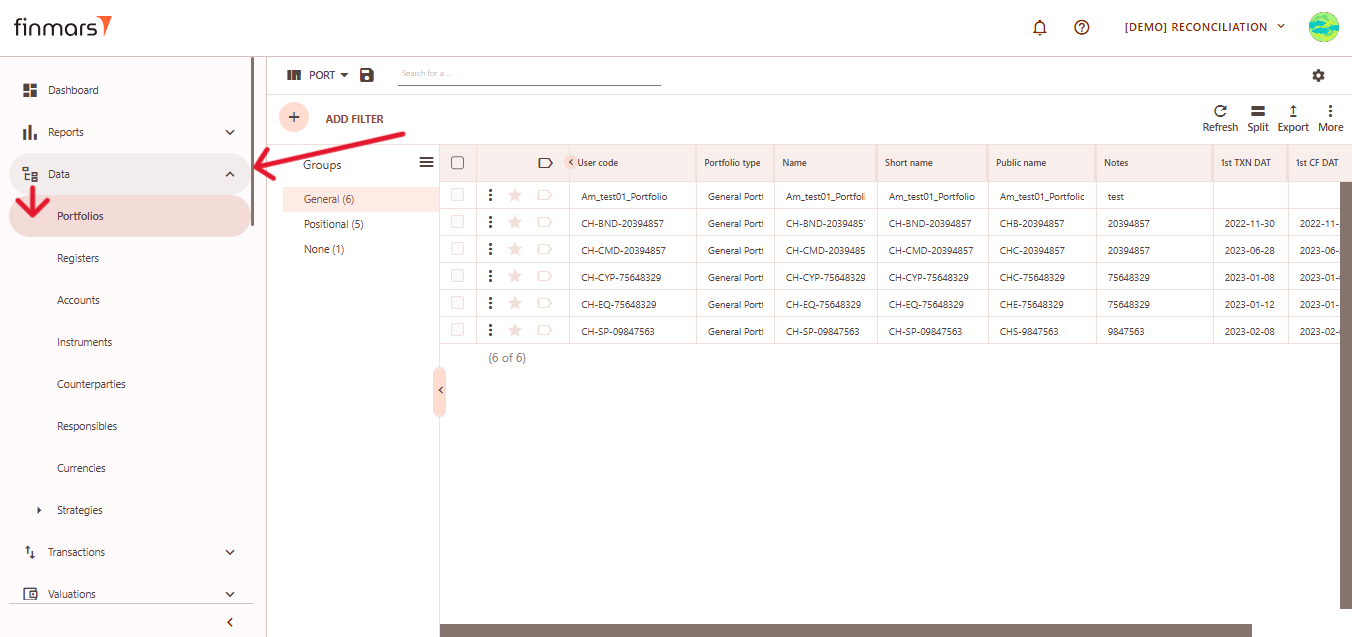
1. Open the ****“Data”**** section in the left-hand side menu. Select the ****“Portfolios”**** entity from the list under ****Data****.
[](https://docs.finmars.com/uploads/images/gallery/2025-05/scaled-1680-/snimok-ekrana-2025-05-04-195556.png)
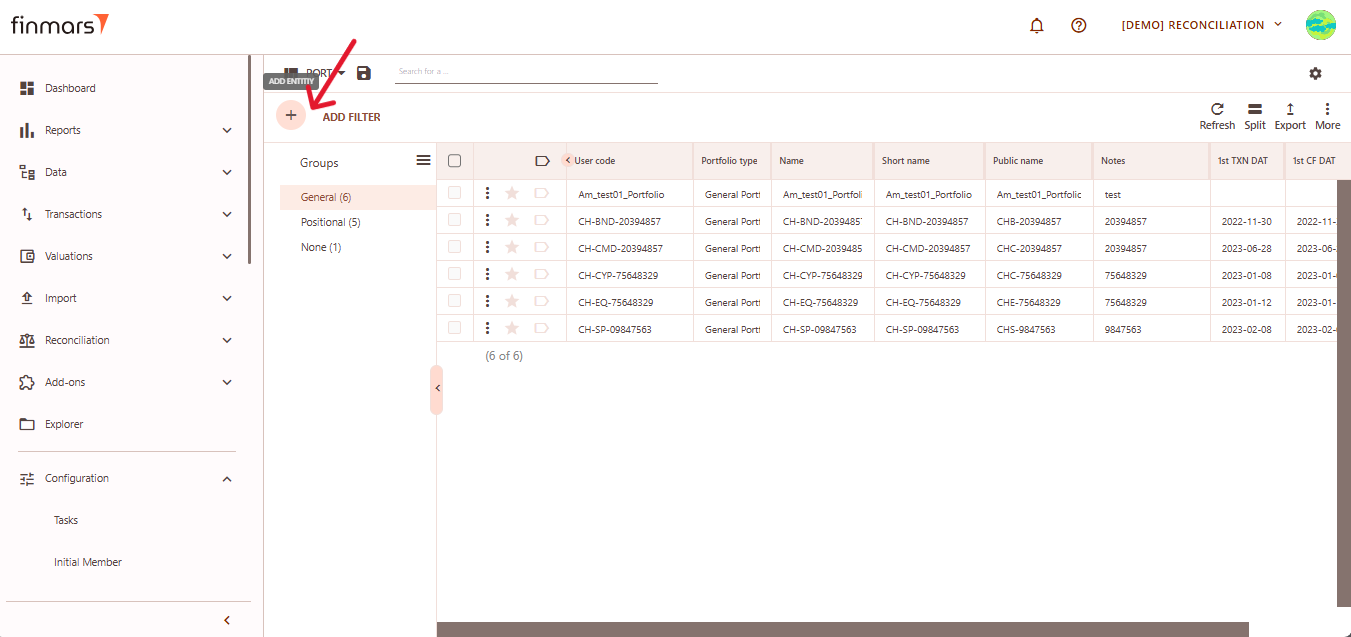
2. ****Click the “+ Add” button**** located in the top-left corner of the portfolio list view.
[](https://docs.finmars.com/uploads/images/gallery/2025-05/scaled-1680-/snimok-ekrana-2025-05-04-195818.png)
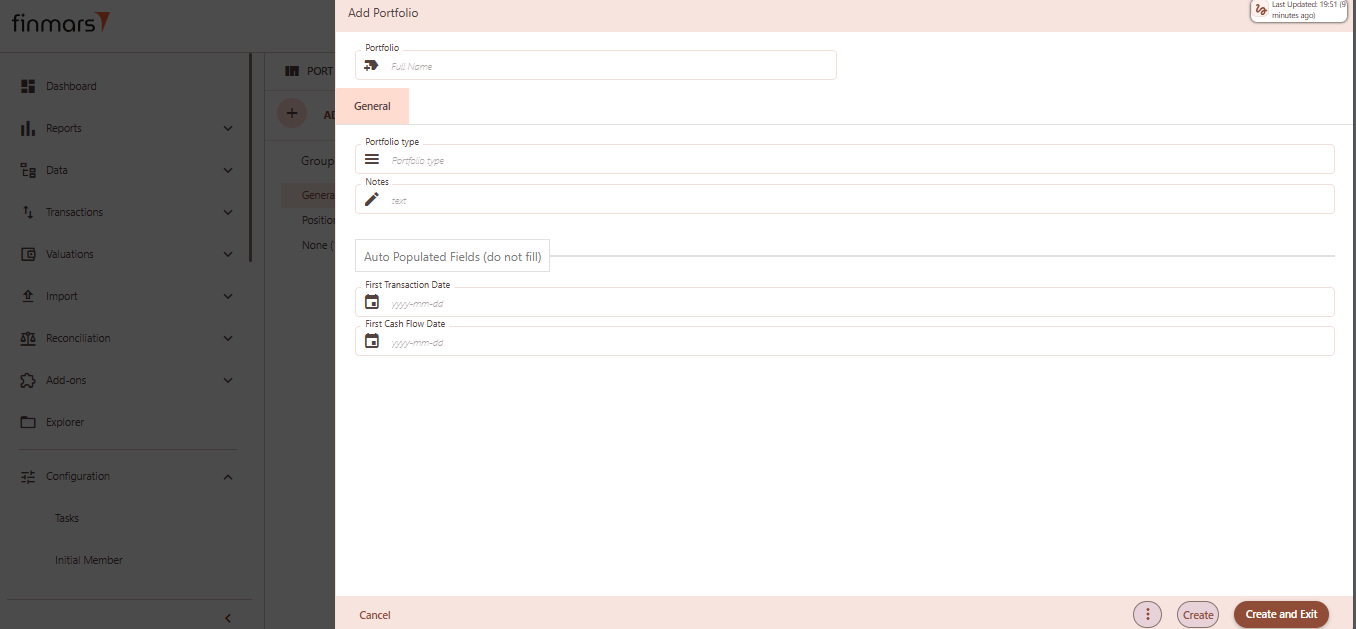
3. This action opens the ****Add Portfolio**** form.
[](https://docs.finmars.com/uploads/images/gallery/2025-05/image.png)
4. ****Fill in the required fields in the creation panel:****
1. ****Portfolio**** (Full Name) – the unique name of the portfolio. This will be used to identify it across the platform.
2. ****Portfolio Type –**** select from predefined types (e.g., General, Positional). Determines portfolio behavior and classification.
3. ****Notes**** – optional field to add internal comments or details about the portfolio’s purpose or structure.
4. ****First Transaction Date**** (auto populated, do not fill) – this field will automatically reflect the earliest transaction date once transactions are associated.
5. ****First Cash Flow Date**** (auto populated, do not fill) – similar to the above, it will auto-fill based on actual cash flow activity.
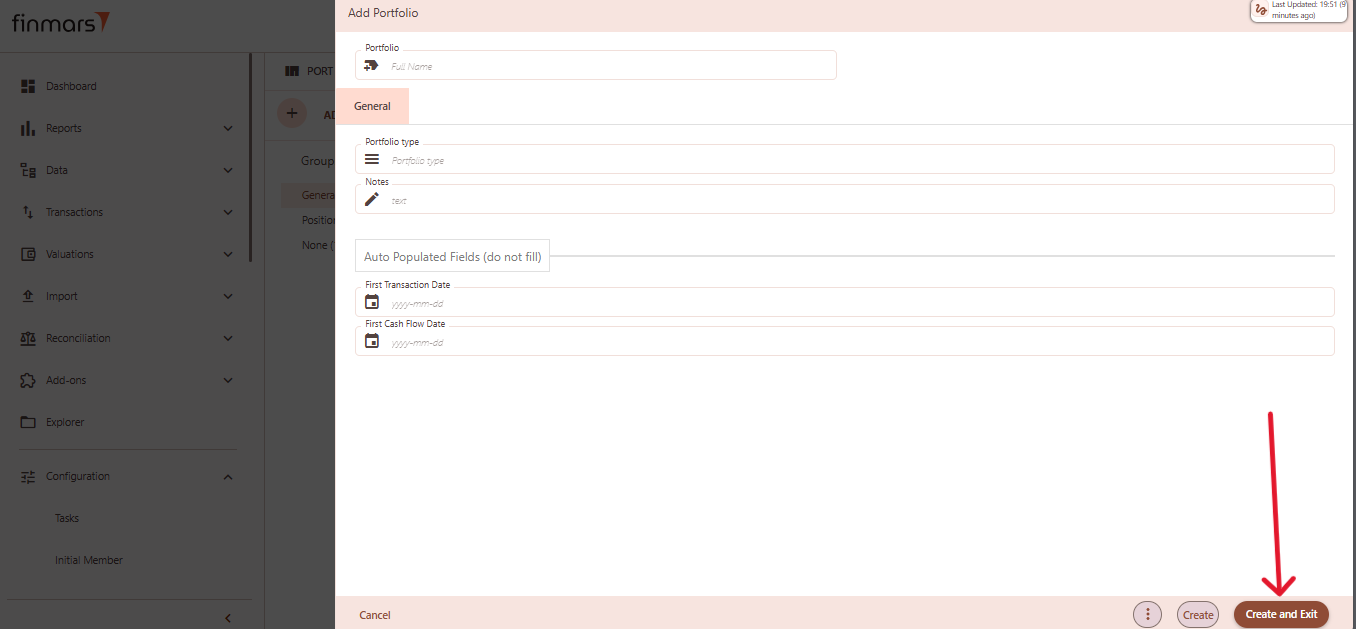
5. Click ****“Create and Exit”**** to save the portfolio and return to the list view. Alternatively, use ****“Create”**** to save and continue editing.
[](https://docs.finmars.com/uploads/images/gallery/2025-05/scaled-1680-/snimok-ekrana-2025-05-04-200008.png)