# How to Create a Currency entity
## Prerequisites
We assume you have all prerequisites you may need, including:
1. If needed: the VPN is configured to access the Finmars resources
2. If needed: access to the Virtual Machine to work with the sensitive information
3. Must have: registered in Finmars in the needed region environment (self-registered or registered by Finmars)
4. Must have: having permissions set to allow continue with the Action in the Guide
## Creation of Currency Entity
[](https://docs.finmars.com/books/entities/page/how-to-create-a-register-entity/edit?content-id=bkmrk-open-the-%E2%80%9Cdata%E2%80%9D-sect&content-text=Open%20the%20%E2%80%9CData%E2%80%9D%20section%20in%20the%20left-hand%20side%20menu "Jump to section in editor")
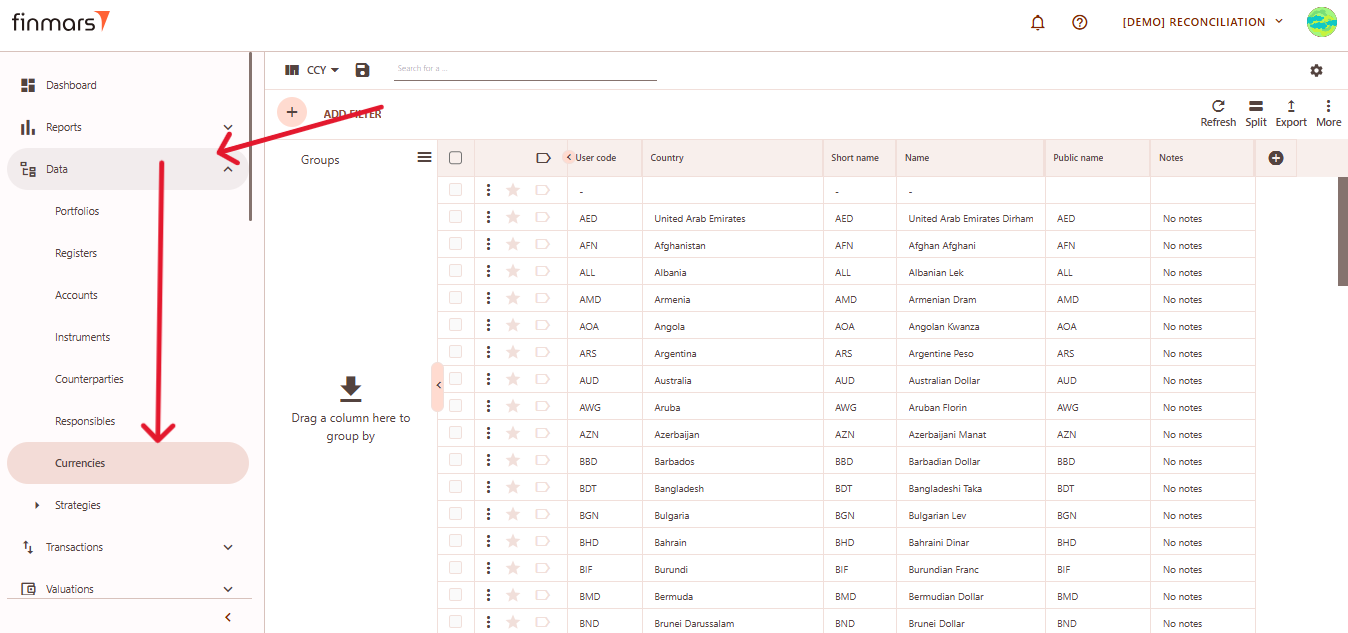
1. Open the ****“Data”**** section in the left-hand side menu. Select the ****“Currency”**** entity from the list under ****Data****.
[](https://docs.finmars.com/uploads/images/gallery/2025-05/scaled-1680-/snimok-ekrana-2025-05-06-035244.png)
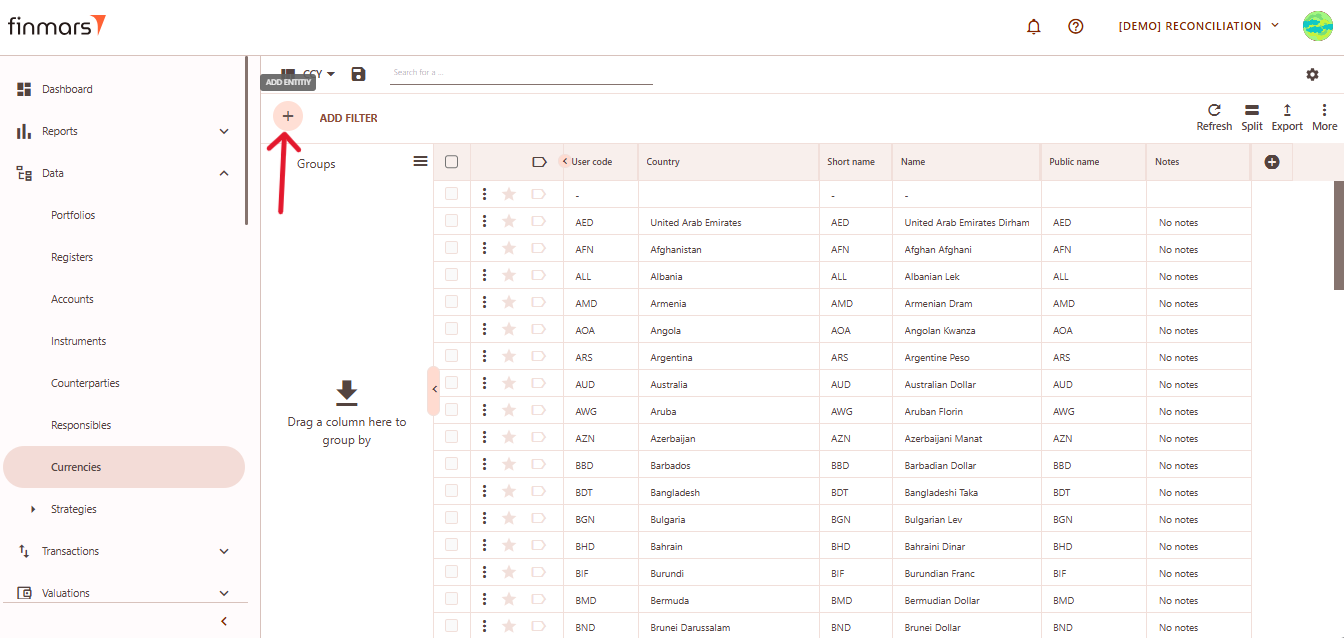
2. ****Click the “+ Add” button**** located in the top-left corner of the portfolio list view.
[](https://docs.finmars.com/uploads/images/gallery/2025-05/scaled-1680-/snimok-ekrana-2025-05-06-035251.png)
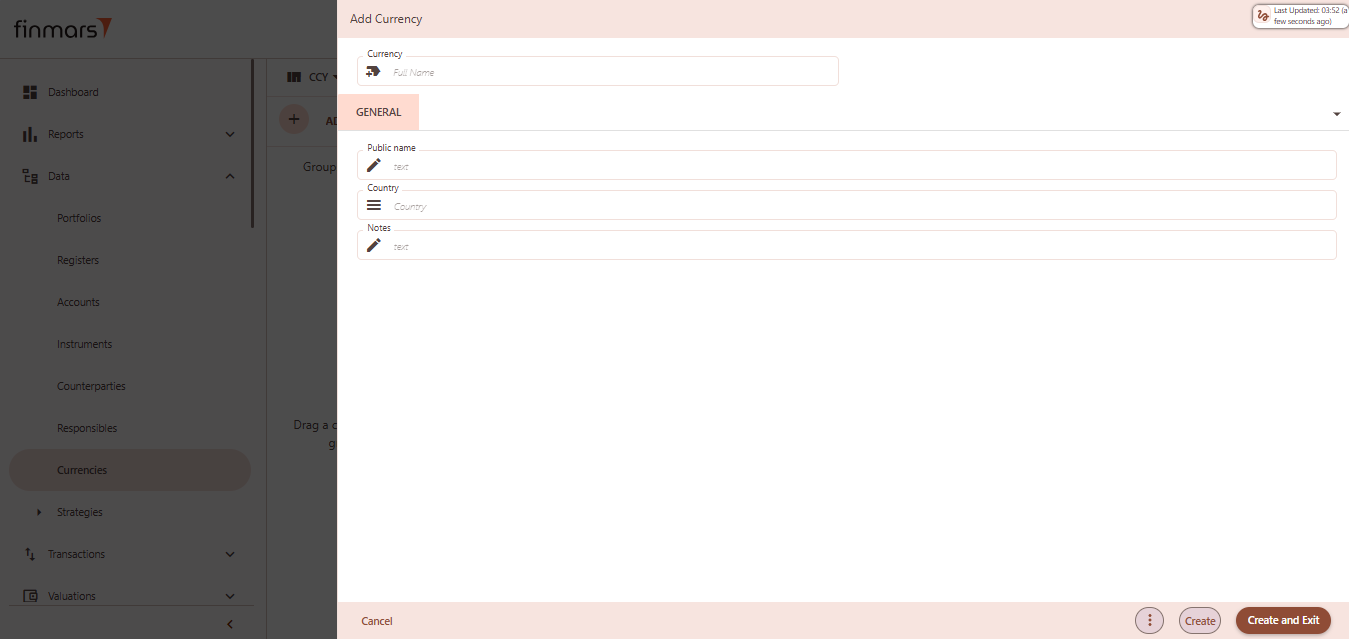
3. This action opens the ****Add**** ****Portfolio register**** form.
[](https://docs.finmars.com/uploads/images/gallery/2025-05/scaled-1680-/snimok-ekrana-2025-05-06-035301.png)
4. ****Fill in the required fields in the creation panel:****
1. ****Currency**** – enter the full name of the currency. This typically follows the ISO 4217 format (e.g., USD, EUR, CHF).
2. ****Public name**** – optional field for external-facing labels, if different from internal naming.
3. ****Country**** – select the issuing country for context/reference. This may be used in filters or reports.
4. ****Notes**** – add any internal notes for clarification or documentation purposes.
5. Click ****“Create and Exit”**** to save the portfolio and return to the list view. Alternatively, use ****“Create”**** to save and continue editing.