# How to Create a Counterparty Entity

## Prerequisites

We assume you have all prerequisites you may need, including:

1. If needed: the VPN is configured to access the Finmars resources
2. If needed: access to the Virtual Machine to work with the sensitive information
3. Must have: registered in Finmars in the needed region environment (self-registered or registered by Finmars)
4. Must have: having permissions set to allow continue with the Action in the Guide

## Creation of Counterparty Entity

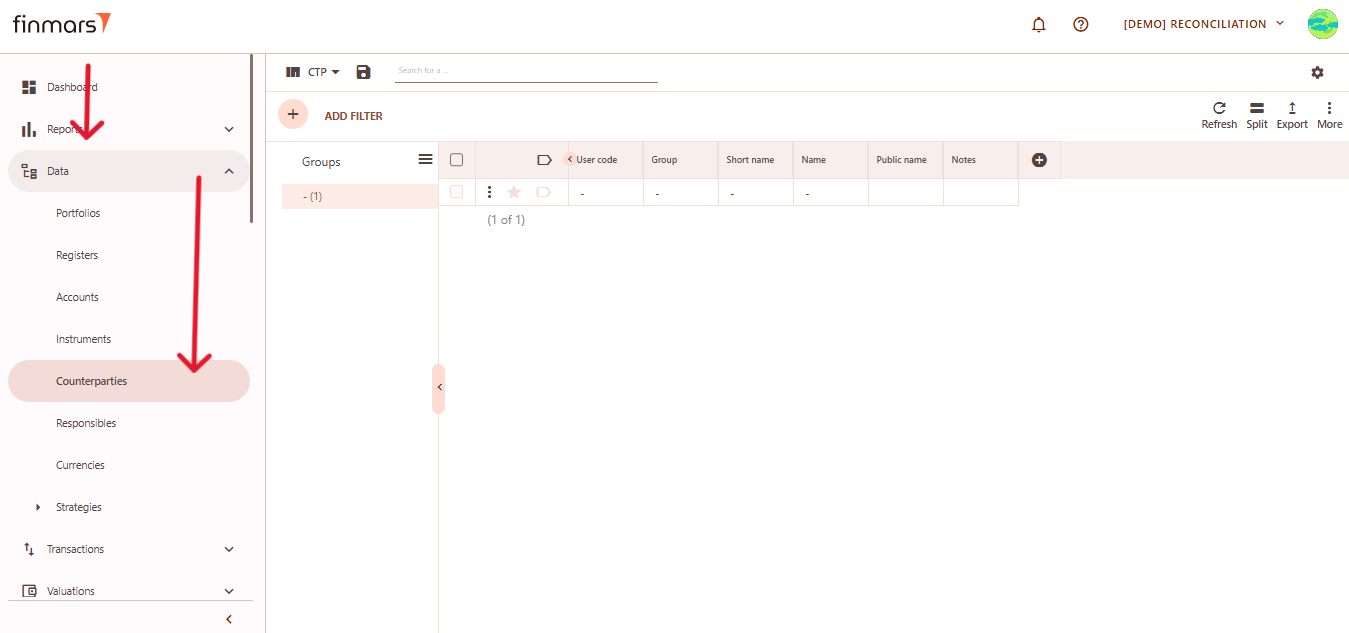
1. <span style="color: rgb(170, 170, 170); background-color: rgb(34, 34, 34);">Open the</span> ****“Data”**** <span style="color: rgb(170, 170, 170); background-color: rgb(34, 34, 34);">section in the left-hand side menu. Select the</span> ****“Counterparties”**** <span style="color: rgb(170, 170, 170); background-color: rgb(34, 34, 34); white-space: pre-wrap;">entity from the list under </span>****Data****<span style="color: rgb(170, 170, 170); background-color: rgb(34, 34, 34);">.</span>  
    [![Снимок экрана 2025-05-06 040557.png](https://docs.finmars.com/uploads/images/gallery/2025-05/scaled-1680-/snimok-ekrana-2025-05-06-040557.png)](https://docs.finmars.com/uploads/images/gallery/2025-05/scaled-1680-/snimok-ekrana-2025-05-06-040557.png)
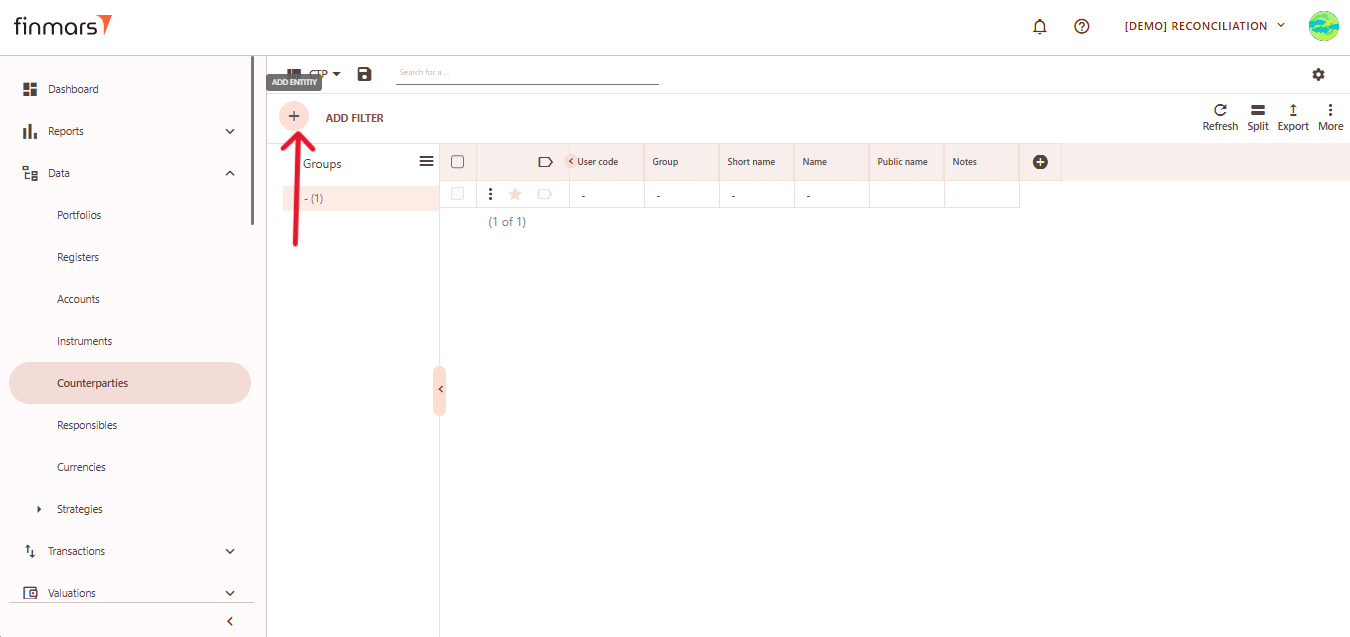
2. ****Click the “+ Add” button****<span style="color: rgb(170, 170, 170); background-color: rgb(34, 34, 34); white-space: pre-wrap;"> located in the top-left corner of the portfolio list view.</span>  
    [![Снимок экрана 2025-05-06 040603.png](https://docs.finmars.com/uploads/images/gallery/2025-05/scaled-1680-/snimok-ekrana-2025-05-06-040603.png)](https://docs.finmars.com/uploads/images/gallery/2025-05/scaled-1680-/snimok-ekrana-2025-05-06-040603.png)
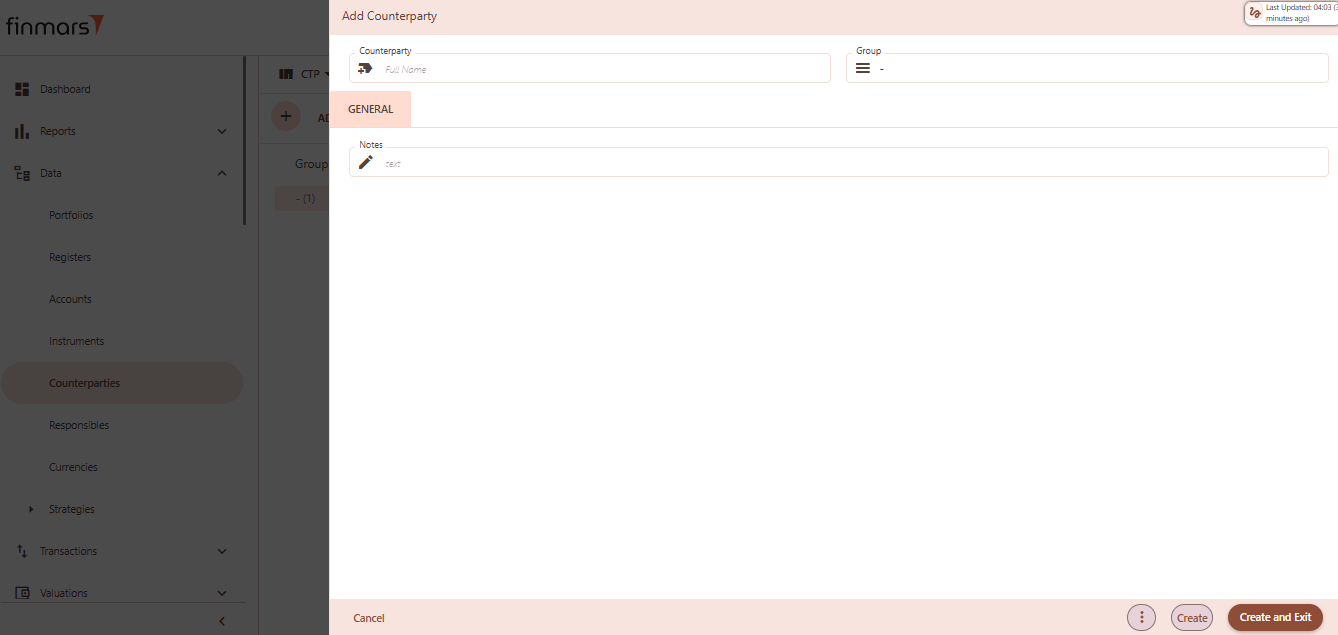
3. <span style="color: rgb(170, 170, 170); background-color: rgb(34, 34, 34); white-space: pre-wrap;">This action opens the </span>****Add****<span style="color: rgb(170, 170, 170); background-color: rgb(34, 34, 34); white-space: pre-wrap;"> </span>****Counterparty**** <span style="color: rgb(170, 170, 170); background-color: rgb(34, 34, 34);">form.</span>  
    [![Снимок экрана 2025-05-06 040613.png](https://docs.finmars.com/uploads/images/gallery/2025-05/scaled-1680-/snimok-ekrana-2025-05-06-040613.png)](https://docs.finmars.com/uploads/images/gallery/2025-05/scaled-1680-/snimok-ekrana-2025-05-06-040613.png)
4. ****Fill in the required fields in the creation panel:****
5. 1. ****Counterparty****<span style="white-space: pre-wrap;"> – full name or identifier for the counterparty (required). This can be a bank, broker, client, or any financial entity you deal with.</span>
    2. ****Group****<span style="white-space: pre-wrap;"> </span>**–** used to organize counterparties into categories such as “Banks,” “Funds,” “Clients,” etc.
    3. ****Notes****<span style="white-space: pre-wrap;"> </span>**–**<span style="white-space: pre-wrap;"> any additional internal comments or metadata for the counterparty.</span>  
        [![copy 3.png](https://docs.finmars.com/uploads/images/gallery/2025-05/scaled-1680-/copy-3.png)](https://docs.finmars.com/uploads/images/gallery/2025-05/scaled-1680-/copy-3.png)
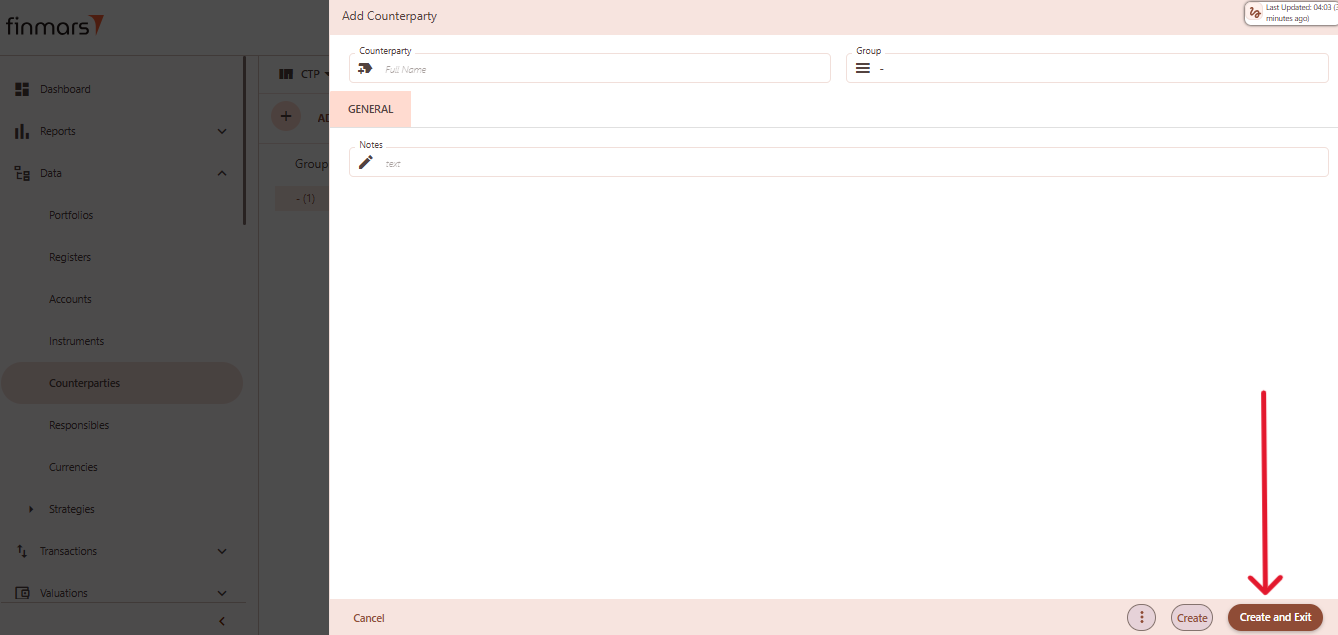
6. <span style="color: rgb(170, 170, 170); background-color: rgb(34, 34, 34);">Click</span> ****“Create and Exit”****<span style="color: rgb(170, 170, 170); background-color: rgb(34, 34, 34); white-space: pre-wrap;"> to save the portfolio and return to the list view. Alternatively, use </span>****“Create”****<span style="color: rgb(170, 170, 170); background-color: rgb(34, 34, 34); white-space: pre-wrap;"> to save and continue editing.</span>