# Register
This entity is associated with a portfolio. It is used for calculating performance, helping track and analyze the portfolio's overall returns and efficiency over time.
# Register
#### **Table of Contents**
- [Description](#bkmrk-description)
- [Examples](#bkmrk-examples)
- [Cookbook](#bkmrk-cookbook)
- [F.A.Q.](#bkmrk-api-documentation)
- [API Documentation](#bkmrk-api-documentation)
#### **Description**
##### *Financial meaning*
A **register** is a structured and organized record used in finance and accounting to track specific types of financial data over time. It acts like a detailed ledger where all movements or events related to a particular category (such as cash, securities, or transactions) are documented.
##### *Platform abstraction*
A **Register** in the Finmars platform is a structured container that stores valuation-related information about a portfolio. Each register is associated with a specific portfolio and reflects a distinct layer of financial data, such as positions, valuations, and links to financial instruments. Registers help structure and organize the way portfolio data is calculated, grouped, and displayed.
**Registers are used in:**
- Each register defines the [currency ](https://docs.finmars.com/books/entities/page/currency "Currency")and pricing method for asset valuation within the platform.
- Registers store snapshots of position and value changes that are then used to compute return metrics.
- Registers help distinguish between cash and position data, creating a cleaner view of asset structure.
- Registers may reference specific [instruments ](https://docs.finmars.com/books/entities/page/instrument "Instrument")tied to the valuation of positions.
#### **Examples**
| **User code** | **Valuation CCY** | **Pricing policy** | **Portfolio** | **Linked Instrument** | **Notes** |
| CH-BND-20394857 | USD | Standard | CH-BND-20394857 | CH-BND-20394857 |
|
- `User code`: Unique identifier of the register, often includes portfolio and register type.
- `Valuation CCY`: The currency in which the register's values are stored and calculated.
- `Pricing policy`: The pricing rule (e.g. Standard) used for valuation.
- `Portfolio`: The portfolio to which the register belongs.
- `Linked Instrument`: Reference to a financial instrument connected with the register.
- `Notes`: Optional field for additional comments or context.
#### **Cookbook**
##### *CRUD*
- **Create:** A new register can be created by navigating to a portfolio and selecting the Registers section. Click the plus (+) button in the top-right corner to open the “Add Portfolio Register” form.
- **Read:** All existing registers are visible under the “Registers” tab. Users can review summary information (such as name, valuation currency, pricing policy, etc.)
- **Update:** To edit a register, select it from the register list of the corresponding portfolio. All fields except the portfolio linkage can typically be edited. Users may update pricing policy, currency, instrument linkage, names, and default price to reflect changing valuation or reporting needs.
- **Delete:** Registers can be deleted directly from the management page.
##### *Use Cases*
- A register can be associated with a specific financial instrument, making it useful for focused tracking, reporting, or pricing logic on a particular asset or security.
- With separate fields for **Short Name**, **Public Name**, and **Name**, users can maintain clear internal identifiers while presenting clean labels externally.
- Using the **Valuation Currency** field, users ensure that position values are recorded consistently for performance tracking, aggregation, and risk exposure reporting.
#### **F.A.Q.**
Frequently asked questions.
#### **API documentation**
Link to API documentation.
# How to Create a Register Entity
## Prerequisites
We assume you have all prerequisites you may need, including:
1. If needed: the VPN is configured to access the Finmars resources
2. If needed: access to the Virtual Machine to work with the sensitive information
3. Must have: registered in Finmars in the needed region environment (self-registered or registered by Finmars)
4. Must have: having permissions set to allow continue with the Action in the Guide
## Creation of Register Entity
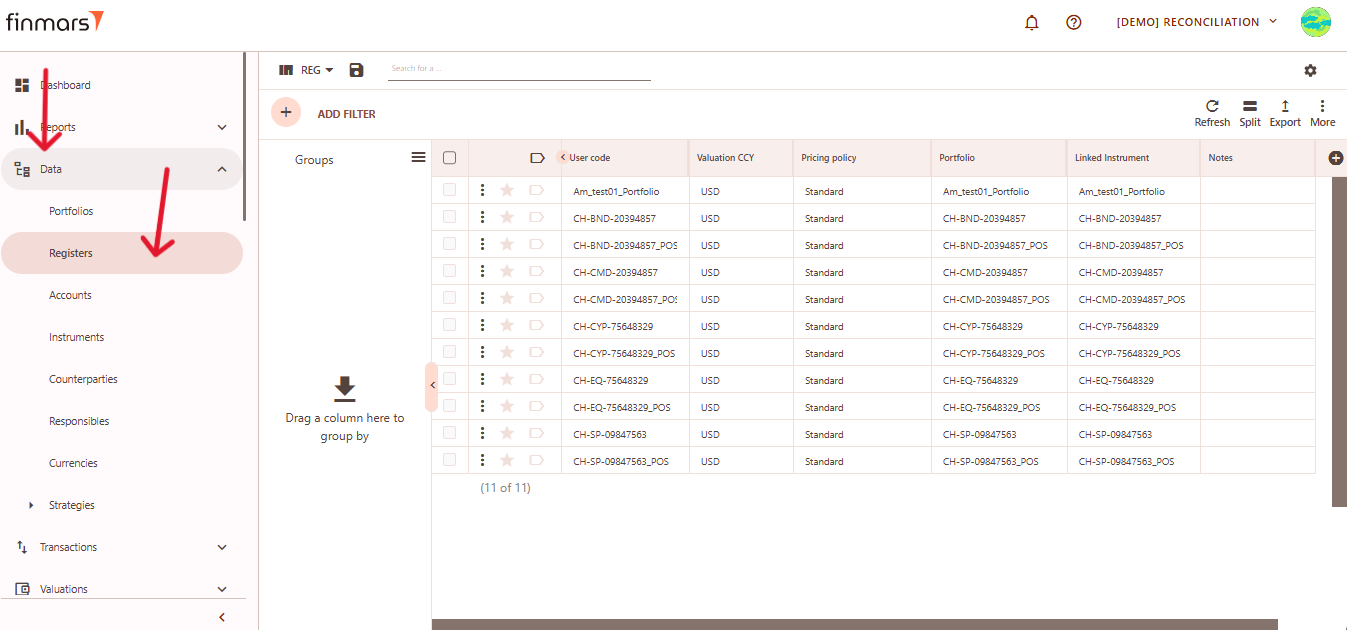
1. Open the ****“Data”**** section in the left-hand side menu. Select the ****“Registers”**** entity from the list under ****Data****.
[](https://docs.finmars.com/uploads/images/gallery/2025-05/scaled-1680-/snimok-ekrana-2025-05-06-034551.png)
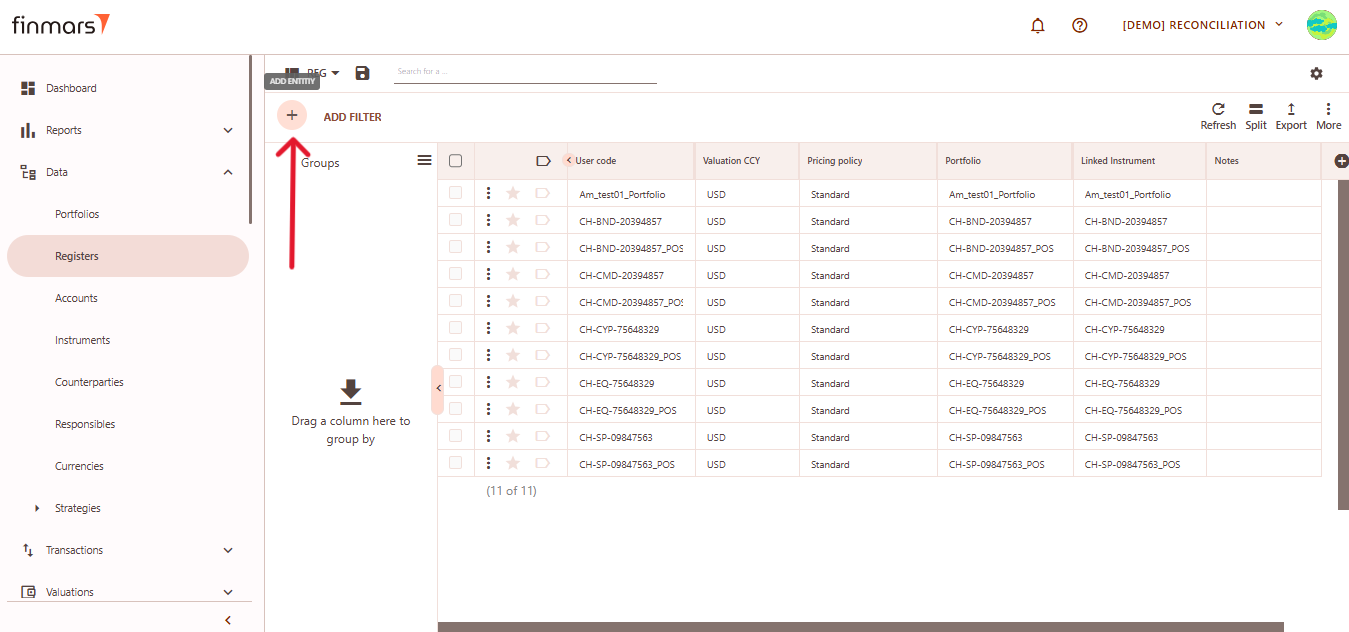
2. ****Click the “+ Add” button**** located in the top-left corner of the portfolio list view.
[](https://docs.finmars.com/uploads/images/gallery/2025-05/scaled-1680-/snimok-ekrana-2025-05-06-034558.png)
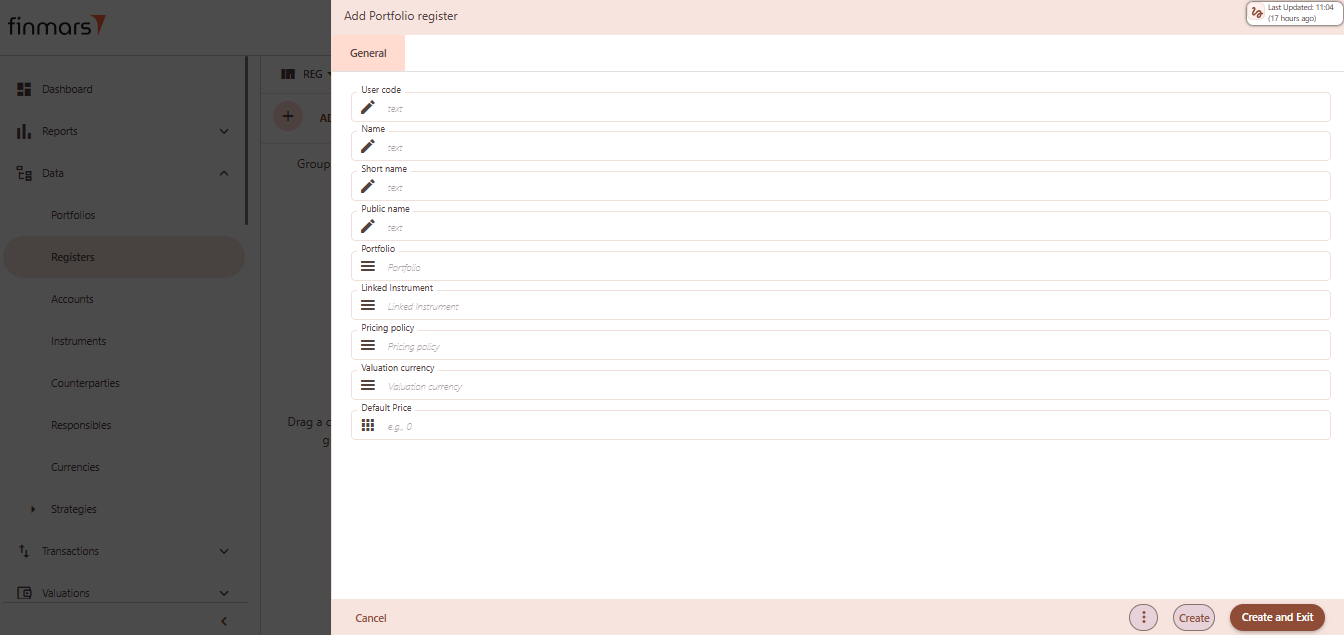
3. This action opens the ****Add**** ****Portfolio register**** form.
[](https://docs.finmars.com/uploads/images/gallery/2025-05/scaled-1680-/snimok-ekrana-2025-05-06-034612.png)
4. ****Fill in the required fields in the creation panel:****
1. ****User code**** – unique identifier for the register record. Often reflects the instrument or portfolio logic (e.g., `CH-XYZ-Portfolio_POS`).
2. ****Name**** – descriptive name of the register, used in views and reports.
3. ****Short name**** – abbreviated version of the name, useful in condensed views or exports.
4. ****Public name**** – optional field for external-facing labels, if different from internal naming.
5. ****Portfolio**** – select the portfolio to which this register belongs. This links the register to a specific investment structure.
6. ****Linked Instrument –**** associate a financial instrument (e.g., bond, equity) to track valuation and performance.****Pricing Policy**** – define how prices and FX rates will be sourced for this register (e.g., Standard, Rolled Master).
7. ****Valuation Currency –**** the currency in which the register will be valued. Used in NAV calculations and reporting.
8. ****Default Price –**** optional value to preload a fallback price when no market price is available.
[](https://docs.finmars.com/uploads/images/gallery/2025-05/scaled-1680-/kopiia.png)
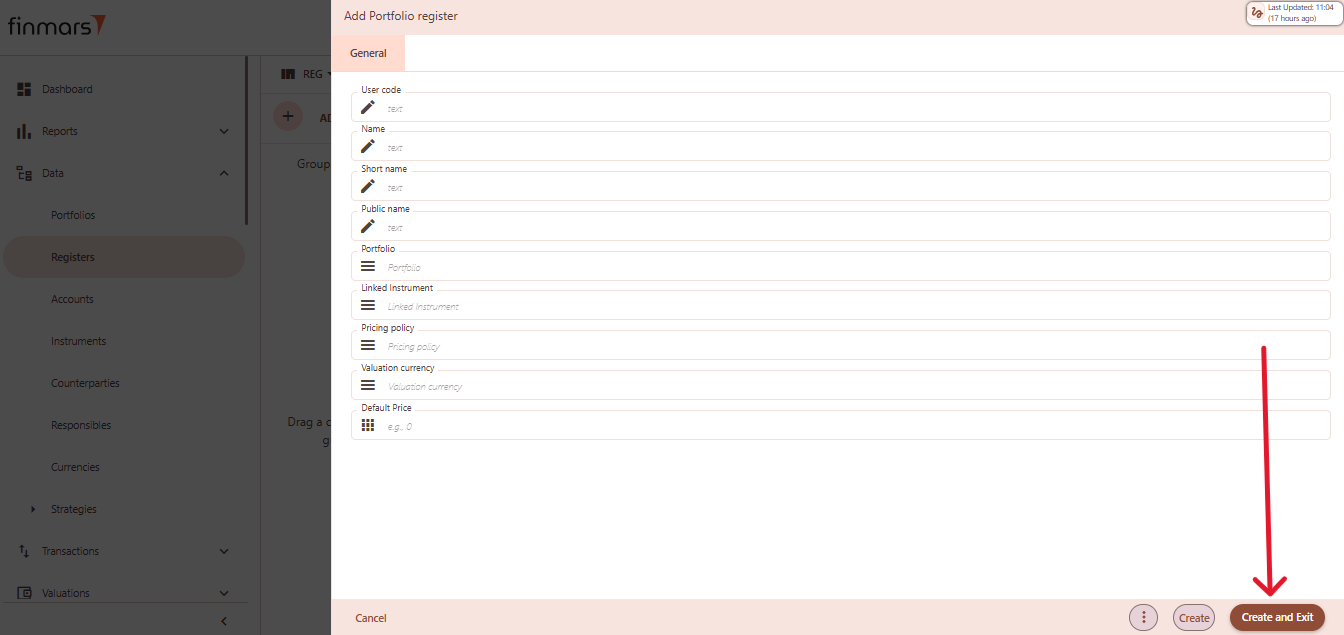
5. Click ****“Create and Exit”**** to save the portfolio and return to the list view. Alternatively, use ****“Create”**** to save and continue editing.