# Instrument
This entity is a unique ID for a financial asset or security involved in a transaction.
# Instrument
#### **Table of Contents**
- [Description](#bkmrk-description)
- [Examples](#bkmrk-examples)
- [Cookbook](#bkmrk-cookbook)
- [F.A.Q.](#bkmrk-api-documentation)
- [API Documentation](#bkmrk-api-documentation)
#### **Description**
##### *Financial meaning*
Financial instruments are contracts that represent a financial asset for one party and a financial liability or equity instrument for another. They are used in investing, hedging, and speculative strategies across global financial markets.
Instruments can be categorized into equity instruments (e.g., stocks), debt instruments (e.g., bonds), derivatives (e.g., options, swaps), and hybrid instruments.
##### *Platform abstraction*
In the **Finmars** platform, the Instrument entity represents the complete set of [financial instruments](https://docs.finmars.com/books/entities/page/instrument "Instrument") under management. It serves as a central component for accounting, valuation, performance measurement, risk analysis, reconciliation, and reporting.
**Instruments are used in:**
- Identifying and tracking specific financial assets or securities involved in [transactions](https://docs.finmars.com/books/entities/page/transactions "Transactions")
- Linking related [transactions ](https://docs.finmars.com/books/entities/page/transactions "Transactions")where instruments and cash considerations are connected (via linked instruments)
- Ensuring accurate valuation and processing of asset movements
- Supporting [reconciliation ](https://docs.finmars.com/books/reports/chapter/reconciliation "Reconciliation")and [reporting ](https://docs.finmars.com/books/reports "Reports")of financial positions across [portfolios ](https://docs.finmars.com/books/entities/page/portfolio "Portfolio")and [accounts](https://docs.finmars.com/books/entities/page/accounts "Accounts")
#### **Examples**
**First part of table**
| **User code** | **Modified at** | **Asset type** | **Country** | **PRC CCY** | **ACCR CCY** | **Short name** | **Name** |
| CH-BND-20394856 | 2025-02-10 | Other | Colombia | USD | USD | CH-BND-20394856 | Ms\_XX:20394856 |
**Second part of table**
| **Public name** | **MAT DT** | **MAT PRC** | **PRC MULT** | **ACCR MULT** | **INSTR TYPE** | **PMT SZ DTL** | **Notes** |
| 20394856 | 9999-12-31 | 0.00 | 1.00 | 1.00 | Portfolio | Default |
|
1. `User code`: unique identifier assigned to the instrument. Used for internal reference and tracking.
2. `Modified at`: date and time of the last modification to the instrument data.
3. `Asset type`: classification of the instrument (e.g., Bond, Derivative, Real Estate). Determines behavior and processing rules in the system.
4. `Country`: country of issuance or jurisdiction of the instrument's issuer. Important for regulatory and risk assessment purposes.
5. `PRC CCY (Pricing Currency)`: the currency in which the instrument is quoted or priced. Used for valuation and financial reporting.
6. `ACCR CCY (Accrual Currency)`: the currency used to calculate interest or accruals. May differ from pricing currency.
7. `Short name`: abbreviated or condensed label for quick reference.
8. `Name`: full name of the instrument, typically including issuer, coupon/yield, and maturity details.
9. `Public name`: market-facing or external name of the instrument, often matching how it appears on exchanges or public reports.
10. `MAT DT (Maturity Date)`: the date on which the instrument matures or principal is repaid. Key for fixed-income instruments.
11. `MAT PRC (Maturity Price)`: the expected or agreed price of the instrument at maturity.
12. `PRC MULT (Pricing Multiplier)`: factor applied to scale the market price to nominal or unit-based values (e.g., per 100 or per 1,000 units).
13. `ACCR MULT (Accrual Multiplier)`: factor used to adjust accrual amounts. Helps handle non-standard periods or calculation rules.
14. `INSTR TYPE (Instrument Type)`: instrument type code (e.g., BOND, STOCK, PORTFOLIO). Used for classification, logic, and filtering.
15. `PMT SZ DTL (Payment Size Detail)`: specifies the payment structure (e.g., default). Supports payment schedule modeling.
16. `Notes`: free-text field for comments or special handling notes related to the instrument.
#### **Cookbook**
##### *CRUD*
**Create:** [How to Create a Instrument entity](https://docs.finmars.com/books/entities/page/how-to-create-an-instrument-entity "How to Create a Instrument entity")
##### *Use Cases*
What for it's used.
#### **F.A.Q.**
Frequently asked questions.
#### **API documentation**
Link to API documentation.
# How to Create an Instrument entity
## Prerequisites
We assume you have all prerequisites you may need, including:
1. If needed: the VPN is configured to access the Finmars resources
2. If needed: access to the Virtual Machine to work with the sensitive information
3. Must have: registered in Finmars in the needed region environment (self-registered or registered by Finmars)
4. Must have: having permissions set to allow continue with the Action in the Guide
## Creation of Register Entity
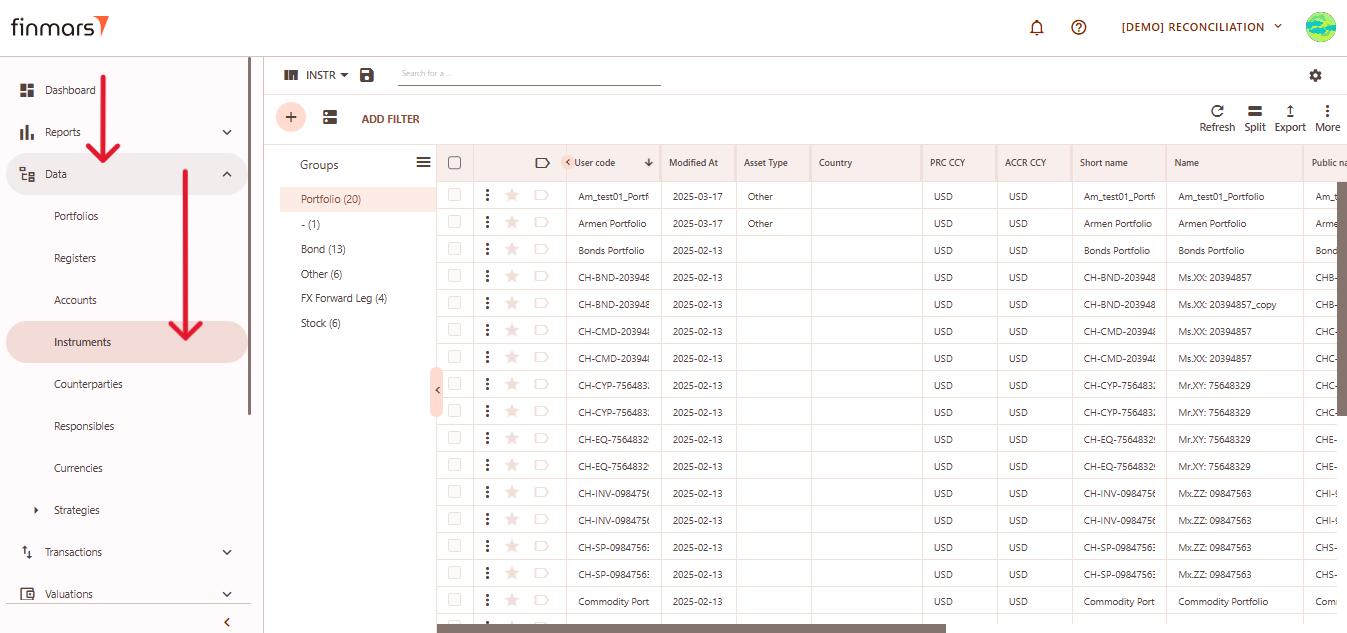
1. Open the ****“Data”**** section in the left-hand side menu. Select the ****“Instruments”**** entity from the list under ****Data****.
[](https://docs.finmars.com/uploads/images/gallery/2025-05/scaled-1680-/snimok-ekrana-2025-05-07-051134.png)
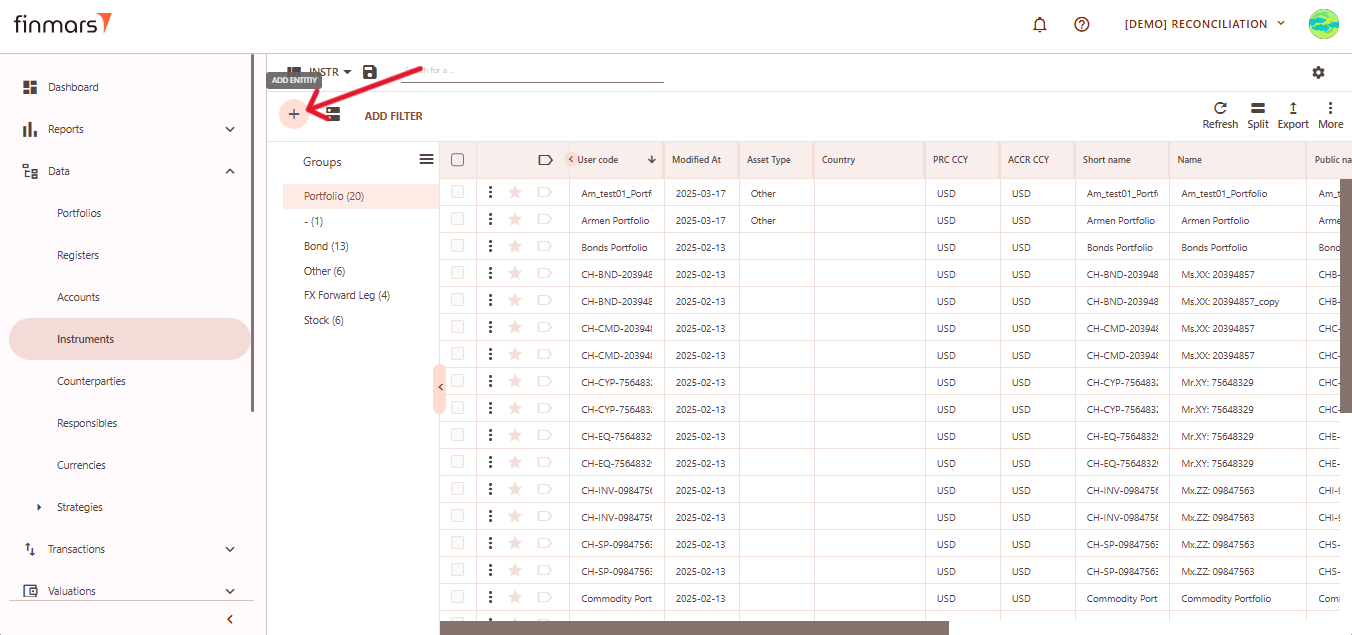
2. ****Click the “+ Add” button**** located in the top-left corner of the portfolio list view. A dropdown menu will appear offering four methods to add a new instrument:
1. ****Add Blank**** – manual entry with a fully blank template.
2. ****Add Typical**** – pre-filled template with commonly used default values.
3. ****Import from File**** – bulk import instruments using a file.
4. ****Get from Provider**** – retrieve instrument data from a market data provider.
[](https://docs.finmars.com/uploads/images/gallery/2025-05/scaled-1680-/snimok-ekrana-2025-05-07-051324.png)
##### Option 1: Add Blank
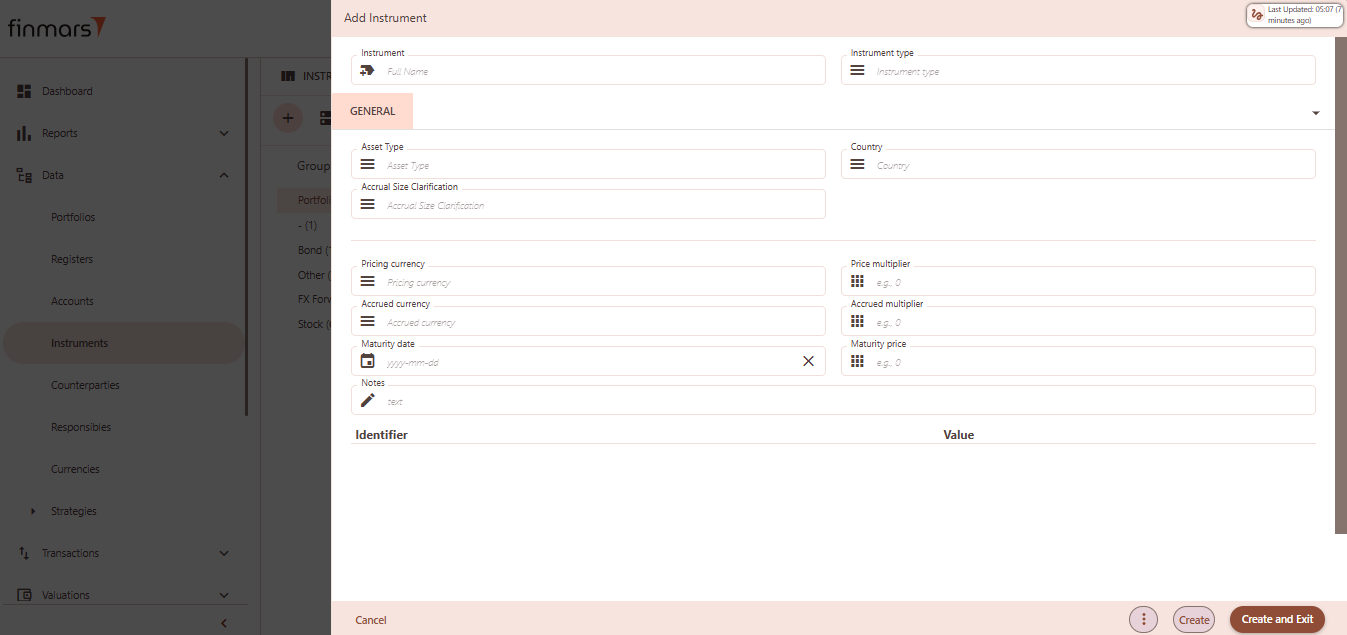
This opens a completely blank form where you can manually input all instrument details.
[](https://docs.finmars.com/uploads/images/gallery/2025-05/yC7image.png)
Fill out the following fields as needed:
1. ****Instrument**** – full name or unique identifier (required).
2. ****Instrument type**** – defines the kind of instrument (e.g., Bond, Stock, FX Forward, etc.).
3. ****Asset Type**** – specifies the financial asset classification (e.g., Equity, Fixed Income).
4. ****Country**** – country of issuance of the instrument.
5. ****Accrual Size Clarification**** – optional explanation or note for accrual calculation basis.
6. ****Pricing currency**** – the currency in which the instrument's market price is quoted.
7. ****Accrued currency**** – the currency in which interest or other accruals are calculated and reported.
8. ****Price multiplier**** – multiplier applied to the quoted price to calculate notional or total value (e.g., 100 if price is per 100 units).
9. ****Accrued multiplier**** – multiplier used to adjust the accrual value, typically to scale interest or dividend values appropriately.
10. ****Maturity date**** – the date when the instrument is due to mature and be settled (e.g., for bonds or term deposits).
11. ****Maturity price**** – the expected price or value at maturity, often used in valuation or final settlement (if applicable).
12. ****Notes**** – any relevant internal comments or additional metadata for this instrument.
13. ****Identifiers**** – optional key-value fields such as ISIN, CUSIP, internal codes, etc., used to uniquely identify the instrument.
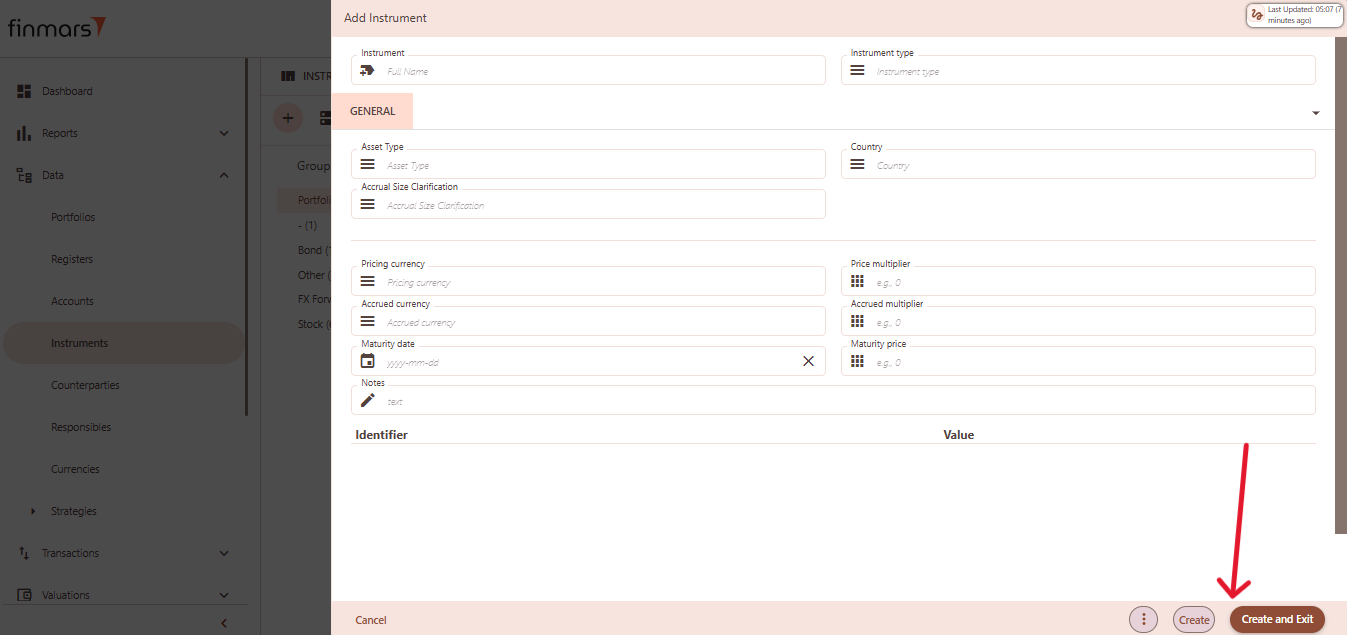
Click ****“Create and Exit”**** to save and return to the list, or ****“Create”**** to save and continue editing.
[](https://docs.finmars.com/uploads/images/gallery/2025-05/scaled-1680-/snimok-ekrana-2025-05-07-051440.png)
## Option 2: Add Typical
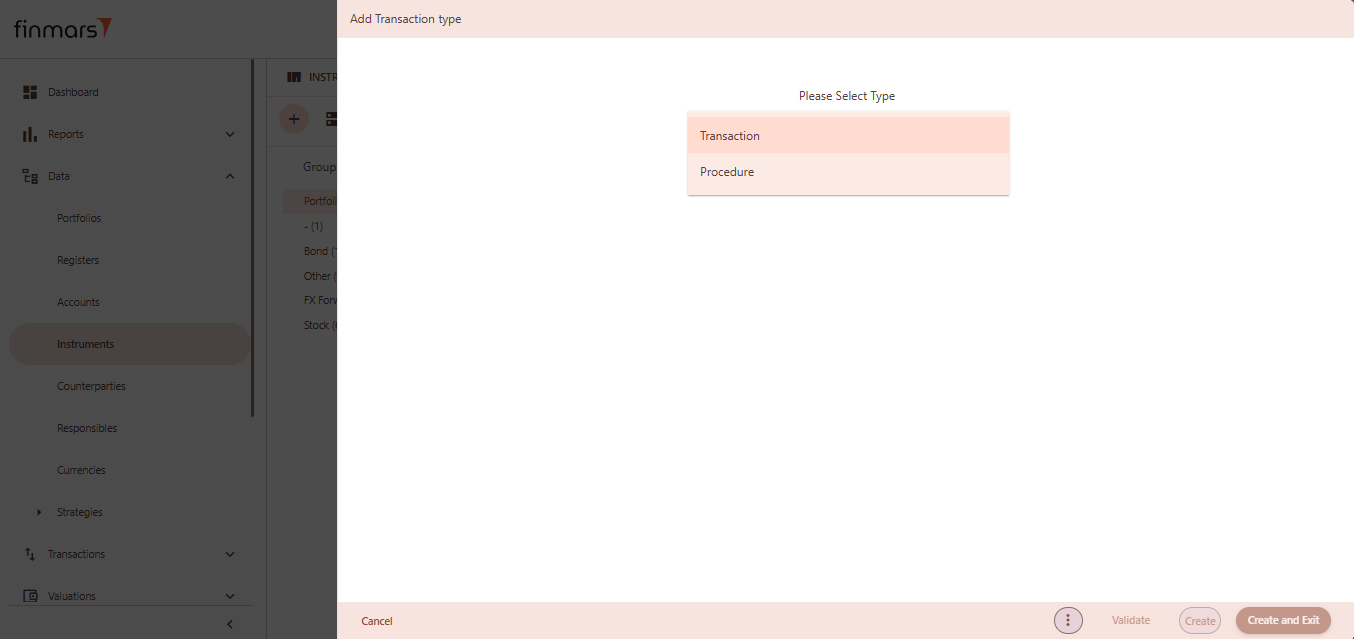
This will load a pre-filled template with default values for typical instruments, which can be modified as needed. Use this option to speed up creation when working with commonly used instruments.
[](https://docs.finmars.com/uploads/images/gallery/2025-05/oTGimage.png)
Click ****“Create and Exit”**** to save and return to the list, or ****“Create”**** to save and continue editing.
## Option 3: Import from File
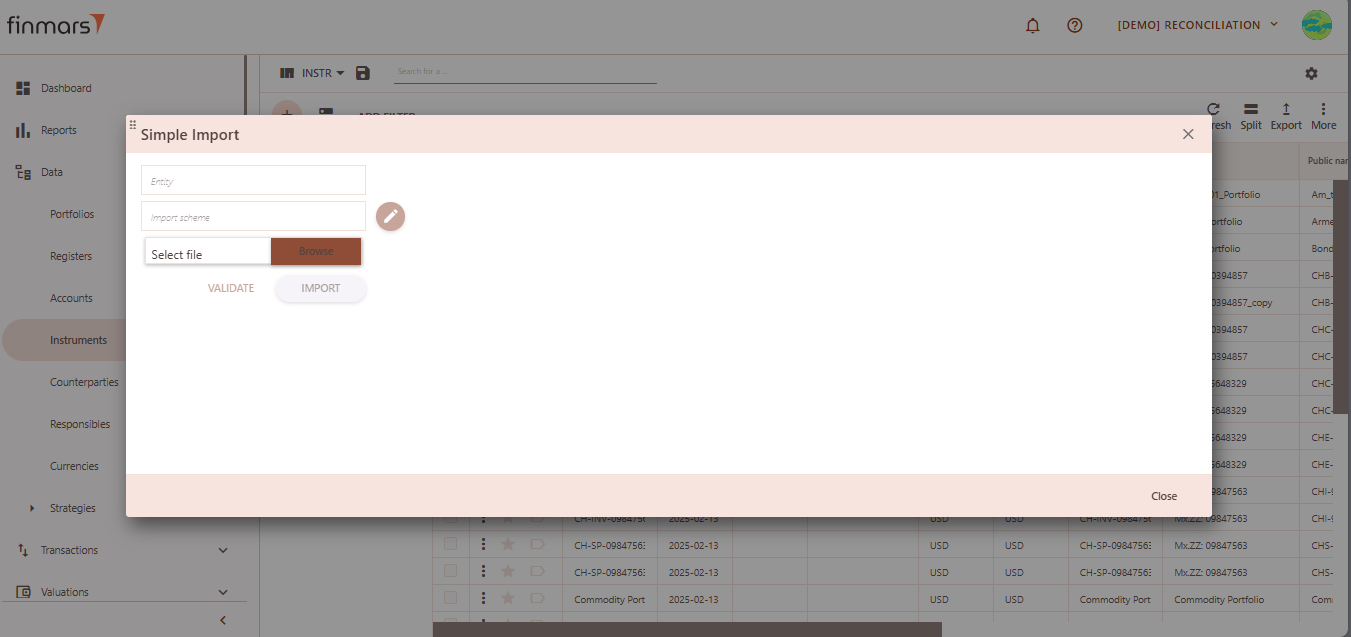
Use this option to import multiple instruments into the system from a prepared file (e.g., Excel or CSV).
1. ****Name**** – provide a name for the import process).
2. ****Import Scheme**** – select the appropriate scheme that matches the structure of your file. This determines how the system interprets and maps the data.
3. ****Browse**** – click this button to choose a file from your computer. Supported formats depend on the selected import scheme (e.g., .xlsx, .csv).
[](https://docs.finmars.com/uploads/images/gallery/2025-05/Yrnimage.png)
After selecting the file, click ****“Validate”**** to check the file for errors and confirm it matches the selected scheme. If the validation is successful, click ****“Import”**** to load the instruments into the database.
## Option 4: Get from Provider
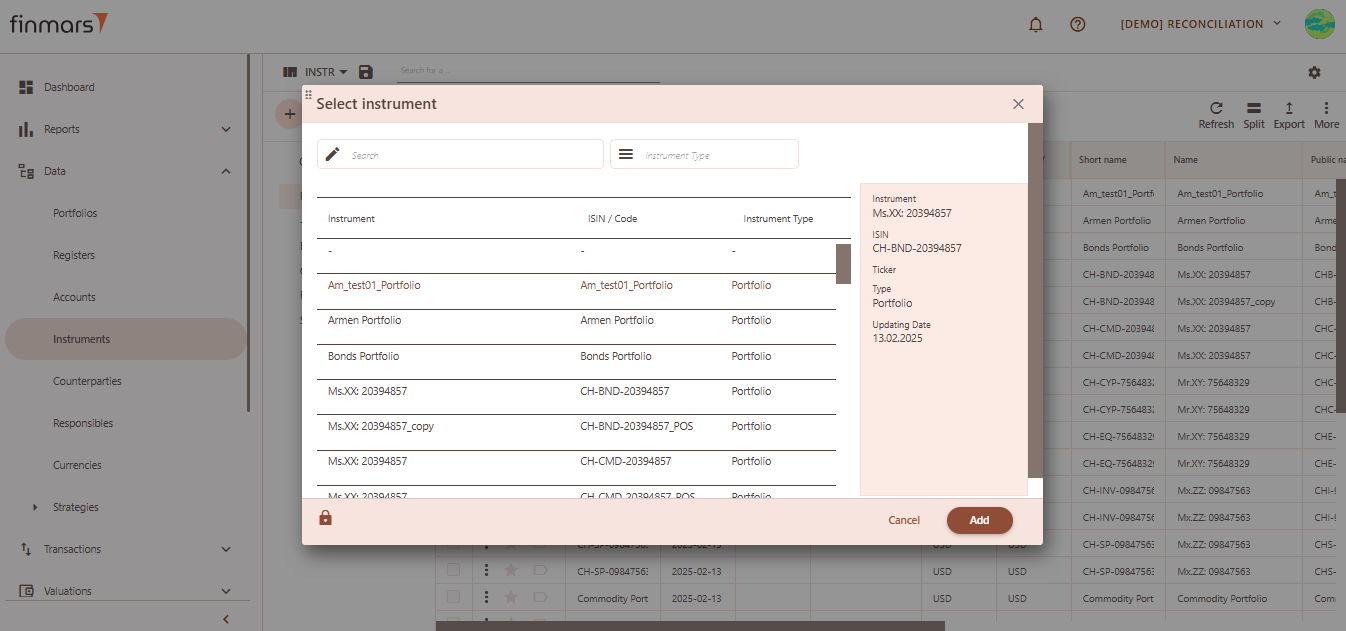
Automatically pull instrument data from a connected market data provider.
[](https://docs.finmars.com/uploads/images/gallery/2025-05/7gTimage.png)
After selecting the desired instrument, click the ****“Add”**** button to load it into the system.