# Bundle
Group of related portfolios or registers for analysis
# Portfolio Bundle
#### **Table of Contents**
- [Description](#bkmrk-description)
- [Examples](#bkmrk-examples)
- [Cookbook](#bkmrk-cookbook)
- [F.A.Q.](#bkmrk-api-documentation)
- [API Documentation](#bkmrk-api-documentation)
#### **Description**
##### *Financial meaning*
A **portfolio bundle** is a logical grouping of multiple portfolios that are managed, monitored, or processed together. It allows combining different portfolios under a single structure for operational efficiency, consolidated reporting, or grouped reconciliation.
##### *Platform abstraction*
In the Finmars platform, a **Portfolio Bundle** serves as an entity that links several [portfolios](https://docs.finmars.com/books/entities/page/portfolio "Portfolio") into a single operational unit.
**Portfolio Bundles are used in:**
- Grouping multiple [portfolios ](https://docs.finmars.com/books/entities/page/portfolio "Portfolio")together to allow consolidated views for valuation, [reporting](https://docs.finmars.com/books/reports "Reports"), and performance analysis.
- Enabling aggregated [reconciliation ](https://docs.finmars.com/books/reports/chapter/reconciliation "Reconciliation")workflows by combining cash and position data across bundled portfolios.
- Allowing batch operations and monitoring across multiple [portfolios ](https://docs.finmars.com/books/entities/page/portfolio "Portfolio")in operational workflows.
#### **Examples**
| **Name** | **Unique Code** | **Notes** |
| CH-BND-20394857 | CH-BND-20394857 |
|
- `Name`: Display name of the portfolio or bundle, used for identification in the interface.
- `Unique Code`: System-generated unique identifier for the portfolio or bundle, used for internal references and linking.
- `Notes`: Additional comments or descriptions to provide operational or contextual information.
#### **Cookbook**
##### *CRUD*
Operations within platform.
##### *Use Cases*
What for it's used.
#### **F.A.Q.**
Frequently asked questions.
#### **API documentation**
Link to API documentation.
# How to Create a Portfolio Bundle Entity
## Prerequisites
We assume you have all prerequisites you may need, including:
1. If needed: the VPN is configured to access the Finmars resources
2. If needed: access to the Virtual Machine to work with the sensitive information
3. Must have: registered in Finmars in the needed region environment (self-registered or registered by Finmars)
4. Must have: having permissions set to allow continue with the Action in the Guide
[](https://docs.finmars.com/books/entities/page/how-to-create-a-counterparty-entity/edit?content-id=bkmrk-creation-of-counterp&content-text=Creation%20of%20Counterparty%20Entity "Jump to section in editor")
## Creation of Counterparty Entity
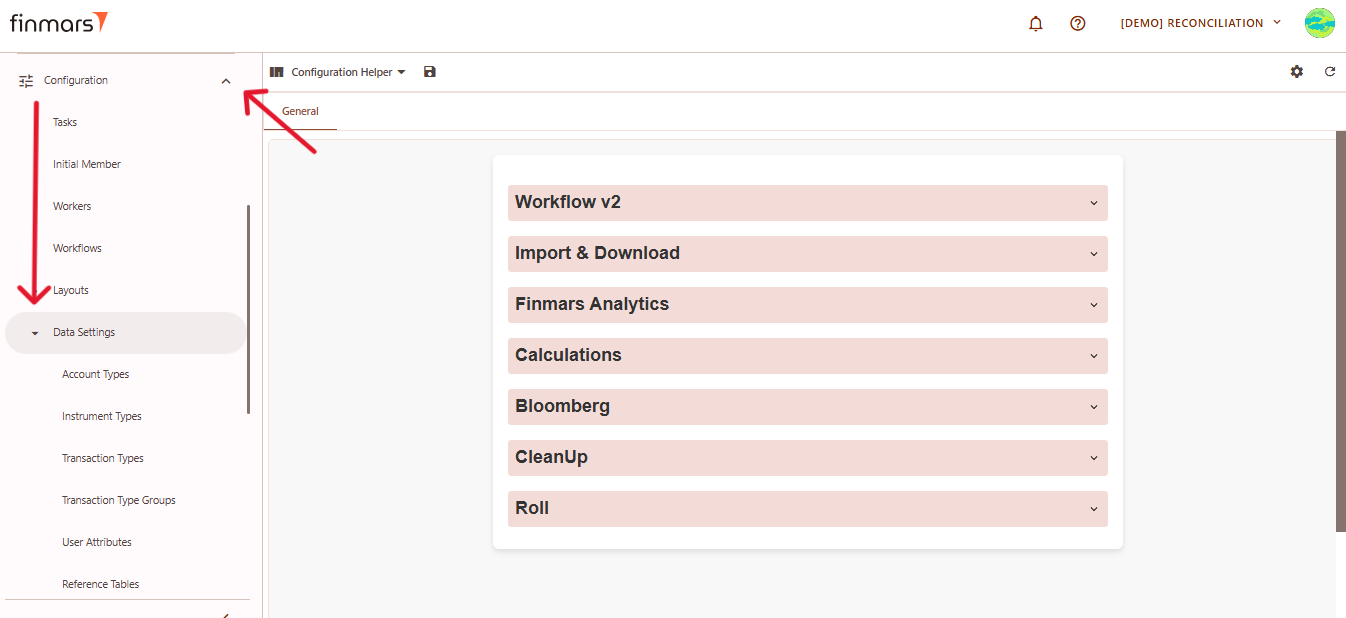
1. Navigate to the ****“Configuration”**** section from the left-side menu. Under Configuration, select the ****“Data Settings”**** subsection.
[](https://docs.finmars.com/uploads/images/gallery/2025-05/scaled-1680-/snimok-ekrana-2025-05-08-044057.png)
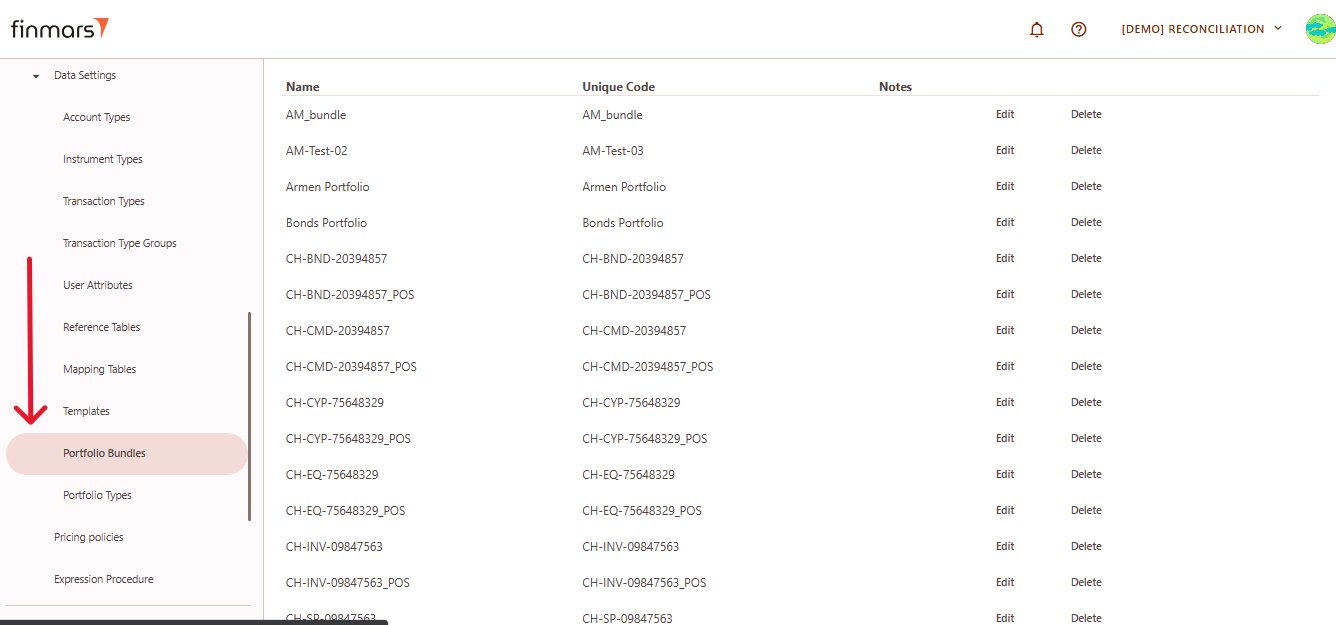
2. In the list of available options, click on ****“Portfolio Bundle.”****
[](https://docs.finmars.com/uploads/images/gallery/2025-05/scaled-1680-/snimok-ekrana-2025-05-08-044158.png)
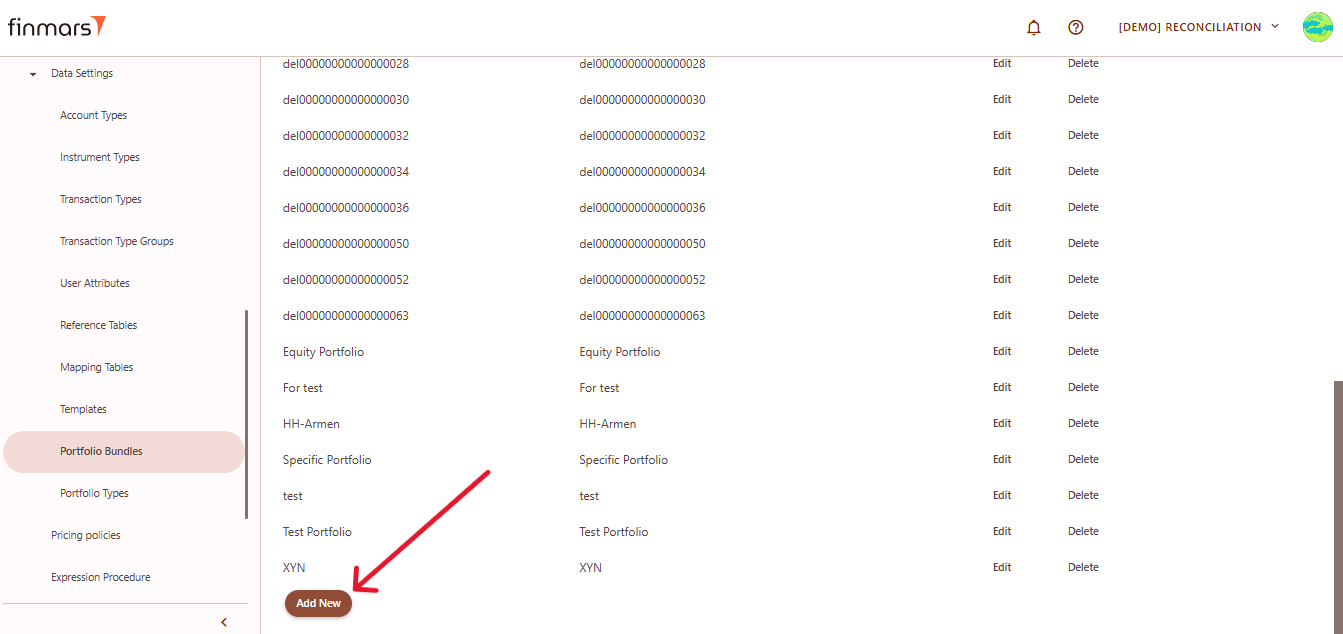
3. You will see a list of existing bundles. Scroll down to the bottom of the page and click the ****“Add New”**** button.
[](https://docs.finmars.com/uploads/images/gallery/2025-05/scaled-1680-/snimok-ekrana-2025-05-08-044235.png)
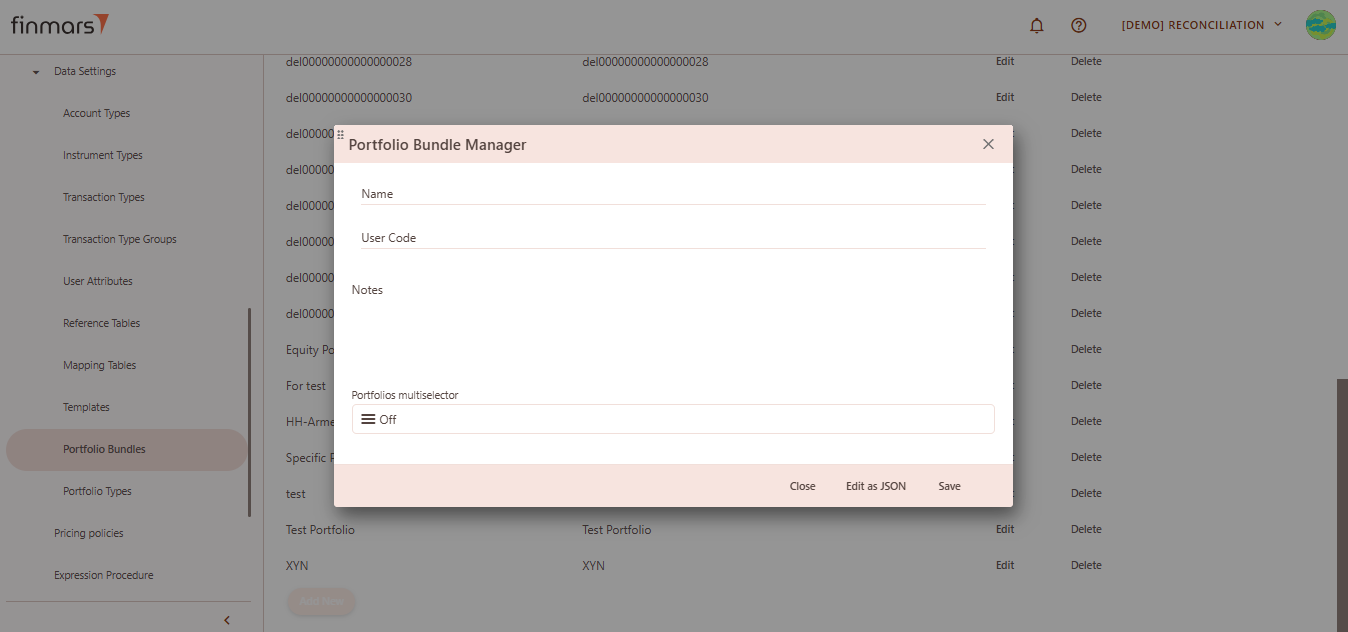
4. This opens the Portfolio Bundle creation page.
[](https://docs.finmars.com/uploads/images/gallery/2025-05/scaled-1680-/snimok-ekrana-2025-05-08-044343.png)
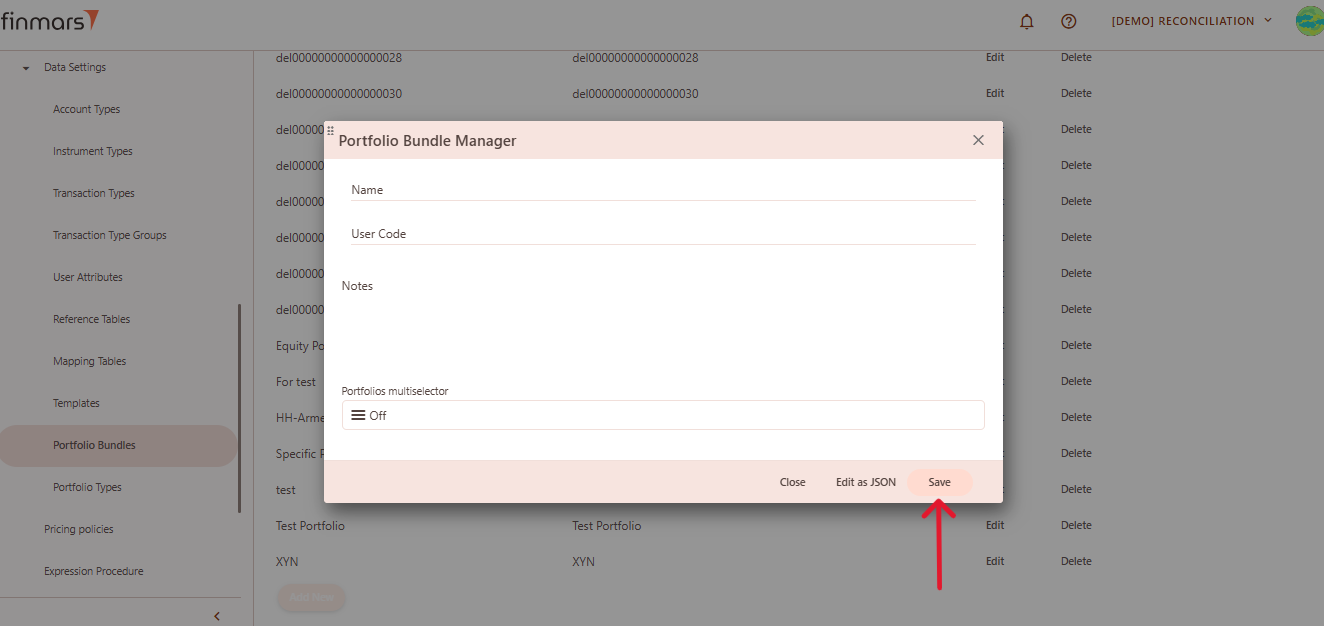
5. Fill in the following fields:
1. ****Name**** – provide a name for the new bundle.
2. ****User Code**** – enter a unique identifier or code for internal reference.
3. ****Notes**** – optional field for internal comments or description.
4. ****Portfolios Multiselector**** – use the multiselector to choose one or more portfolios to include in the bundle.
6. Once all required information is entered, save the bundle using "****Save****" button.
[](https://docs.finmars.com/uploads/images/gallery/2025-05/scaled-1680-/snimok-ekrana-2025-05-08-044351.png)