# Accounts
It's a financial entity used to track and manage transactions, balances, and holdings.
# Accounts
#### **Table of Contents**
- [Description](#bkmrk-description)
- [Examples](#bkmrk-examples)
- [Cookbook](#bkmrk-cookbook)
- [F.A.Q.](#bkmrk-api-documentation)
- [API Documentation](#bkmrk-api-documentation)
#### **Description**
##### *Financial meaning*
Accounts represent storage locations for financial assets or cash. They define where securities, cash, or other financial holdings are kept, ensuring legal ownership, custody, and safekeeping.
##### *Platform abstraction*
An Account in the Finmars platform defines a place where assets or cash are held. It carries properties like type, name, and purpose (e.g., depository, provisional account).
Accounts are essential for linking transactions, managing cash, tracking positions, and generating reports.
**Accounts are used in:**
- Connecting holdings to the correct location (e.g. [portfolio ](https://docs.finmars.com/books/entities/page/portfolio "Portfolio")or [counterparty](https://docs.finmars.com/books/entities/page/counterparty "Counterparty"))
- Managing and tracking cash and asset transfers
- Verifying asset values across different accounts
- Supporting regulatory and internal financial [reporting](https://docs.finmars.com/books/reports "Reports")
#### **Examples**
**User Code**
**Type**
**Short Name**
**Name**
**Public Name**
**Notes**
129900RGLDPQ3DT2T5H1
Default Account Type
SCVA
Securities Vault Alpha
SECALPHAZZXXX
Depository for Securities
- `User code`: a unique identifier of the account within the system.
- `Type`: classification of the account (e.g., default, provisional, etc.).
- `Short name`: a brief label for quick reference of the account.
- `Name`: the full name of the account for user clarity.
- `Public name`: the name displayed externally or used in reporting.
- `Notes`: additional information about the purpose or specifics of the account.
#### **Cookbook**
##### *CRUD*
- **Create: [How to Create an Account Entity](https://docs.finmars.com/books/entities/page/how-to-create-an-account-entity "How to Create an Account Entity")**
- **Read:** All accounts are listed in the Accounts management page. This list provides quick access to key fields such as name, type, and status. Users can filter, group, or search to locate specific accounts and review their configuration.
- **Update:** To edit a account, users can click on an existing entry to open the edit form. All field – except those constrained by platform rules – can be modified, including the full name, type, status or optional notes.
- **Delete:** Accounts can be deleted directly from the management page.
##### *Use Cases*
- Use the **Type** field to distinguish accounts based on purpose—such as a provisional holding account for pending transactions or a default account for general asset storage.
- Multiple name fields (Full Name, Short Name, Public Name) ensure that the same account can be clearly identified internally while presenting a different label in client-facing or compliance reports.
- Transactions are booked to accounts to reflect real-world movements of cash or securities, ensuring accurate position and cash flow tracking.
#### **F.A.Q.**
Frequently asked questions.
#### **API documentation**
Link to API documentation.
# How to Create an Account Entity
## Prerequisites
We assume you have all prerequisites you may need, including:
1. If needed: the VPN is configured to access the Finmars resources
2. If needed: access to the Virtual Machine to work with the sensitive information
3. Must have: registered in Finmars in the needed region environment (self-registered or registered by Finmars)
4. Must have: having permissions set to allow continue with the Action in the Guide
## Creation of Account Entity
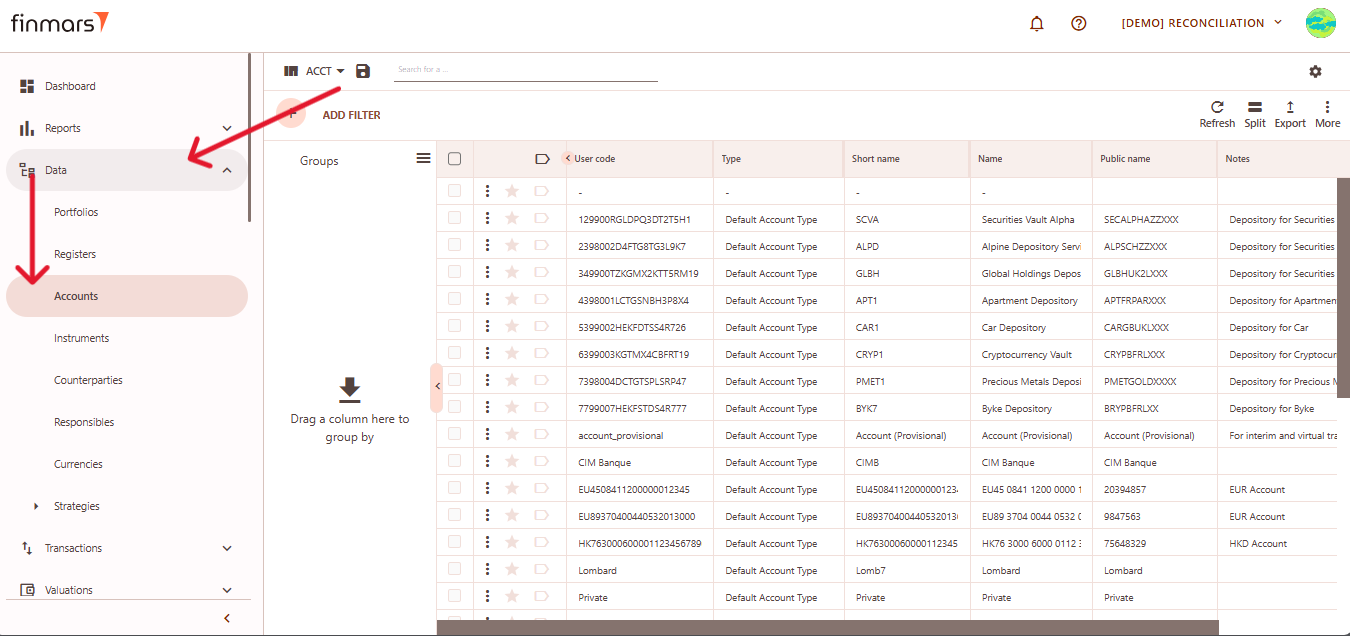
1. Open the ****“Data”**** section in the left-hand side menu. Select the ****“Accounts”**** entity from the list under ****Data****.
[](https://docs.finmars.com/uploads/images/gallery/2025-05/scaled-1680-/snimok-ekrana-2025-05-06-034052.png)
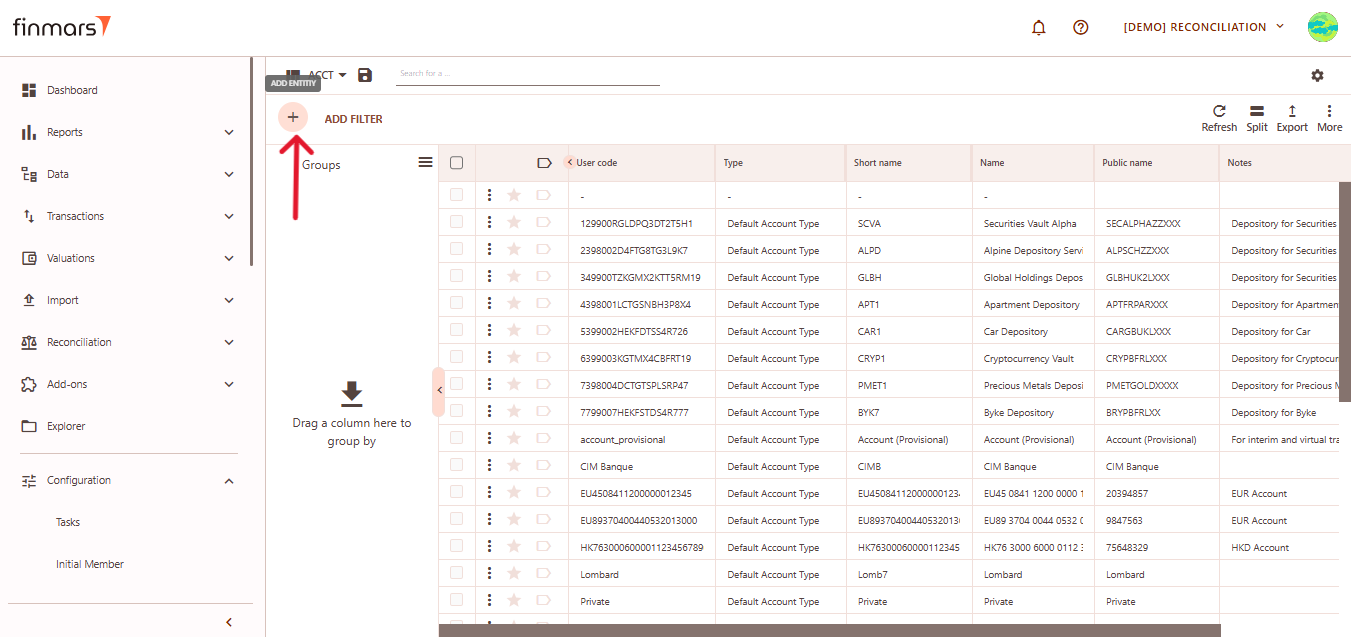
2. ****Click the “+ Add” button**** located in the top-left corner of the portfolio list view.
[](https://docs.finmars.com/uploads/images/gallery/2025-05/scaled-1680-/snimok-ekrana-2025-05-06-034133.png)
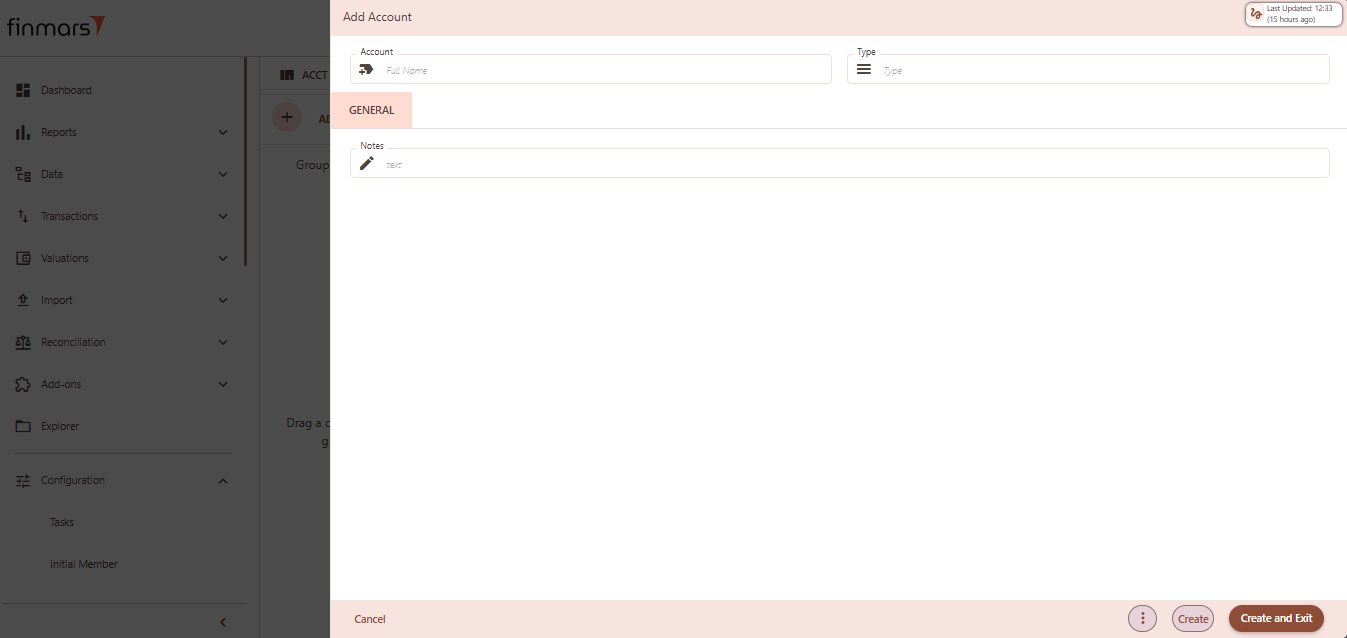
3. This action opens the ****Add********Account**** form.
[](https://docs.finmars.com/uploads/images/gallery/2025-05/scaled-1680-/snimok-ekrana-2025-05-06-034143.png)
4. ****Fill in the required fields in the creation panel:****
1. ****Account**** – full name of the account. This will serve as the primary identifier in the interface and reports.
2. ****Type**** – choose the account type from the dropdown (e.g., Default Account Type, FX Buy/Sell, Provision). This determines behavior in flows, reports, and reconciliations.
3. ****Notes******(optional) –** any internal comments or descriptions related to the account setup.Any internal comments or descriptions related to the account setup.
[](https://docs.finmars.com/uploads/images/gallery/2025-05/scaled-1680-/snimok-ekrana-2025-05-06-03414.png)
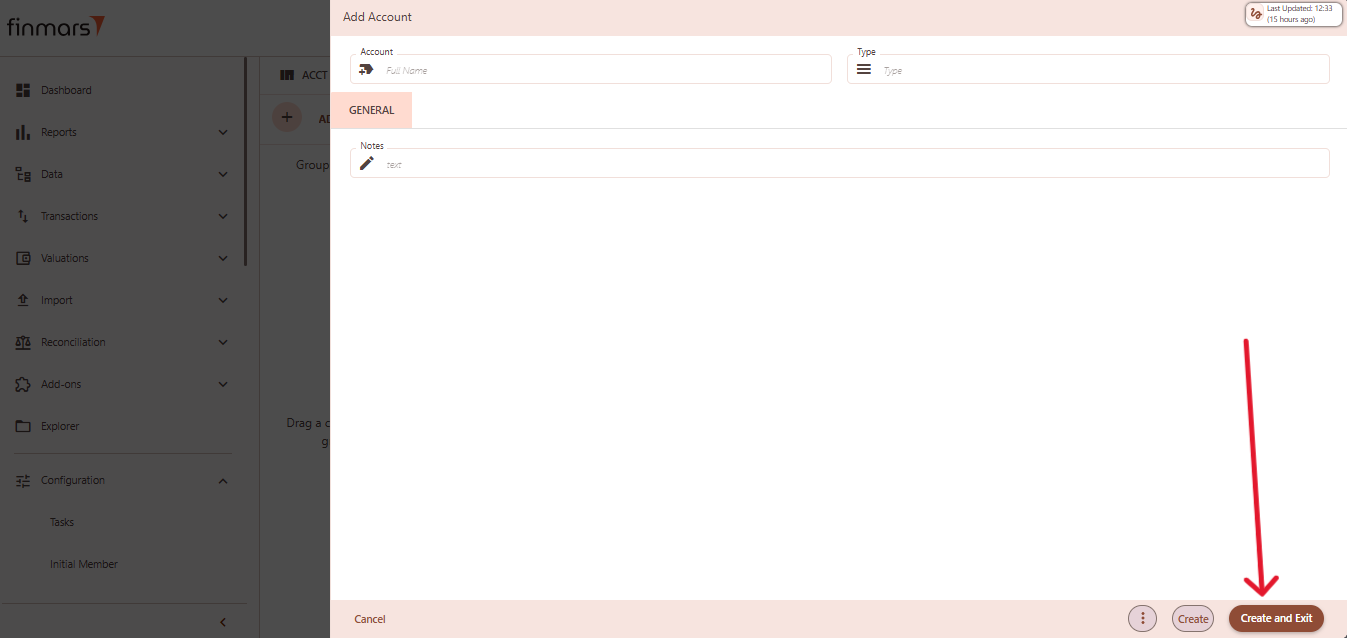
5. Click ****“Create and Exit”**** to save the portfolio and return to the list view. Alternatively, use ****“Create”**** to save and continue editing.